

Lock Down Your Server Without Breaking xCloud
Updated November 1, 2026 · 6 min read
You can lock an xCloud server down tightly, as long as three things stay open: SSH from xCloud’s IP addresses with key login for root, ports 80 and 443 for your sites, and those same allowances in every firewall layer between xCloud and the server. Everything else (your own SSH access, database ports, admin panels) you can restrict as far as you like.
This page lists what xCloud needs, which hardening setups work, and which ones cut xCloud off. If something is already broken, jump to If your server shows Disconnected.
What xCloud needs to reach your server
xCloud manages your server over SSH. Deploys, backups, monitoring, SSL, PHP changes and support access all run through that connection, so if it is blocked, the server shows Disconnected in your dashboard and those actions stop. Your sites keep serving visitors in the meantime, as long as ports 80 and 443 are open.
| What | Why xCloud needs it | Where it can be blocked |
|---|---|---|
| Your SSH port (22 by default), open to every IP in app.xcloud.host/ips | xCloud connects to manage the server | Firewall Management (UFW), your provider’s cloud firewall, a hardware firewall, provider DDoS protection |
Key login for root, with xCloud’s key in place |
xCloud signs in as root with its own SSH key | /etc/ssh/sshd_config, /root/.ssh/authorized_keys |
| Ports 80 and 443, open to visitors | Your sites, and SSL certificate checks on port 80 | Firewall Management, your provider’s firewall |
| No automatic bans of xCloud’s IPs | xCloud connects often for monitoring and health checks | Fail2Ban jails you add yourself, CrowdSec, provider DDoS or abuse systems |
The IP list. https://app.xcloud.host/ips is public and always current. It returns one IP address per line; add ?json to the address for a JSON list. Allow every address in it, not just the first one.
Root key login. xCloud sets PermitRootLogin prohibit-password and PasswordAuthentication no when it prepares a server. That already blocks password logins, so there is nothing to tighten here. Do not change it to PermitRootLogin no, and do not delete the key under the # xCloud line in /root/.ssh/authorized_keys.
Fail2Ban. The Fail2Ban that xCloud installs already skips xCloud’s IP addresses. If you add your own ban tool, add the IPs from the list to its ignore list too.
What works
These setups keep your server hardened and still managed by xCloud.
SSH Lockdown: SSH only from xCloud and IPs you trust
SSH Lockdown replaces the open SSH rule with one that only allows xCloud and the IPs you choose. It is the built-in way to close port 22 to the internet.
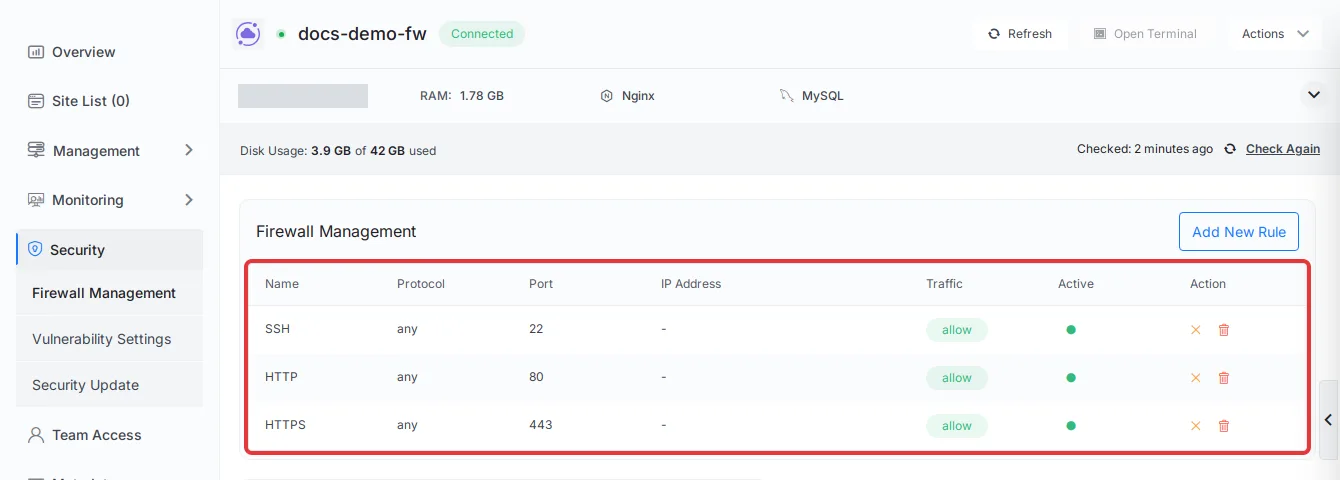
Open your server, then go to Security → Firewall Management. A new server has three rules: SSH on port 22, HTTP on port 80 and HTTPS on port 443, each open to every IP address.
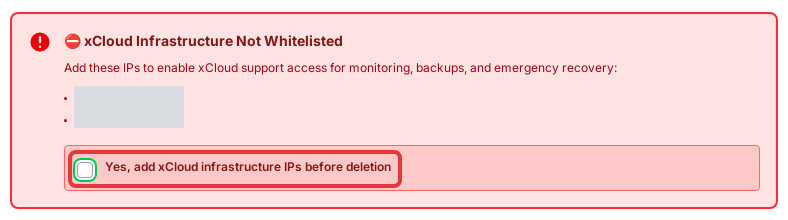
Click the delete icon on the SSH rule. The Firewall Rule Deletion Warning lists every xCloud IP that is not yet allowed. Tick Yes, add xCloud infrastructure IPs before deletion, so xCloud adds an xCloud Infrastructure rule on your SSH port before it removes the open rule.
Tick Yes, add my IP before deletion as well if you want to keep SSH access from where you are now. The full walkthrough is in How to Configure SSH Lockdown.
Changing the SSH port? Change it from xCloud, not by editing
sshd_configby hand, so the firewall rules move with it. See How to update the SSH port.
Your provider’s firewall, with xCloud’s IPs allowed
Cloud firewalls at your provider (Hetzner, Vultr, DigitalOcean, AWS security groups and others) sit in front of the server’s own firewall. Traffic they drop never reaches the server, so Firewall Management cannot fix it.
If you use one, allow:
- Your SSH port from every IP in app.xcloud.host/ips.
- Ports 80 and 443 from anywhere (or from Cloudflare only, see below).
When you add xCloud’s IPs to an existing rule set, add them as a new allow rule first. Check that the server stays Connected, then remove the old rule. Replacing a rule in one step can cut the connection in between.
Some providers also need xCloud allowed on their API, not just on the server. That only affects creating servers from xCloud; see Whitelisting xCloud at your server providers.
Cloudflare proxy with SSL mode Full (strict)
Putting your sites behind the Cloudflare proxy (the orange cloud) works with xCloud. When you connect your domain through xCloud’s Cloudflare integration and use a Cloudflare certificate, xCloud sets the zone’s SSL mode to Full (strict) for you. See Using xCloud with Cloudflare for DNS management.
Ports 80 and 443 must still be open on the server, because Cloudflare connects to it on those ports. If you choose to limit ports 80 and 443 to Cloudflare’s IP ranges, every site on that server must be proxied through Cloudflare, or it stops loading. That limit does not affect xCloud, which connects over SSH.
To see visitors’ real IPs in logs behind the proxy, follow Show visitor real IP behind Cloudflare proxy.
WireGuard or Tailscale for your own admin access
A VPN is a good way to keep extra ports private, such as a database port or an admin panel you added yourself. Open those ports only on the VPN interface and they never face the internet.
xCloud does not connect through your VPN. It reaches the server on its public IP, so SSH from xCloud’s IP addresses and ports 80 and 443 must stay open there. See Install WireGuard with xCloud for a WireGuard setup.
What breaks xCloud
Avoid these setups. Each one leaves the server Disconnected, takes your sites offline, or both.
| Setup | What happens |
|---|---|
| Cloudflare Tunnel as the only way in, with ports 80 and 443 closed | Cloudflare Tunnel is not part of xCloud’s site setup, which expects ports 80 and 443 to be open for normal site operation. With them closed, sites can show a Cloudflare 522 error. |
| An SSH allowlist that leaves out one or more xCloud IPs | xCloud cannot connect from the missing address, and the server shows Disconnected. |
| SSH reachable only through a VPN or a bastion host | xCloud cannot reach the SSH port on the public IP. |
PermitRootLogin no, or xCloud’s key removed from /root/.ssh/authorized_keys |
xCloud cannot sign in, even when the port is open. |
| A ban tool or provider DDoS protection that blocks xCloud’s IPs | The connection works, then stops when the ban kicks in. |
If your server shows Disconnected
If the server went Disconnected right after a security change, undo the change or allow xCloud’s IPs again.
- Check the server’s own firewall. If you can still SSH in, run
sudo ufw statusand look for an allow rule on your SSH port that covers every IP in app.xcloud.host/ips. - If you are locked out of SSH, open the web console in your provider’s dashboard and add the rule back from there.
- Check your provider’s firewall and any DDoS or abuse protection. If the provider blocked xCloud’s IPs on its side, ask its support to remove the block. Rebooting the server does not clear a block that sits at the provider.
- Click Check Again on the server page in xCloud. The server returns to Connected once xCloud can sign in.
For more causes and fixes, see Server disconnected: are my sites down, and what can I fix myself.
Frequently asked questions
Where do I find the list of xCloud IP addresses?
Open https://app.xcloud.host/ips. It lists every IP address xCloud connects to your servers from, one per line. Add ?json to the address to get the same list as JSON.
Can I close port 22 to everyone except my own IP?
Yes, as long as xCloud’s IP addresses stay allowed on your SSH port. Use SSH Lockdown in Security → Firewall Management and tick ‘Yes, add xCloud infrastructure IPs before deletion’ when you delete the open SSH rule.
Can I put my server behind Cloudflare Tunnel and close ports 80 and 443?
No. Cloudflare Tunnel is not part of xCloud’s site setup, and xCloud expects ports 80 and 443 to stay open for your sites and SSL certificates. Use the Cloudflare proxy with SSL mode Full (strict) instead.
Can I use Tailscale or WireGuard with an xCloud server?
Yes, for your own admin access, for example to reach a database port privately. xCloud does not connect through your VPN, so SSH from xCloud’s IP addresses and ports 80 and 443 must stay open on the server’s public IP.
If you run into any issues while locking down your server, feel free to reach out to our support team.