

Connect Your Laravel, Node.js or PHP App to PostgreSQL in xCloud
Updated October 31, 2026 · 7 min read
When you create a PHP App, Laravel or Node.js site with Database engine set to PostgreSQL, xCloud creates a database and a role for the site and writes the connection details to the site’s .env file. Your app only has to read those variables. This guide lists the variables, shows how Laravel, Node.js (pg and Prisma) and plain PHP (PDO) read them, and covers the errors people hit most.
If PostgreSQL is not on your server yet, first follow Install Managed PostgreSQL and pgAdmin in xCloud. That guide also shows how to pick PostgreSQL when you create a site.
Before you start
- Managed PostgreSQL shows Ready on an Nginx server. It runs PostgreSQL 17 in Docker (Docker Engine 28 or newer) and is not available on OpenLiteSpeed servers.
- A Git site that uses PostgreSQL. The site’s App Type is PHP App, Laravel or Node.js, and its Database engine was set to PostgreSQL when you created it.
The variables xCloud writes
xCloud adds these seven lines to the site’s .env file during the first deploy. It writes them last, so they replace any database values that came from your repository’s .env.example.
DB_CONNECTION='pgsql'
DB_HOST='127.0.0.1'
DB_PORT='<port>'
DB_DATABASE='xc_site_<site id>'
DB_USERNAME='xc_site_<site id>'
DB_PASSWORD='<generated password>'
DATABASE_URL='postgresql://xc_site_<site id>:<generated password>@127.0.0.1:<port>/xc_site_<site id>'| Variable | What it holds |
|---|---|
DB_CONNECTION |
Always pgsql, the name Laravel uses for its PostgreSQL driver |
DB_HOST |
Always 127.0.0.1. PostgreSQL only listens on the server itself and is not reachable from the internet |
DB_PORT |
The port xCloud chose for the server’s PostgreSQL. It is usually not 5432 |
DB_DATABASE and DB_USERNAME |
The site’s own database and role. Both are named xc_site_ plus the site’s ID |
DB_PASSWORD |
A generated 40-character password made of letters and numbers |
DATABASE_URL |
The same details as one connection string, for Node.js libraries and Prisma |
The site’s role owns its database. It cannot create other databases or roles. Use pgAdmin for that (see Add more databases and roles in pgAdmin).
Step 1: Find the variables in your site’s .env file
Laravel and Node.js sites: open the site and go to ‘Laravel’ → ‘Environment’ (or ‘Node.js’ → ‘Environment’). The editor shows the .env file with the DB_ lines and DATABASE_URL at the end.
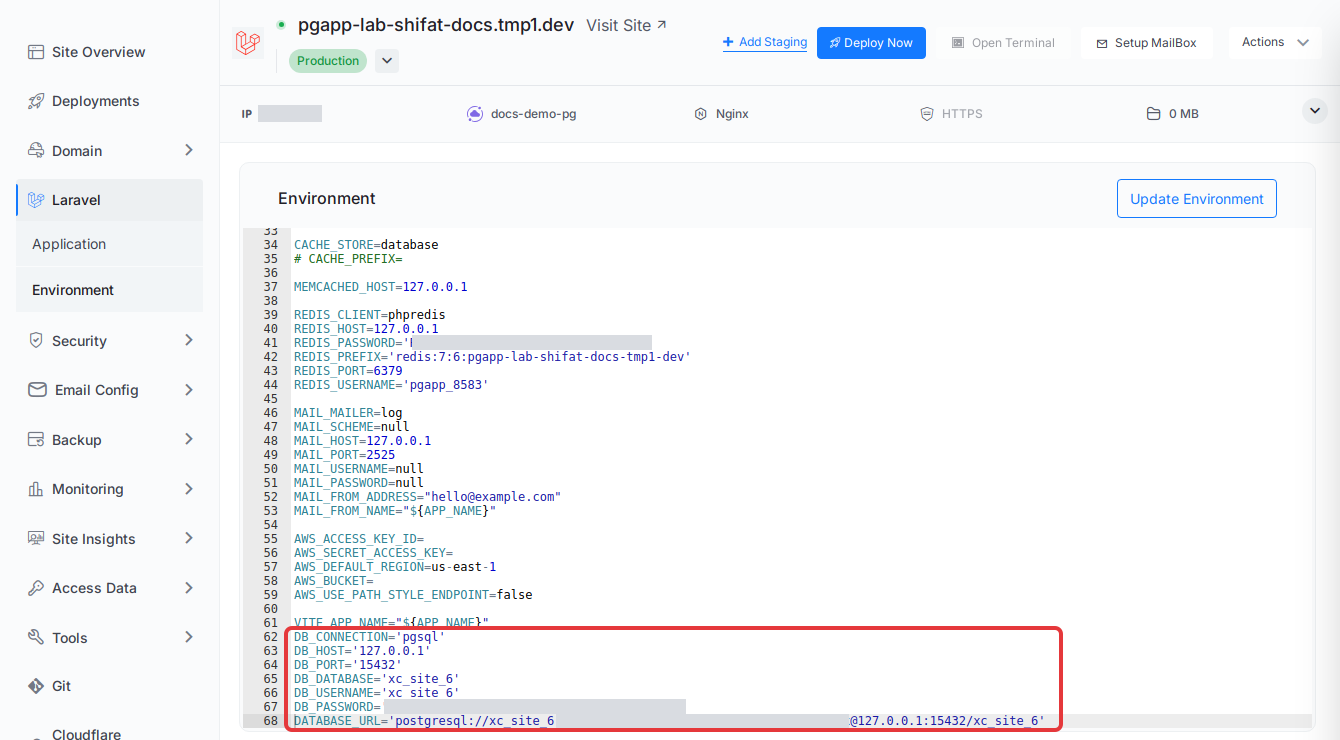
You can edit values here and click Update Environment. For a Node.js site, saving restarts the app so it picks up the change. Leave the database lines as xCloud wrote them unless you deliberately point the app at another database.
PHP App sites: the dashboard has no Environment editor for PHP App sites. The file is /var/www/<your site>/.env, or .env in the folder you set as .env File Path in the site’s Git settings. Open it over SSH or in the web terminal.
Step 2: Connect your app
Laravel
Laravel reads DB_CONNECTION, DB_HOST, DB_PORT, DB_DATABASE, DB_USERNAME and DB_PASSWORD with its default config/database.php, so nothing needs to change in code. After the deploy, run the migrations from your deploy script or on the server:
php artisan migrate --forceExpected result: the migrations run without a connection error. If you cached the config before the variables were written, run php artisan config:clear first.
Node.js with pg
xCloud loads the site’s .env file into the app’s environment every time the app starts, so process.env.DATABASE_URL is set without the dotenv package.
const { Pool } = require('pg');

const pool = new Pool({ connectionString: process.env.DATABASE_URL });

const { rows } = await pool.query('SELECT version()');
console.log(rows[0].version);
You can also pass the separate values: host: process.env.DB_HOST, port: Number(process.env.DB_PORT), database: process.env.DB_DATABASE, user: process.env.DB_USERNAME, password: process.env.DB_PASSWORD.
Node.js with Prisma
Point the datasource at DATABASE_URL in prisma/schema.prisma:
datasource db {
  provider = "postgresql"
  url      = env("DATABASE_URL")
}
Then apply your migrations in the site’s deploy script, for example npx prisma migrate deploy. The Prisma CLI reads DATABASE_URL from the .env file in the project folder.
Plain PHP with PDO
PHP on xCloud Nginx servers includes the pdo_pgsql driver. Plain PHP does not read .env files by itself, so load it first, for example with the vlucas/phpdotenv package (composer require vlucas/phpdotenv):
<?php
require __DIR__ . '/vendor/autoload.php';

Dotenv\Dotenv::createImmutable(__DIR__)->load();

$dsn = sprintf('pgsql:host=%s;port=%s;dbname=%s',
    $_ENV['DB_HOST'], $_ENV['DB_PORT'], $_ENV['DB_DATABASE']);

$pdo = new PDO($dsn, $_ENV['DB_USERNAME'], $_ENV['DB_PASSWORD'], [
    PDO::ATTR_ERRMODE => PDO::ERRMODE_EXCEPTION,
]);

echo $pdo->query('SELECT version()')->fetchColumn();
If your .env file is in a subfolder, pass that folder to createImmutable() instead of __DIR__.
Step 3: Check the connection
Load a page or route that queries the database, or run the check from the server. Expected result: the query returns the PostgreSQL 17 version string. If it fails, find the error in the table below.
Common errors
| Error | Cause | Fix |
|---|---|---|
connection refused on port 5432 |
The app uses 5432 instead of the port xCloud chose | Use DB_PORT or DATABASE_URL from the .env file, never a hard-coded port |
could not find driver in Laravel or PDO |
The app still uses the MySQL driver, or DB_CONNECTION is mysql |
Set DB_CONNECTION=pgsql and use a pgsql: DSN, not mysql: |
Access denied or SQLSTATE[HY000] [2002] |
A MySQL error: the app is still connecting to MySQL | Check that the config reads the .env values above and clear any cached config |
password authentication failed |
The password or user was changed by hand, or the app logs in as postgres |
Use DB_USERNAME and DB_PASSWORD exactly as written. The postgres admin user cannot log in over the network |
permission denied to create database |
The site role cannot create databases or roles | Create extra databases and roles in pgAdmin |
| Variables are empty in a PHP App | Plain PHP does not load .env files |
Load the file with phpdotenv as shown above |
| Timeout when connecting from your computer | PostgreSQL only listens on 127.0.0.1 on the server | Work in pgAdmin, or run commands on the server over SSH |
Add more databases and roles in pgAdmin
Each site gets one database and one role. To add more, for example a separate database for a queue or a read-only role for reports, use pgAdmin:
- Go to the server’s ‘Management’ → ‘Database’ and click Open pgAdmin on the pgAdmin card. Sign in with the details from Show credentials.
- In pgAdmin, right-click Login/Group Roles and choose Create → Login/Group Role. Give it a name, set a password on the Definition tab and allow Can login? on the Privileges tab.
- Right-click Databases and choose Create → Database. Set Owner to the role you created.
- Add the new values to your site’s
.envunder your own variable names. Use127.0.0.1and the sameDB_PORTas the site’s other values.
pgAdmin shows the server on port 5432 because it connects from inside the private Docker network. Your app on the server still uses DB_PORT.
Limits to know
- Backups: xCloud site backups do not include PostgreSQL databases yet. Export them from pgAdmin or with
pg_dump. - Clone, migrate, staging and snapshots: not available for PostgreSQL sites yet.
- Deleting a site: xCloud keeps the site’s database and role. Remove them in pgAdmin if you no longer need them.
- One-click PostgreSQL app: the separate PostgreSQL one-click app is a different setup. A server that runs it cannot add managed PostgreSQL.
For MySQL sites, see Create a database for your site. To deploy the app itself, see Deploy a Node.js application or Deploy Laravel applications.
Frequently asked questions
Why does my app fail to connect on port 5432?
Managed PostgreSQL does not listen on 5432 on the server. xCloud picks a port for it and writes that port to DB_PORT and DATABASE_URL in your site’s .env file. Read the port from there instead of hard-coding 5432. pgAdmin shows 5432 because it connects from inside the private Docker network.
Can I connect to managed PostgreSQL from my computer?
Not directly. Managed PostgreSQL only listens on 127.0.0.1 on the server, so it is not reachable from the internet. Use pgAdmin to work with your data, or run commands on the server over SSH.
Can I log in to PostgreSQL as the postgres user?
No. The postgres admin user cannot log in over a network connection. Use the site’s own role from DB_USERNAME, or create more databases and roles in pgAdmin.
Does xCloud back up my PostgreSQL database?
Not yet. xCloud site backups do not include PostgreSQL databases. Export your database from pgAdmin or with pg_dump on a schedule you control.
If you run into any issues connecting your app to PostgreSQL, feel free to reach out to our support team.