

OpenLiteSpeed Servers: Apply the PHP Worker Security Patch in xCloud
Updated October 29, 2026 · 4 min read
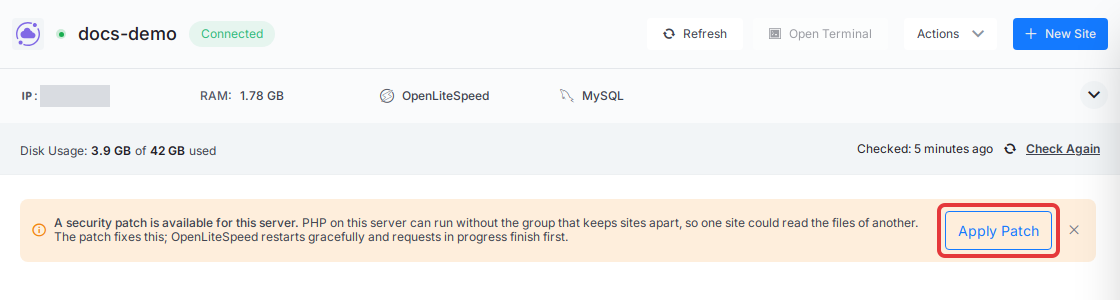
xCloud has a one-click security patch for existing OpenLiteSpeed servers: open the server, click ‘Apply Patch’ in the banner that reads “A security patch is available for this server.”, and confirm. OpenLiteSpeed restarts gracefully, so your sites stay online while it runs.
This guide explains what the patch fixes, how to apply it, and what to do if it does not complete.
What the patch fixes
On OpenLiteSpeed servers, PHP runs each site in its own worker under that site’s user and group. On servers with many sites, a worker could start without the group that keeps sites apart. A PHP process in that state could read the files of another site on the same server.
The patch closes that gap. It sets up nscd (a small system service that caches user and group lookups) so each PHP worker gets its full set of groups, then restarts OpenLiteSpeed gracefully so new workers start correctly. Requests in progress finish first, and the patch takes up to a few minutes.
| Server | What you see |
|---|---|
| OpenLiteSpeed server created before the fix | The banner “A security patch is available for this server.” with ‘Apply Patch’ |
| OpenLiteSpeed server created after the fix | No banner. The fix is applied during provisioning. |
| NGINX server | No banner. The issue is specific to OpenLiteSpeed. |
Before you start
- The server must be connected to xCloud. A disconnected server does not show the patch offer.
- You need permission to manage server services in the team that owns the server.
- No maintenance window is needed. Sites keep serving traffic during the graceful restart.
Step 1: Open the server
Go to ‘Servers’ and open your OpenLiteSpeed server. The banner sits at the top of the server’s pages and reads “A security patch is available for this server.” Click ‘Apply Patch’.
Step 2: Confirm the patch
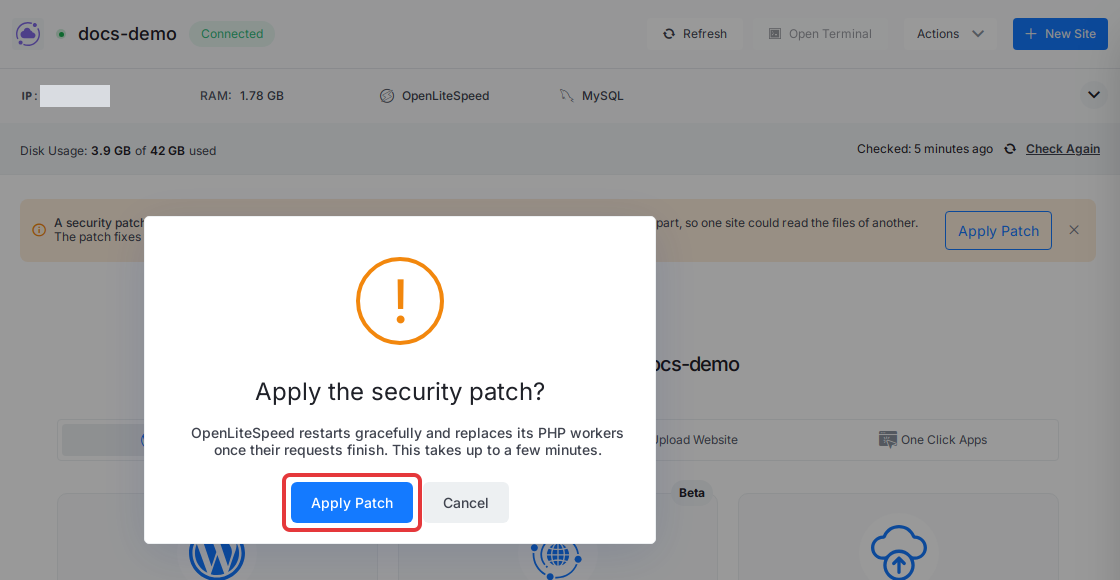
A dialog asks “Apply the security patch?” and explains that OpenLiteSpeed restarts gracefully and replaces its PHP workers once their requests finish. Click ‘Apply Patch’ to start, or ‘Cancel’ to close the dialog without changes.
xCloud queues the patch and runs it in the background. While it runs, the banner reads “Patching the PHP workers on this server…”. You can leave the page; the banner updates on its own.
Step 3: Check the result
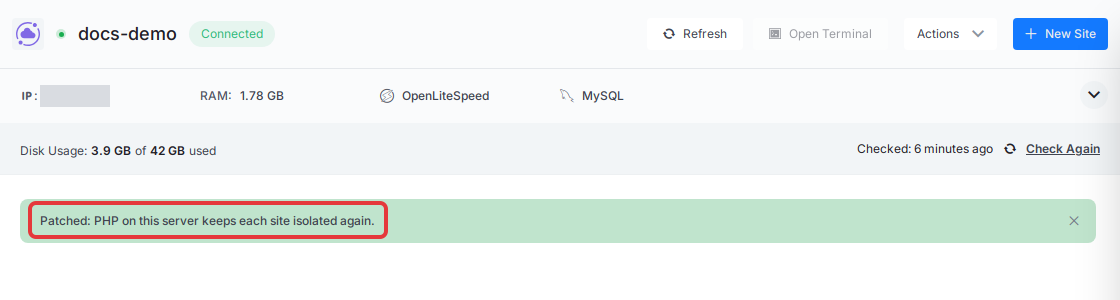
When the patch finishes, the banner turns green and reads “Patched: PHP on this server keeps each site isolated again.” No further action is needed. You can close the banner with its close button.
If the patch does not complete
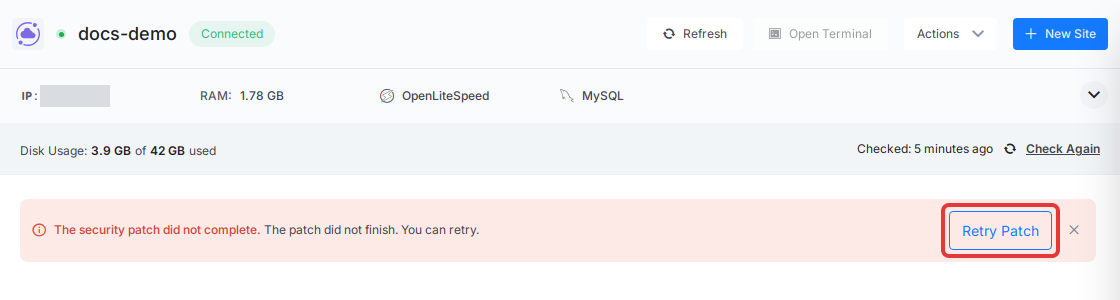
If something stops the patch, the banner turns red and reads “The security patch did not complete.” with the reason, for example “The patch did not finish. You can retry.” Click ‘Retry Patch’ to run it again.
The patch checks the OpenLiteSpeed configuration before it restarts anything. If that check fails, it stops without restarting the web server, so your sites keep running as they were. If a retry fails again with the same reason, contact support with the message shown in the banner.
Dismissing the banner
The banner has a close button. Closing the patch offer hides it for that server for everyone on your team, and the server stays unpatched. If you change your mind, contact support and they can show the banner again.
Closing a success or failure message only hides that message on your device.
Frequently asked questions
Will my sites go offline while the patch runs?
No. OpenLiteSpeed restarts gracefully: requests in progress finish first, then it replaces its PHP workers. Your sites stay online, and the patch takes up to a few minutes.
Why don’t I see the banner on my newer OpenLiteSpeed server?
Servers set up after the fix get it during provisioning, so they never need the patch and never show the banner. The banner also only appears on servers that are connected to xCloud.
I dismissed the banner by mistake. How do I get it back?
Dismissing hides the patch offer for that server for everyone on your team. Contact xCloud support and they can show the banner again so you can apply the patch.
Can the banner come back after I patch?
Yes. xCloud checks a patched server again at most once a day when someone opens it. If the user and group cache the patch set up has been removed or stopped, the banner offers the patch again.
Related guides
- Available server stacks in xCloud
- How to manage services on your server
- Access OpenLiteSpeed WebAdmin in xCloud
- How automated security updates and auto reboot work in xCloud
If you run into any issues while applying the patch, feel free to reach out to our support team.