

How to Deploy MinIO with xCloud One Click Apps
Updated November 2, 2026 · 6 min read
MinIO gives you S3-compatible object storage on your own server, so S3 clients, SDKs and backup tools can use your server instead of a paid cloud bucket. In xCloud, you install it from One Click Apps. xCloud creates the root login, puts the web console on a domain with HTTPS, and lists the S3 address on the app’s Credentials card.
The xCloud catalog lists the app as Minio. It runs an independent, community-maintained fork of the open-source MinIO server, published by Pigsty. As of November 2026, the fork’s README says it isn’t affiliated with MinIO, Inc.
MinIO has one domain and one extra port:
| Part of the app | Where it runs | Encrypted |
|---|---|---|
| Web console | Your domain, for example https://storage.example.com |
Yes, HTTPS |
| S3 API | http://SERVER_IP:PORT, shown as S3 Endpoint |
No, plain HTTP |
Before you start
You need an xCloud server that uses Nginx, with at least 256 MB of RAM, 1 CPU core and 5 GB of free disk. Plan for more disk, because every object you store sits on this server.
If you don’t have your domain ready, start with a Demo Site and move to your own domain later.
Step 1: Choose MinIO
Open Servers, open the menu for your server and click Add New Site. Click the One Click Apps tab, type Minio in the search box and click its card.
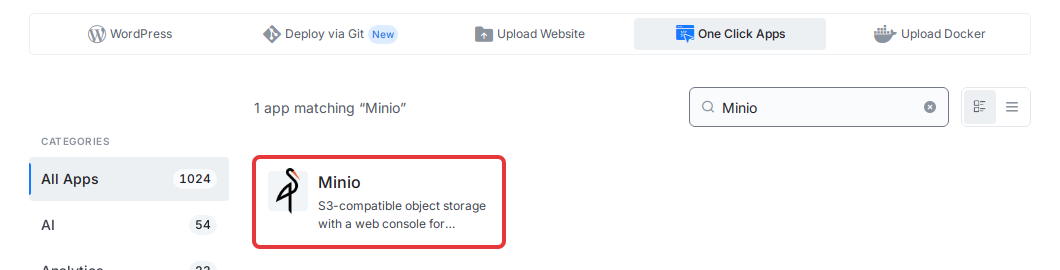
Expected result: The Install Minio page opens for your server.
Step 2: Name the site and pick a domain
Enter a Site Title. Under Domain Setup, choose Demo Site to use a generated test domain, or Go Live to use your own. MinIO has no other install fields, because xCloud generates the root user and password for you.
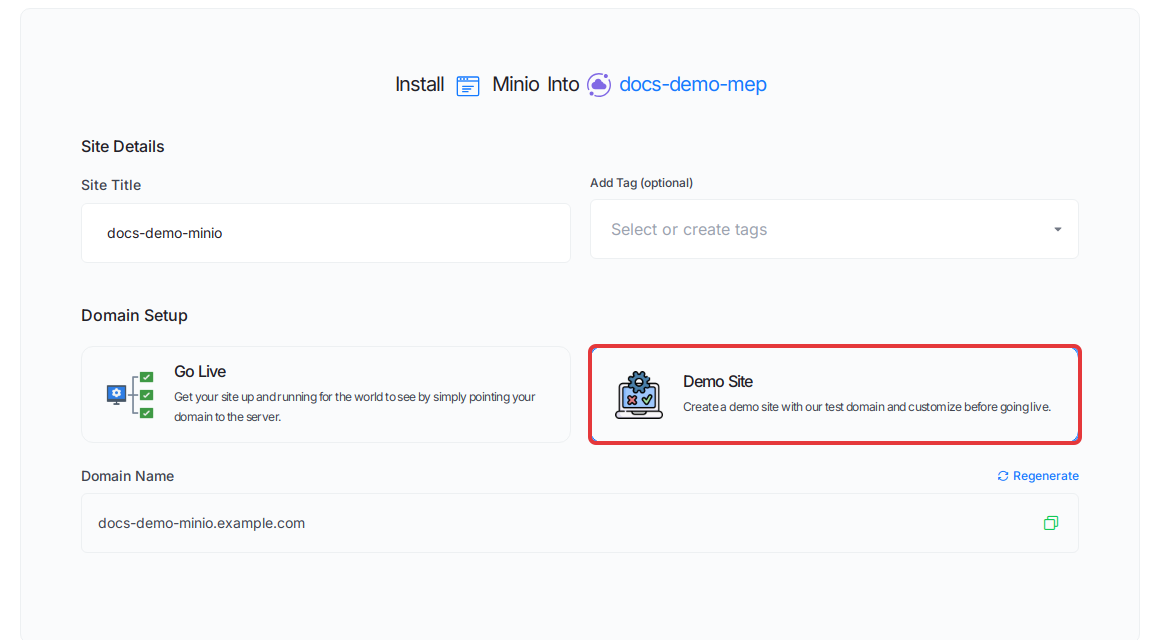
Click Next.
Expected result: xCloud shows the install progress. When it finishes, the site is ready to open.
Step 3: Find the console and S3 address
Open the site and go to Access Data → Credentials. The Minio Credentials card lists:
- Console URL: the web console, on your domain.
- S3 Endpoint: the address for S3 clients, in the form
http://SERVER_IP:PORT. xCloud picks the port when it installs the app. - Root User and Root Password: the admin login. Click the eye icon to show the password.
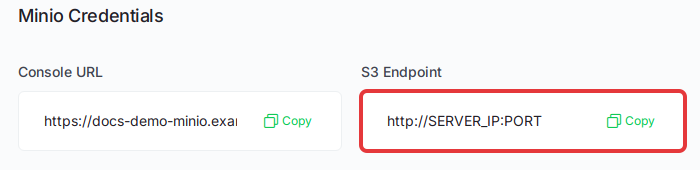
Expected result: The Minio Credentials card shows the two addresses and the root login.
Step 4: Control who can reach the S3 port
You don’t need to open this port. It can already be reached from outside, so your job is to limit who can connect.
To check whether a machine can reach the port, run this from that machine, not from your server:
curl -I --max-time 10 http://SERVER_IP:PORTAny HTTP response, even an error, means the machine can reach the port. If the command times out or the connection is refused, it can’t.
Don’t rely on the server’s firewall to protect this port. The server firewall may not block this port, because Docker, which runs the app, sets its own network rules (see Docker’s packet filtering and firewalls documentation). If only some clients should connect:
- Add a rule in your cloud provider’s firewall, if it has one, that limits the port to those clients.
- Run the
curlcommand above from a machine that should not have access, and confirm that it times out or is refused.
Also keep in mind that this address uses plain HTTP, so its traffic is not encrypted. Give each app its own access key rather than the root login, as shown in the next step.
Expected result: If you added a rule: a machine you didn’t allow can’t connect to the port.
Step 5: Sign in and create a bucket
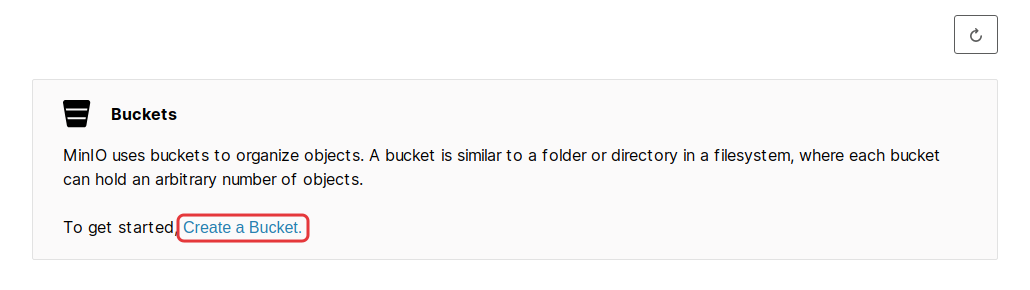
Open the Console URL and sign in with the Root User and Root Password. Click Create a Bucket and give it a name. Then create an access key in the console for your app.
To check the S3 address from your own computer, run this with the AWS CLI, using your access key:
export AWS_ACCESS_KEY_ID=YOUR_ACCESS_KEY
export AWS_SECRET_ACCESS_KEY=YOUR_SECRET_KEY
export AWS_DEFAULT_REGION=us-east-1
aws --endpoint-url http://SERVER_IP:PORT s3 ls
Expected result: The command lists your buckets. If it times out, check your cloud provider’s firewall for this port.
Move from a demo domain to your own
The web console moves to your domain. The S3 address stays on the server’s IP and port.
- Open the site and go to Domain → Domain.
- On the Demo Site Domain card, click Go Live.
- Enter your domain and point an A record for it to your server.
- Click Verify My DNS, then click Go Live.
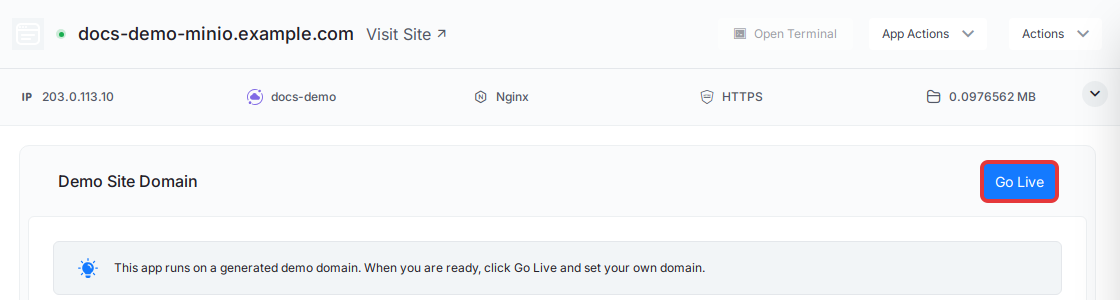
Expected result: xCloud shows Domain update request is sent for processing. When the move finishes, open Access Data → Credentials and check that Console URL shows your domain. Open that address and confirm you can sign in.
For more detail, see how to manage One Click App domains and public endpoints.
Limits and upkeep
- Upload size: uploads through the console domain are limited to 100 MB per request, and larger requests are rejected. S3 clients that use the S3 Endpoint don’t pass through that limit, but this address is plain HTTP, so anything you upload to it is not encrypted.
- Backups: all buckets, objects and settings are stored in the
minio_datavolume. See how to back up and restore Docker apps. - Updates: Your app stays on its current version. App Actions → Update alone reinstalls that same version. To move to a newer one, change the version in the Compose page first. On the
imageline, change both the version and thesha256value after it, because that value fixes the exact image. See how to update a One Click App.
Frequently asked questions
Is the S3 Endpoint served over HTTPS?
No. xCloud puts HTTPS on the console domain only. The S3 Endpoint is a plain HTTP address on your server’s IP and port, so its traffic is not encrypted.
Can the server firewall block the S3 port?
Do not rely on it. The server firewall may not block this port, because Docker, which runs the app, sets its own network rules. Use your cloud provider’s firewall if only some clients should connect.
How do I change the root user or password?
Open the site’s Environment page, edit MINIO_ROOT_USER and MINIO_ROOT_PASSWORD, then click Save & Redeploy. MinIO reads both values every time it starts. After the redeploy, the Credentials card shows the new values.
If you run into any issues with MinIO, feel free to reach out to our support team.