

Backups and the Site Lifecycle: What Clone, Delete and Restore Keep
Updated November 6, 2026 · 5 min read
A site’s backups don’t always follow the site. A clone copies backup settings, not backup history. Deleting a site removes its local backups only when Delete Local Backups is on, and never touches remote backups. Recreate Site from Backup works for WordPress sites only. This page explains each step of a site’s life, so you know what you keep before you click.
| What you do | Backup settings | Backups already taken |
|---|---|---|
| Clone a site | Copied if you tick them | Not copied. The clone starts empty |
| Delete a site | Removed with the site | Local: deleted when Delete Local Backups is on. Remote: kept in your bucket |
| Remove a remote destination | Schedule stops | Kept, unless you tick Also delete the backups already stored there |
| Recreate a site from backup | Set up again on the new site | Used as the source, not moved |
Clone a site: settings come along, history does not
When you clone a site, the Settings step lists ‘Clone Backup Settings’ with Remote Backup and Local Backup when the original site uses them. Tick the ones you want. The clone then gets the same schedule, backup type, retention and storage provider. Leave both unticked and the clone starts with no backup settings at all.
The clone never inherits the original site’s backups. Its Previous Backups list is empty until its own first backup runs. The original site keeps all of its backups, so you can still restore an older copy from there.
A few things change on the way:
- Each remote destination of the original site is copied as its own destination, so a site with two providers gives a clone with two providers.
- When the clone’s site type has no database (or no files), that part of the backup is turned off on the clone.
- Remote backups of the clone go to the clone’s own folder in the bucket, so they never mix with the original site’s files.
Delete a site: choose what happens to local backups
The delete dialog decides what happens to backups stored on the server itself.
Step 1: Open the delete dialog
Go to ‘Site Settings’, find the delete section and click ‘Delete Site’. The dialog Are You Sure You Want To Delete Site opens.
Step 2: Check Delete Local Backups
When the site has local backups, the dialog shows a ‘Delete Local Backups’ switch. It is on by default.
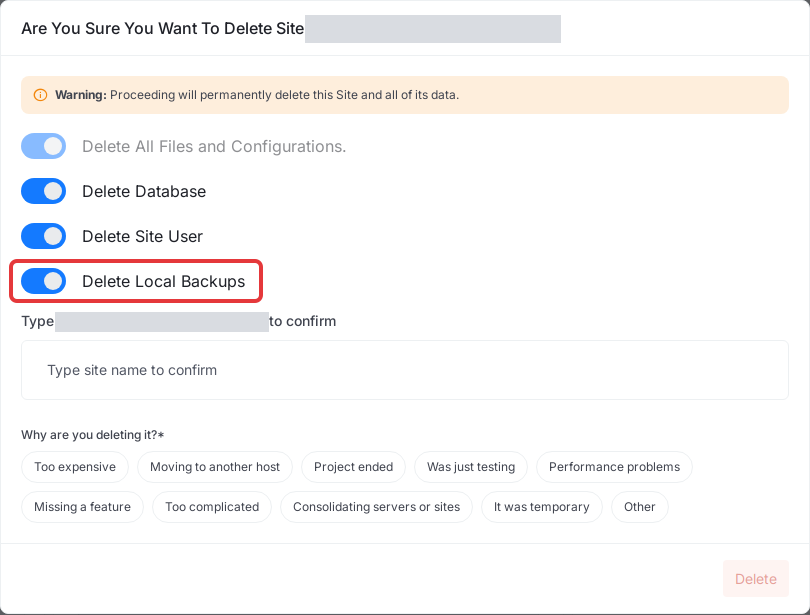
- On: xCloud deletes the site’s local backup folders on the server along with the site. This frees the disk space they used.
- Off (it reads Do You Want To Delete Local Backups?): the archives stay on the server. The site page is gone, so no dashboard page lists them anymore. See Reclaiming disk space to find and remove them later.
The switch only appears when the site has local backups. Remote backups in your S3, R2, Google Drive or other storage are never deleted with the site, so they stay available to recreate it.
Step 3: Confirm
Type the site name, pick a reason and click ‘Delete’.
For developers: the Public API’s delete-site request takes delete_local_backups. It defaults to false, so local backups stay unless you send true.
Remove a remote destination: keep or delete stored backups
Removing a storage provider from a site stops its scheduled backups. Go to Backup Settings, select the destination on the Remote Backup tab and click Remove Destination. The confirmation has one checkbox:
- Unticked: the backups already in that bucket stay there. They come back in the site’s backup history if you add the same destination again.
- Ticked (Also delete the backups already stored there): xCloud deletes those backups from the provider permanently, then removes the destination.
Site backups covers this dialog in full.
Recreate a deleted or lost WordPress site from a backup
‘Recreate Site from Backup’ builds a new WordPress site from an existing backup. It sits on the WordPress tab when you add a new site to a server.
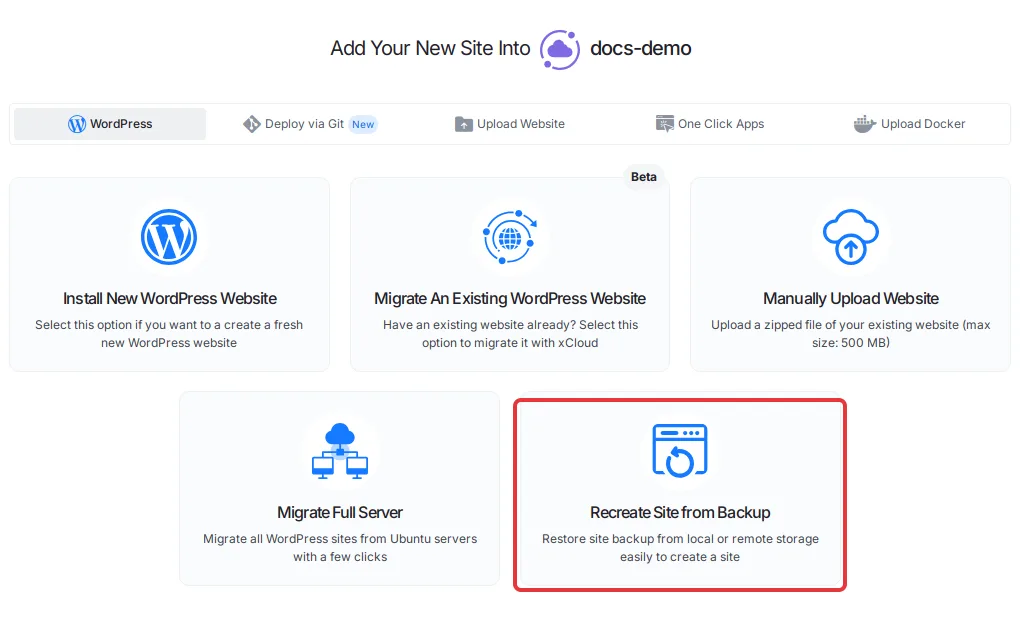
It offers two sources:
- Existing Site/Server Import: pick a server, a site and Local or Remote, then a backup. The site must still exist in your team, because the list comes from that site’s backup history.
- Import from Bucket: select the bucket and enter the Domain of the site (without http/https) or its backup folder name in the bucket, for example
example-com-42. Use this for a site you already deleted.
Local backups you kept from a deleted site can’t be picked here, because their site no longer exists. Keep at least one remote backup of any site you plan to delete, so you can bring it back. The full walkthrough is in Recreate a WordPress site from backups.
Restore non-WordPress sites (Custom PHP and others)
Recreate Site from Backup, Restore to Another Site and Restore to New Site are WordPress options. For a Custom PHP site and other site types, restore into the same site:
- Open the site and go to Site Backup → Previous Backups.
- Choose the Local Backup or Remote Backup tab and find the backup.
- Open the row menu and click Restore Backup.
This means a non-WordPress site can only be restored while it exists. Before you delete one, download or copy what you need, or rebuild the site first and then restore into it. Docker apps have their own backup and restore, and a PostgreSQL database needs its own export, because xCloud site backups don’t include it yet.
Frequently asked questions
Does a cloned site get the backups of the original site?
No. A clone can copy the original site’s backup settings, but not its backup history. The clone starts with an empty backup list and builds its own from its first backup.
Does deleting a site delete its backups?
Its local backups are deleted only when Delete Local Backups is on in the delete dialog. The switch is on by default when the site has local backups. Backups in your remote storage are not deleted with the site.
Can I recreate a Custom PHP site with Recreate Site from Backup?
No. Recreate Site from Backup, Restore to Another Site and Restore to New Site are WordPress options. For other site types, restore a backup into the same site from Site Backup → Previous Backups.
Can I restore a site after I deleted it?
Yes, if a remote backup of it is still in your storage bucket. Use Recreate Site from Backup, choose Import from Bucket and enter the old domain or its backup folder name.
If you run into any issues with backups, feel free to reach out to our support team.