

How to Migrate From ServerPilot to xCloud
Updated November 7, 2026 · 9 min read
This guide moves the sites on a ServerPilot server to xCloud, one site at a time. WordPress sites move with xCloud’s migration plugin; other PHP apps move as a blank site that you fill with the app’s files and database. You then test each copy on a demo domain, point DNS at xCloud and turn on SSL. If you would rather have it done for you, the xCloud team can migrate sites for you for free if they qualify: see free website migration.
A one-click whole-server import from ServerPilot is not available. xCloud’s Migrate Full Server option looks for sites where other control panels keep them, and it does not find sites on a ServerPilot server. Moving site by site takes a little longer, but each site gets its own test before visitors reach it.
Choose the method for each site
Make a list of every app on the ServerPilot server, then pick a method for each one.
| The ServerPilot app is | Move it with |
|---|---|
| A WordPress site | ‘Migrate An Existing WordPress Website’ (Part 1 below) |
| A WordPress site the migration plugin can’t connect to | Migrate Guru, or a zip of the site with manual upload (up to 500 MB) |
| A plain PHP app (Laravel, a custom script, another CMS) | ‘Blank Site’ plus SFTP and a database import (Part 2 below) |
| A PHP app kept in a Git repository | Deploy custom PHP applications from Git |
Before you start
- A server in xCloud to move the sites to, with enough free disk for every site plus room to spare.
- WordPress administrator access for each WordPress site.
- SFTP access to the ServerPilot server for PHP apps, and a way to export each app’s database (for example
mysqldumpover SSH). - Access to the DNS provider for each domain, and a note of the current DNS records.
- A recent backup of each site kept outside ServerPilot.
Pick the web server with your sites in mind. ServerPilot serves PHP through Apache, which reads .htaccess files. An xCloud OpenLiteSpeed server reads the rewrite rules in .htaccess too. An xCloud NGINX server ignores .htaccess, so any rules a PHP app depends on need another setup there.
Part 1: Move a WordPress site
Step 1: Start the migration in xCloud
Open the server you are moving to, click ‘Add New Site’, and on the ‘WordPress’ tab choose ‘Migrate An Existing WordPress Website’.
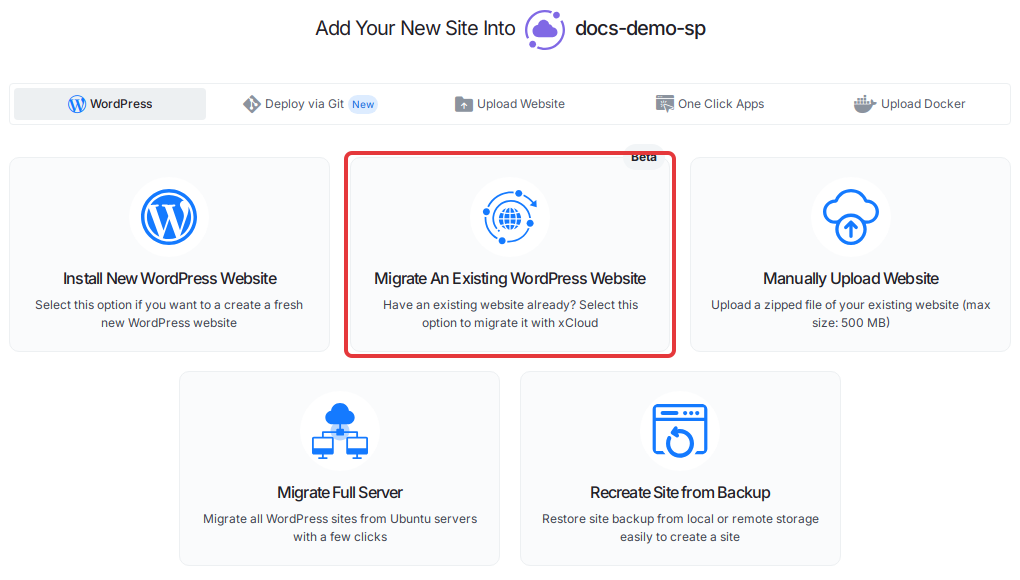
Expected result: the migration opens on the ‘Domains’ step.
Step 2: Enter the site’s current address
On the ‘Domains’ step, type the ServerPilot site’s current address, including https://, into ‘Existing Site URL’.
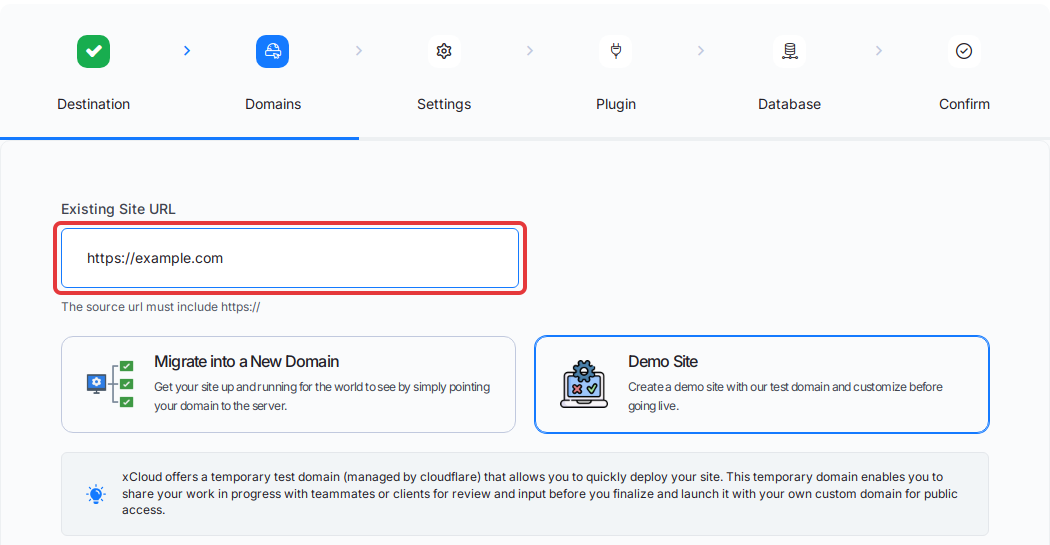
Choose ‘Demo Site’ so the copy lands on a temporary xCloud domain, then click ‘Next’. On ‘Settings’, check the PHP version and site user, then click ‘Next’.
Expected result: xCloud shows the ‘Plugin’ step with a plugin download and a token.
Step 3: Connect the ServerPilot site with the plugin
Download the xCloud migration plugin and copy the token. In the ServerPilot site’s WordPress admin, go to Plugins → Add New Plugin → Upload Plugin, install and activate it, open ‘xCloud Migration’ and paste the token. Back in xCloud, tick the box to confirm the token is added and click ‘Next’.
If the token does not connect, clear the site’s cache and turn off security or firewall plugins for the migration, then try again. Turn them back on afterwards.
Expected result: xCloud moves on to the ‘Database’ step.
Step 4: Choose the database option and start
On ‘Database’, keep the option that migrates the database along with the files, click ‘Next’, review ‘Confirm’, and click ‘Start’.
Expected result: the site appears on your xCloud server on its demo domain when the copy finishes. If it stalls, see cancel a stuck migration and retry.
Part 2: Move a plain PHP app
Step 1: Create a blank site
Open the server you are moving to, click ‘Add New Site’, open the ‘Upload Website’ tab and choose ‘Blank Site’.
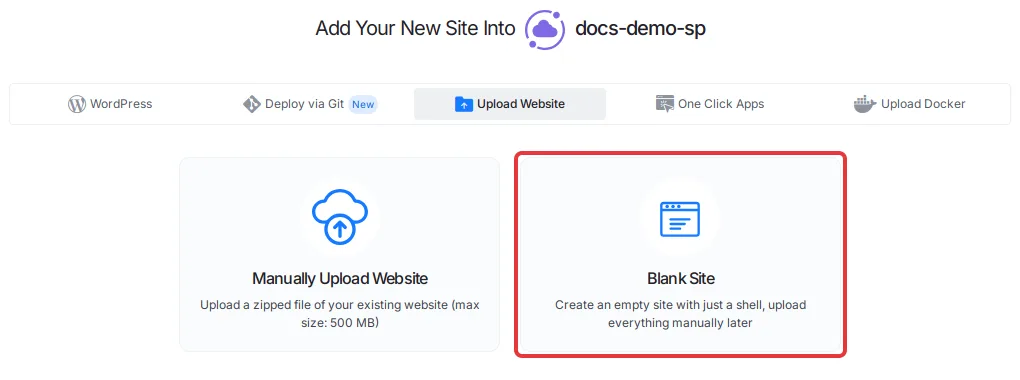
Choose ‘Demo Site’ on the domain step. On ‘Settings’, pick the PHP version the app runs on ServerPilot and set ‘Web Root’ to the folder that holds the app’s index.php (for example public for Laravel). Under ‘Database Management’, choose ‘Create Database In Server’ and note the database name, user and password. The blank PHP site guide walks through every field.
Expected result: an empty site on a demo domain, with an empty database.
Step 2: Export the app’s database from ServerPilot
Connect to the ServerPilot server over SSH as the app’s system user (ssh SYSUSER@SERVER_IP) and export the database:
mysqldump --single-transaction --no-tablespaces -p -u DB_USER DB_NAME > DB_NAME.sqlDownload the .sql file to your computer.
Expected result: you have a .sql file with the app’s tables and data.
Step 3: Copy the files to xCloud
Log in to ServerPilot over SFTP as the app’s system user and download the app’s folder. ServerPilot keeps it at apps/APPNAME in the system user’s home (/srv/users/SYSUSER/apps/APPNAME), with the web files in public. In xCloud, open the new site and go to ‘Access Data’ → ‘SSH/sFTP’ for its login details and its ‘Site Path’, the site’s home folder (for example /var/www/example.com). With your SFTP app, upload the contents of the ServerPilot apps/APPNAME folder, not the APPNAME folder itself, into that site path, so the folder you set as ‘Web Root’ in Step 1 (for example public) sits directly inside it. The SFTP guide shows FileZilla, Cyberduck and Transmit.
Expected result: the app’s files, including the folder you set as ‘Web Root’, are on the xCloud site.
Step 4: Import the database and update the app’s settings
In the xCloud site, go to ‘Access Data’ → ‘Database’, enable Adminer and import the .sql file. The Adminer guide shows where. Then edit the app’s config file (for example .env or config.php) so it uses the xCloud database name, user and password.
Expected result: the demo domain loads the app with its data.
Test, then go live
Test each demo site before changing DNS: pages, logins, forms, uploads, checkout, scheduled jobs and email. Recreate any cron jobs the app had on ServerPilot with xCloud cron jobs.
If a site takes new orders, comments or form entries, stop new changes on ServerPilot just before the final copy, so nothing is lost between the copy and the DNS change.
When a site checks out:
- Move it from the demo domain to its real domain with go live from a demo site.
- Point the domain’s DNS at the xCloud server; see set up DNS records. Change only the web records and keep mail records as they are.
- Turn on HTTPS once DNS resolves; see enable HTTPS and configure SSL certificates.
- Set up backups for the site.
Keep the ServerPilot server running until every site works on xCloud and traffic has moved, so you can switch DNS back if needed.
Troubleshooting
| Problem | Likely cause | Fix |
|---|---|---|
| ‘Migrate Full Server’ finds no sites | A whole-server import from ServerPilot is not available | Move each site with Part 1 or Part 2 |
| The plugin token does not connect | A cache, security or firewall plugin blocks it | Clear the cache, turn the blocking plugin off for the migration, retry, then turn it back on |
| A PHP app shows 404s on inner pages | Its rewrite rules lived in .htaccess and the xCloud server runs NGINX |
Move the site to an OpenLiteSpeed server, or set up the rules another way |
| The app shows a database connection error | Its config file still has the ServerPilot database details | Update the database name, user and password to the xCloud values |
| The demo site shows the default page | ‘Web Root’ points to the wrong folder | Set ‘Web Root’ to the folder that holds index.php |
Frequently asked questions
Can xCloud import my whole ServerPilot server in one go?
No. xCloud’s Migrate Full Server option does not find the sites on a ServerPilot server, so a one-click whole-server import from ServerPilot is not available. Move each site on its own: WordPress sites with Migrate An Existing WordPress Website, other PHP apps as a Blank Site.
Do I need root access to the ServerPilot server?
No. WordPress sites move with WordPress administrator access and the xCloud migration plugin. For a plain PHP app you only need SFTP access to the app’s files and a way to export its database.
Will my .htaccess rules still work on xCloud?
On an OpenLiteSpeed server, rewrite rules in .htaccess are read. On an NGINX server, .htaccess files are ignored, so rewrite or access rules your app relies on have to be set up another way before you go live. Test the demo site first.
Does xCloud take over my ServerPilot server and keep its IP address?
No. Your sites move to a new server managed by xCloud, which has its own IP address. You point each domain at the new server when its copy is tested.
Related xCloud documentation
- Migrate an existing WordPress website in xCloud
- Create a blank PHP site with xCloud
- Full server migration to xCloud from any host (for servers it supports)
- Request site migration support from xCloud
ServerPilot details on this page (file locations, system-user SSH/SFTP, the export command and .htaccess) come from ServerPilot’s own docs, checked on 7 November 2026: system users, apps, MySQL from the command line and .htaccess.
If you run into any issues migrating from ServerPilot, feel free to reach out to our support team for help.