

Connect DBeaver or TablePlus to PostgreSQL on xCloud With an SSH Tunnel
Updated November 8, 2026 · 6 min read
Managed PostgreSQL on xCloud can’t be reached from the internet by server IP and port, so you connect from your computer through an SSH tunnel. You log in over SSH as the site user, forward a local port to the server’s PostgreSQL port (DB_PORT), and point DBeaver, TablePlus or psql at that tunnel. Nothing on the server is opened to the internet.
This guide is for PostgreSQL sites: PHP App, Laravel or Node.js sites created with Database engine set to PostgreSQL. If you only need a browser tool, pgAdmin is already built in (see Install Managed PostgreSQL and pgAdmin).
Before you start
- Managed PostgreSQL shows Ready on an Nginx server, and your site uses it. See Connect your app to PostgreSQL for how a site gets its database.
- An SSH key on your computer. If you don’t have one yet, follow How to Generate and Add SSH Keys in xCloud. A password works too, but a key is safer.
- A database client: DBeaver, TablePlus, or
psqlin a terminal.
Step 1: Get the site user and let your key in
Open the site and go to ‘Access Data’ → ‘SSH/sFTP’. The Site SSH/sFTP Access box shows the Site Username and an SSH String with the server IP, for example ssh [email protected].
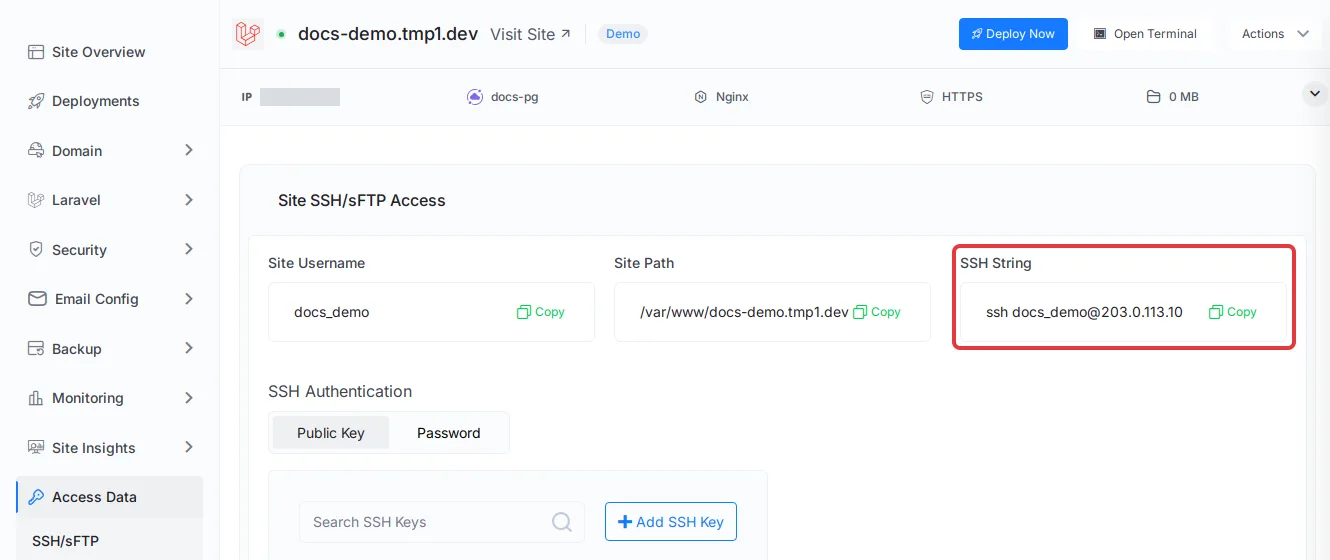
Under SSH Authentication, choose how the site user logs in:
- Public Key: tick your key in the list (or click Add SSH Key to add it), then click Save.
- Password: type a password, then click Save.
Expected result: ssh <site user>@<server IP> from your computer logs you in without an error. If your server uses another SSH port, add -p <port> (see How to Update SSH Port in xCloud).
Step 2: Find the database details
Go to ‘Laravel’ → ‘Environment’ (or ‘Node.js’ → ‘Environment’). Note these values from the DB_ lines:
| Variable | Use it as |
|---|---|
DB_PORT |
The remote port of the tunnel, for example 20001. It is usually not 5432 |
DB_DATABASE |
The database name, xc_site_ plus the site’s ID |
DB_USERNAME |
The database user, the same name as the database |
DB_PASSWORD |
The database password |
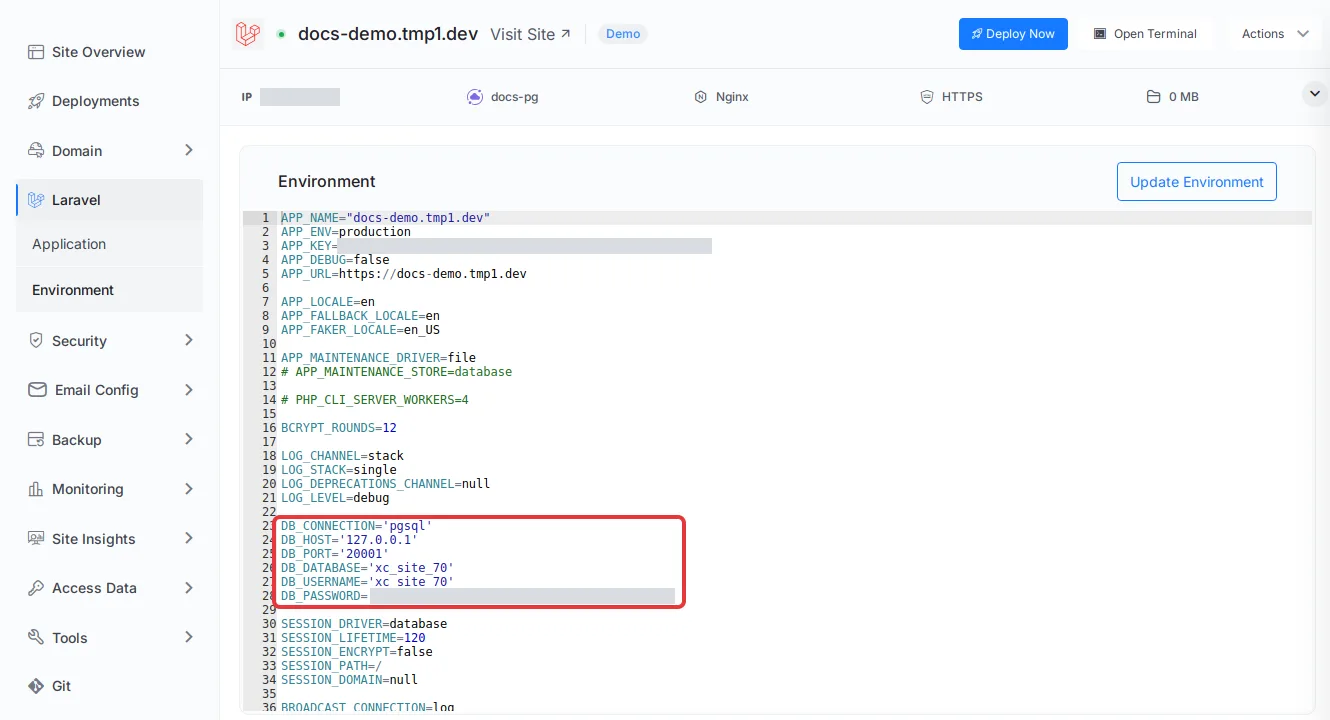
PHP App sites have no Environment editor. Read the same lines from the site’s .env file over SSH or in the web terminal.
Step 3: Connect your database client
Use the SSH settings from Step 1 and the database details from Step 2. In the client, the database host is always 127.0.0.1, because the connection arrives on the server through the tunnel.
DBeaver
- Create a new connection and choose PostgreSQL.
- On the Main tab, set the host to
127.0.0.1and the port to yourDB_PORT, and fill in the database, username and password from Step 2. - On the SSH tab, turn on Use SSH Tunnel. Set Host/IP to the server IP, Port to
22(or your SSH port) and User name to the site user. - Set the authentication method to Public Key and select your private key file, or to Password and type the site user’s SSH password.
- Click Test Connection, then Finish.
TablePlus
- Create a new connection and choose PostgreSQL.
- Set the host to
127.0.0.1and the port to yourDB_PORT, and fill in the user, password and database from Step 2. - Click Over SSH. Set the SSH server to the server IP, the port to
22(or your SSH port) and the user to the site user. Choose Use SSH key and select your private key, or type the SSH password. - Click Test, then Connect.
Terminal and psql
Open the tunnel in one terminal. This forwards port 5433 on your computer to PostgreSQL on the server:
ssh -N -L 5433:127.0.0.1:<DB_PORT> <site user>@<server IP>The command keeps running and prints nothing while the tunnel is open. In a second terminal, connect through it:
psql "host=127.0.0.1 port=5433 dbname=<DB_DATABASE> user=<DB_USERNAME>"Type the DB_PASSWORD value when asked. Any free local port works in place of 5433; avoid 5432 if PostgreSQL also runs on your computer. Stop the tunnel with Ctrl+C.
Expected result: the client connects and lists the site’s database. SELECT version(); returns a PostgreSQL 17 version string.
Common errors
| Error | Cause | Fix |
|---|---|---|
Permission denied (publickey) |
Your key is not selected for the site user, or Save was not clicked | Tick your key under SSH Authentication and click Save, then try again |
| SSH connection times out | SSH is limited to some IP addresses, or the server uses another SSH port | Check SSH Lockdown and the server’s SSH port |
connection refused after SSH connects |
The tunnel points at 5432 instead of DB_PORT |
Use the DB_PORT value as the remote port |
password authentication failed |
Wrong database user or password | Use DB_USERNAME and DB_PASSWORD from the site |
pg_hba.conf rejects connection |
You logged in as the postgres admin user |
Use DB_USERNAME and DB_PASSWORD from the site. The postgres user can’t log in over a network connection |
permission denied to create database |
The site’s database login can only use its own database. It can’t create new databases or logins | Create them in pgAdmin, then connect with the new login through the same tunnel |
Limits to know
- Nginx servers only. Managed PostgreSQL is not available on OpenLiteSpeed servers.
- The site’s login can’t create databases. The site’s database login can only use its own database. It can’t create new databases or logins. Create more databases and logins in pgAdmin.
- Backups: xCloud site backups do not include PostgreSQL databases yet. Before you change data from your client, export a copy as shown in Back up and restore PostgreSQL.
Frequently asked questions
Why can’t I connect to PostgreSQL directly with the server IP?
Managed PostgreSQL on xCloud can’t be reached from the internet by server IP and port, so you connect from your computer through an SSH tunnel. The tunnel carries the connection over SSH, so your database client reaches PostgreSQL as if it ran on the server.
Do I need a sudo user for the tunnel?
No. The site user shown under ‘Access Data’ → ‘SSH/sFTP’ can open the tunnel. Add your SSH key or set a password for it on that page first.
Which port do I use, 5432 or DB_PORT?
Use DB_PORT from the site’s .env file as the remote port of the tunnel. xCloud picks that port for the server’s PostgreSQL, and it is usually not 5432. On your computer you can use any free local port.
Can I create more databases with the site’s login?
No. The site’s database login can only use its own database. It can’t create new databases or logins. Create them in pgAdmin, then connect with the new login through the same tunnel.
If you run into any issues connecting to PostgreSQL over SSH, feel free to reach out to our support team.