

Zero-Downtime Deployments for WordPress Sites Deployed from Git in xCloud
Updated November 10, 2026 · 6 min read
Release mode gives WordPress sites that deploy from Git in xCloud zero-downtime deployments. Each deploy checks out your commit into a new release, checks that it answers without a server error, and switches the site to it in one step. Your uploads and configuration stay in one shared place, so every release sees the same media.
This guide covers what is specific to WordPress. Read How to use zero-downtime deployments for the basics.
Requirements
- A WordPress site deployed from a Git repository, on an nginx server. On OpenLiteSpeed the card shows “WordPress release mode needs an nginx server.”
- WordPress core in the repository. Every release is a checkout of your repository, so it must contain everything WordPress needs:
- Classic layout (
wp-contentat the root of the site): commit WordPress core, includingwp-settings.php. - Bedrock layout (the site serves from
web/): commit your Bedrock project, includingcomposer.json.
- Classic layout (
- The Manage deploy scripts permission to turn Release mode on.
A WordPress site installed by xCloud, not from Git, is refused: “Release mode needs a WordPress site that is deployed from git (for example a Bedrock repository). WordPress installed by xCloud keeps its plugins and themes in the site folder, so it cannot use release mode.”
If you connected Git to an existing WordPress site with Git integration for an existing site, that setup leaves WordPress core out of the repository. Commit core first, or turning on Release mode fails with “WordPress core is not in the repository (xCloud’s Git setup leaves it out), so release mode cannot build a release from it. Commit WordPress core (wp-settings.php), then try again.”
Step 1: Read the note on the card
Open the site, click Git, and scroll to the Release mode card. On a WordPress site it shows a note about plugins and themes: “WordPress code comes from git in release mode, so plugins and themes cannot be installed or changed in the WordPress admin while it is on. Add them to your repository and deploy.”

Step 2: Turn Release mode on
Click the switch and confirm with Turn on. When the card shows Release mode is on., the shared files are listed under Shared between releases.
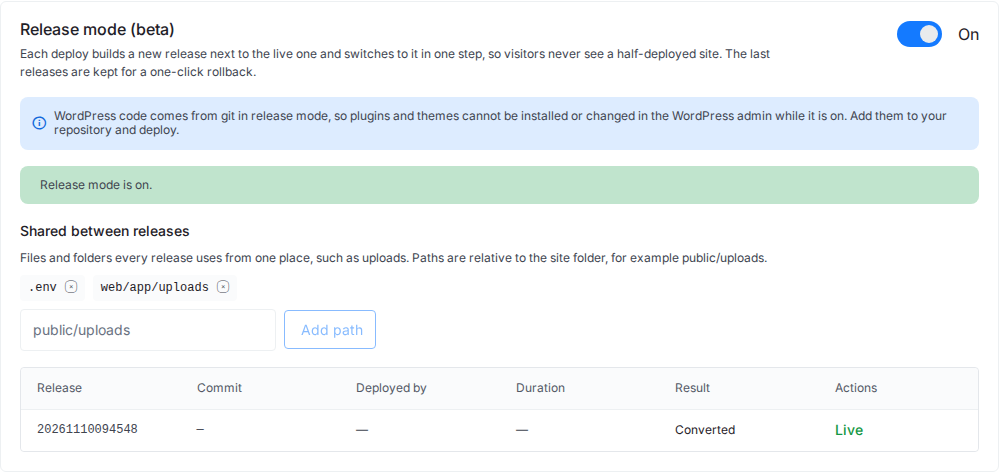
What is shared depends on the layout:
| Layout | Shared by default |
|---|---|
| Classic | .env, wp-config.php, wp-content/uploads, wp-content/blogs.dir (multisite) |
| Bedrock | .env, web/app/uploads, web/app/blogs.dir (multisite) |
A default path the site doesn’t have, such as blogs.dir on a single site, is left out. To share another folder, see Shared files and folders in Release mode.
Plugins and themes come from Git
While Release mode is on, xCloud turns off plugin and theme installs and edits in the WordPress admin. Add plugins and themes to your repository (for Bedrock, with Composer) and deploy.
xCloud’s own WordPress files, such as the object cache and page cache drop-ins, are carried into each new release from the live one, unless your repository has its own copy.
When you turn Release mode off, installs from the WordPress admin work again.
Step 3: Deploy and roll back
Deploy as usual. Each deploy adds a release to the card, and the newest working one is Live.
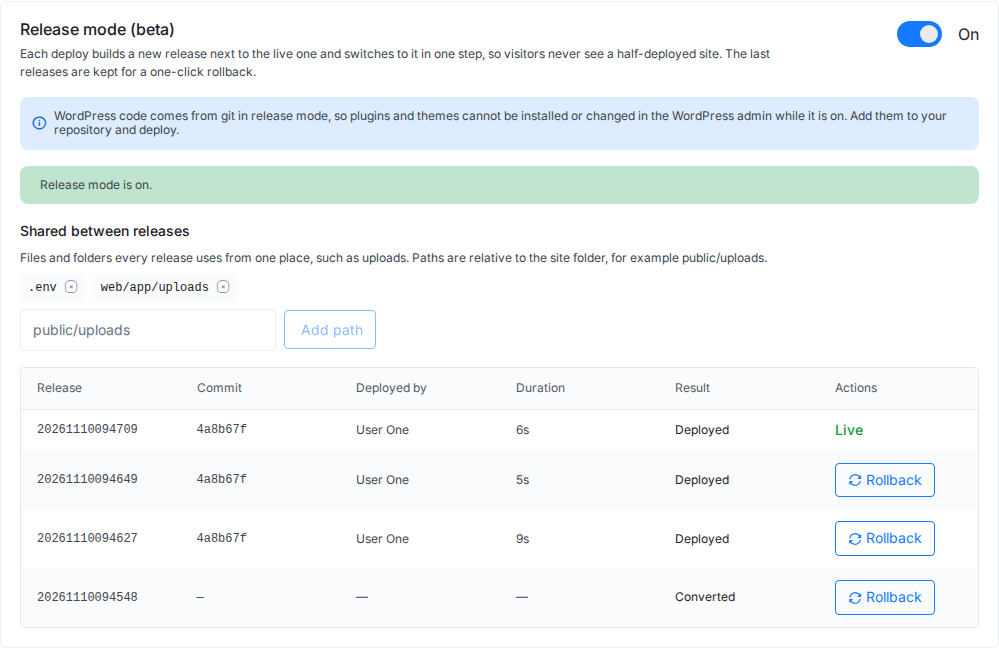
If a deploy fails, for example because the new release answers with a server error, it never goes live and the previous release keeps serving visitors. You can roll back to a kept release with Rollback:
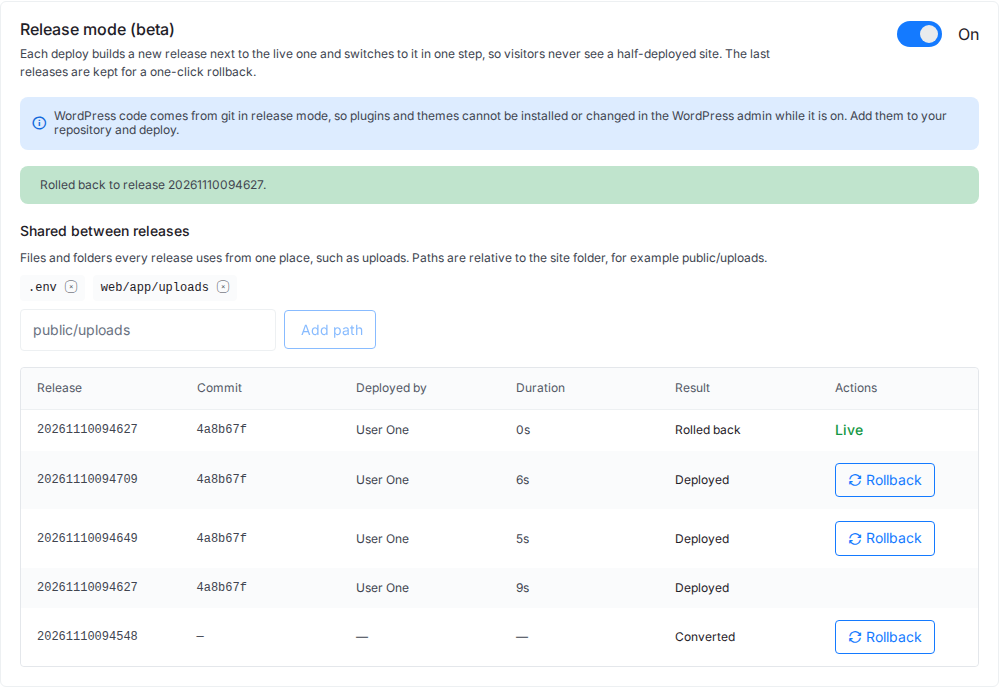
A rollback does not change the database. If a plugin update changed database tables, the older release runs against those tables. See How to roll back a deployment.
Frequently asked questions
Can I install plugins from the WordPress admin while Release mode is on?
No. WordPress code comes from Git in Release mode, so plugins and themes cannot be installed or changed in the WordPress admin. Add them to your repository and deploy. Turning Release mode off allows installs from the admin again.
Do my media uploads survive a deploy or a rollback?
Yes. The uploads folder (wp-content/uploads, or web/app/uploads for Bedrock) is shared between releases, so every release and every rollback uses the same files.
Can a WordPress site installed by xCloud use Release mode?
No. A WordPress site installed by xCloud keeps its plugins and themes in the site folder, so it cannot use Release mode. Release mode needs a WordPress site deployed from a Git repository that includes WordPress core.
Related guides
- How to use zero-downtime deployments (Release mode)
- Deploy Git projects in one click
- Release mode messages and fixes
- How to view Git deployments
If you run into any issues with zero-downtime deployments for your WordPress site, feel free to reach out to our support team.