

Zero-Downtime Deployments for Docker Container Sites in xCloud
Updated November 10, 2026 · 5 min read
A normal container deploy stops the running container, builds the new image and starts it again, so visitors get errors until the new container answers. With Release mode in xCloud, the new container starts next to the live one and gets traffic only after it passes a health check.
This guide covers what is specific to container sites. Read How to use zero-downtime deployments for the basics.
Requirements
- A site deployed from Git as a Docker container on a Docker server, built from either:
- the repository’s own Dockerfile (the Dockerfile option under Deploy with), or
- an app recipe, which xCloud uses for apps such as Flask, Django or Rails that have no Dockerfile.
- The site publishes one port.
- xCloud’s default deploy script. Release mode builds and starts the container itself.
- The Manage deploy scripts permission to turn Release mode on.
How a container deploy works
- xCloud pulls the commit and builds a new image for the release.
- It starts the web container from that image on a second port, next to the live container.
- It checks the new container on
127.0.0.1until it answers with a status below 500. The log shows, for example, “Container health check passed on 127.0.0.1:8102 (HTTP 200).” An app recipe uses its own health check path. - nginx reloads gracefully and sends new requests to the new container.
- The old container gets time to finish its requests, then it stops. Its image stays on the server for rollback.
If the image build or the health check fails, nothing switches and the old container keeps serving. The deploy log ends with “The live release is unchanged.”
Step 1: Turn Release mode on
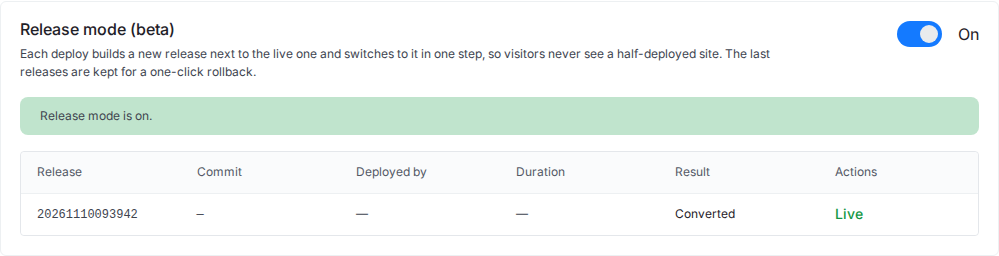
Open the site, click Git, scroll to the Release mode card, and click the switch. Confirm with Turn on. The running container becomes the first release, marked Converted.
A site built from an app recipe looks the same:
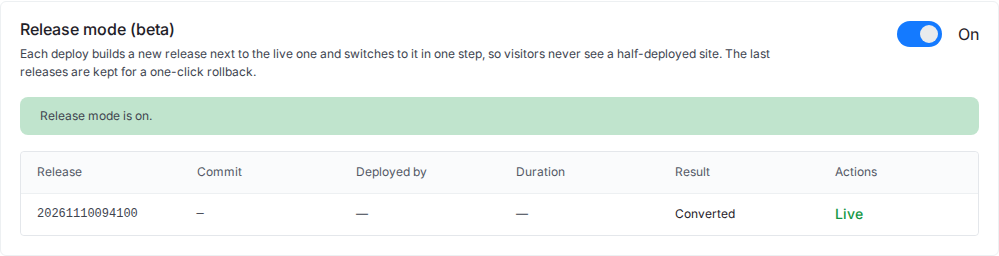
The card has no Shared between releases section on container sites. Each release’s container reads the site’s .env from the site folder, so your environment values stay the same across releases. See Environment variables and Git deployments.
Step 2: Deploy and check the releases
Deploy as usual. Each deploy adds a release, and the newest healthy one is Live.
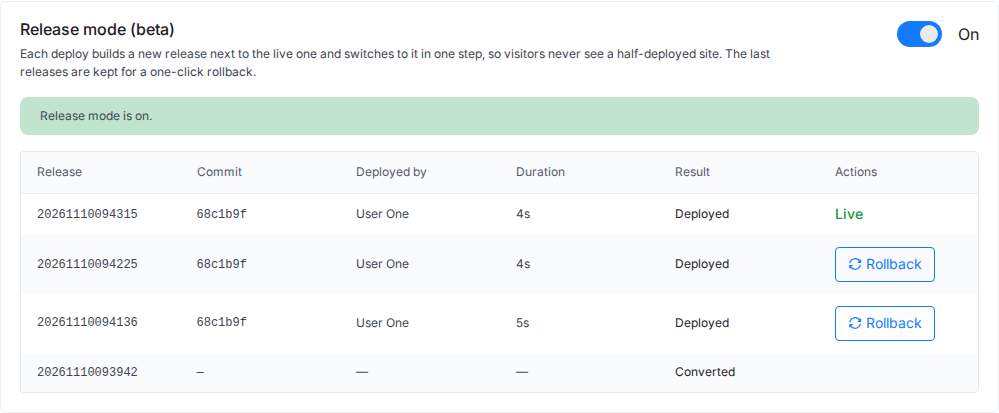
xCloud keeps the last 3 release images. After a new release goes live, the oldest image is removed, and that release loses its Rollback button.
Step 3: Roll back if you need to
Click Rollback on a kept release. xCloud starts its image on the idle port, checks it, then switches nginx, so a container rollback can take up to a minute.
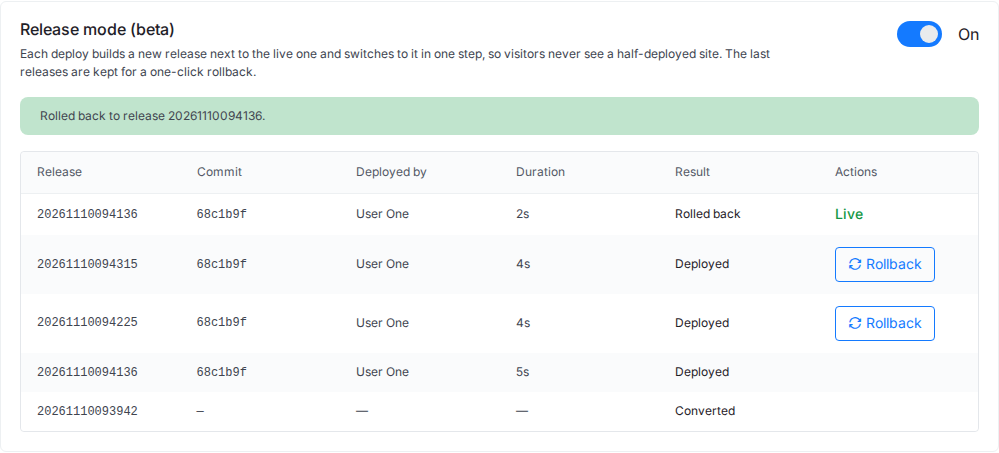
More in How to roll back a deployment.
Turn Release mode off
Click the switch and confirm Turn off. The live image runs as the site’s own container again, and the other release images are removed.
Not supported
- A site that runs the repository’s own compose file: “Release mode supports container sites built from a Dockerfile (the repository’s own or an app recipe). This site runs its repository’s compose file, which has no web service xCloud can name.”
- More than one published port: “Release mode supports one published port; this site publishes 2.” (with your number).
- A custom deploy script: “The deploy script runs its own commands; release mode builds and starts the container itself. Reset it to the default, then retry.”
- Shared paths: “A container site shares no paths: each release’s container reads the site’s .env from its own folder.”
- Changing the site’s domain while Release mode is on.
For setting up the site itself, see Deploy a custom Docker application from a Git repository.
Frequently asked questions
Which container sites can use Release mode?
Git sites on a Docker server that are built from the repository’s own Dockerfile or from an app recipe (for apps such as Flask, Django or Rails), publish one port, and use xCloud’s default deploy script. Sites that run the repository’s own compose file are not supported.
How many releases can I roll back to on a container site?
Three. xCloud keeps the last 3 release images and removes the oldest one after a new release goes live.
Can I share folders between releases on a container site?
No. A container site shares no paths: each release’s container reads the site’s .env from its own folder. The card shows no shared files section for container sites.
Related guides
- How to use zero-downtime deployments (Release mode)
- Release mode messages and fixes
- Back up and restore Docker apps
- Manage Release mode with the Public API and MCP
If you run into any issues with zero-downtime deployments for your container site, feel free to reach out to our support team.