

How to Deploy Pterodactyl Panel With xCloud One Click Apps
Updated November 6, 2026 · 6 min read
You can deploy Pterodactyl Panel on xCloud in a few clicks: New Site → search “Pterodactyl” → choose a server → Continue → Site Title, domain and administrator → Next. xCloud runs the official Pterodactyl Panel image in Docker with its MariaDB database and Redis cache, puts it on your domain with HTTPS, and creates your first administrator account. You never write a docker-compose.yml. This guide is for game communities and hosting teams who want their own game server control panel.
Pterodactyl Panel is a free, open-source web panel for managing game servers. This install is the Panel only. The game servers themselves run on Wings nodes that you attach from inside the Panel, on other machines. See the Pterodactyl hosting page for plans, and the self-hosting Pterodactyl guide if you are still choosing how to run it.
What the xCloud template installs
| Part | What you get |
|---|---|
| Panel | Pterodactyl Panel v1.15.2, the official image, pinned to that version |
| Database | MariaDB 11.8 in its own container, with a generated name, user and password |
| Cache | Redis 7.4 with a generated password |
| Web access | The Panel on your domain over HTTPS. Uploads up to 100 MB. |
| Storage | Five persistent volumes: panel_var, panel_logs, panel_nginx, panel_db, panel_redis |
| Not included | Wings, game server ports and game hosting. Add Wings nodes later from the Panel. |
Before you start
| Requirement | What you need | Why it matters |
|---|---|---|
| Server stack | An NGINX server | Pterodactyl runs in Docker, and xCloud runs Docker apps on NGINX servers. OpenLiteSpeed servers can’t run Docker. |
| Server size | At least 1 vCPU, 1 GB RAM and 8 GB free disk | xCloud checks these minimums before it installs. The app page recommends 4 GB RAM · 1 vCPU · 8 GB disk. |
| Administrator email | An email address you can use to sign in | The Panel has no public sign-up, so this account is how you get in. |
| Domain (optional) | DNS access, if you choose Go Live | Demo Site gives you a temporary address, so you can start without a domain. |
If your server is too small, xCloud tells you before the install starts. See how to upgrade your server.
Step 1: Find Pterodactyl in the app catalog
In the xCloud dashboard, click New Site. On What would you like to host today?, type Pterodactyl in the search box, then click the Pterodactyl card.
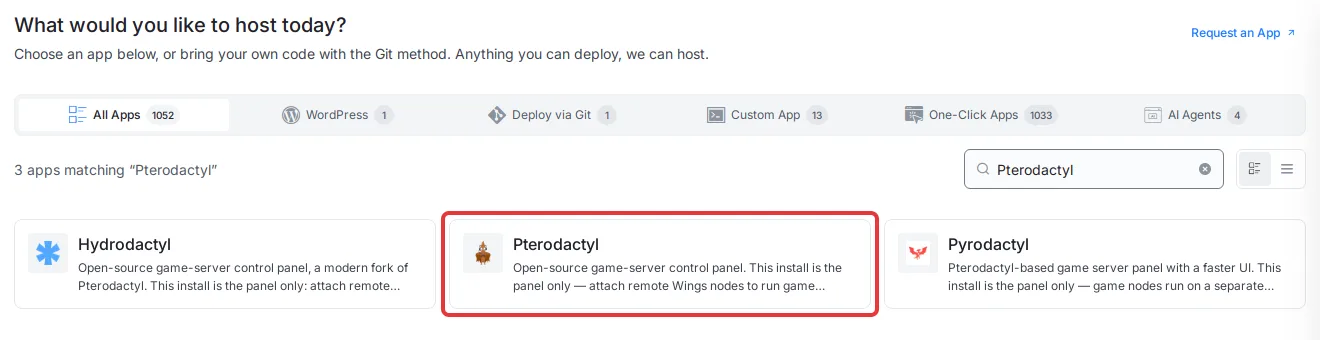
Expected result: The Pterodactyl page opens. It shows Runs on Nginx, Docker and Recommended: 4 GB RAM · 1 vCPU · 8 GB disk.
Pick the card named Pterodactyl. The search also lists Hydrodactyl and Pyrodactyl, which are separate panels.
Step 2: Choose where Pterodactyl runs
Under Where should it run?, click an existing NGINX server card. The card shows the server’s RAM, CPU, free disk and number of sites. If you don’t have a suitable server, choose Deploy on a new server and xCloud creates one for you.
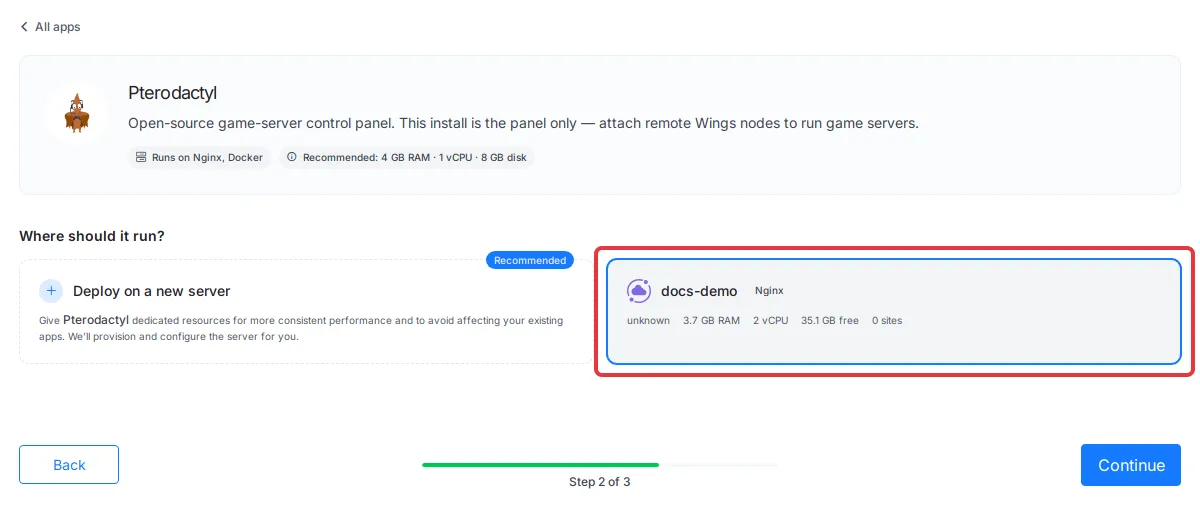
Then click Continue.
Expected result: The Install Pterodactyl Into page opens for the server you chose.
Step 3: Enter a Site Title
Under Site Details, type a name in Site Title, for example Pterodactyl. Use Add Tag (optional) only if your team sorts sites by tags.
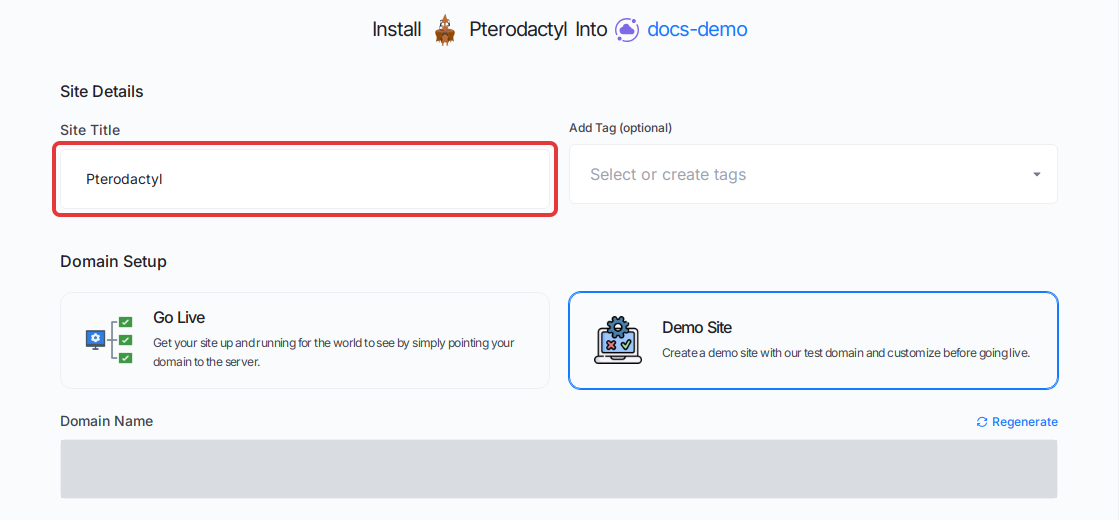
Expected result: The Site Title field shows the name you typed.
Step 4: Choose Demo Site or Go Live
Under Domain Setup, pick one:
- Demo Site: xCloud gives you a temporary domain. You can move to your own domain later. Good for a first test.
- Go Live: you enter your own domain, and point its DNS at the server.

Expected result: With Demo Site, xCloud fills in a Domain Name for you. Click Regenerate if you want a different one.
Step 5: Set up the administrator account
Under Administrator, fill in the account you will sign in with:
| Field | What to enter |
|---|---|
| Administrator email | Your sign-in email. Required. |
| Administrator username | Defaults to admin. Letters, numbers, dots, underscores and hyphens; it must start and end with a letter or number. |
| Administrator first name | Defaults to Admin. One word. |
| Administrator last name | Defaults to User. One word. |
| Administrator password | At least 12 characters. Leave it empty and xCloud creates a strong one for you. |
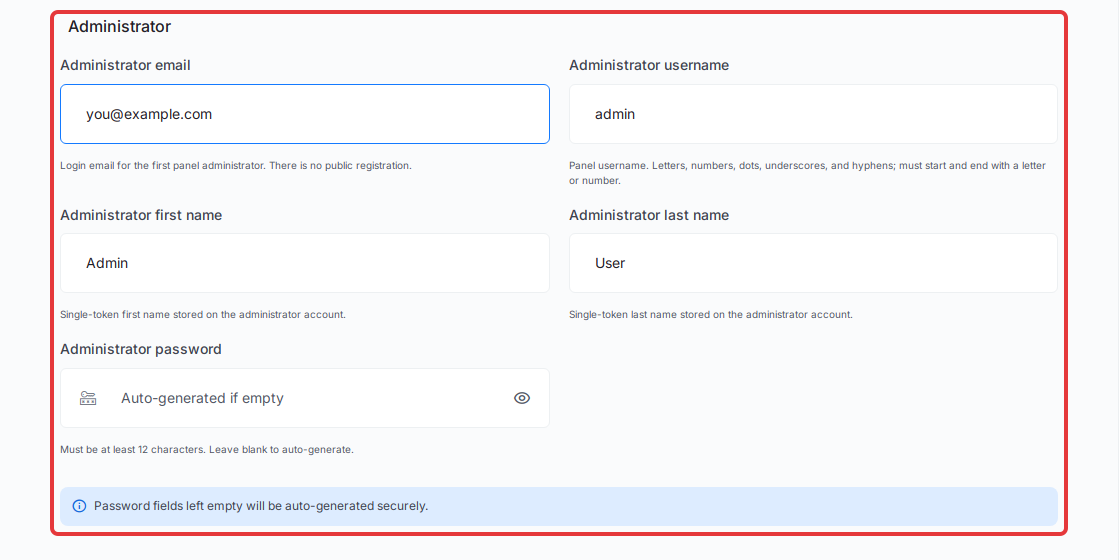
Expected result: The form accepts your entries. If a value breaks a rule, the field shows the rule under it.
Step 6: Click Next to install Pterodactyl
Check the details, then click Next.
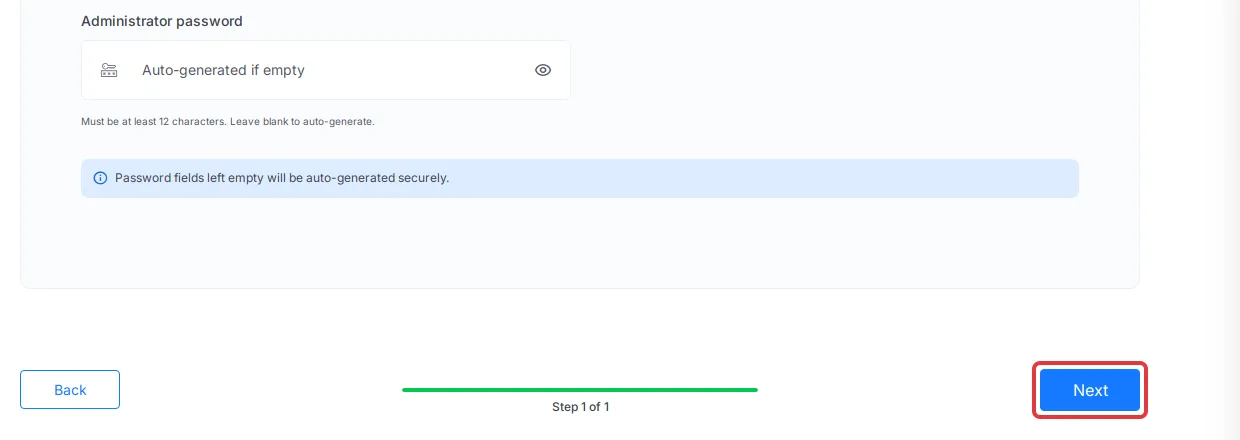
Expected result: xCloud opens Setting Up Your Site and works through nine steps, from checking the server to Finishing Up. You can leave the page while it runs.
Step 7: Copy your administrator password
When the install finishes, the site’s Site Overview opens with a Pterodactyl Credentials card. It lists the Panel URL, Administrator Email, Administrator Username and Administrator Password, plus the database name, user and password. Click Copy next to Administrator Password and save it in your password manager.
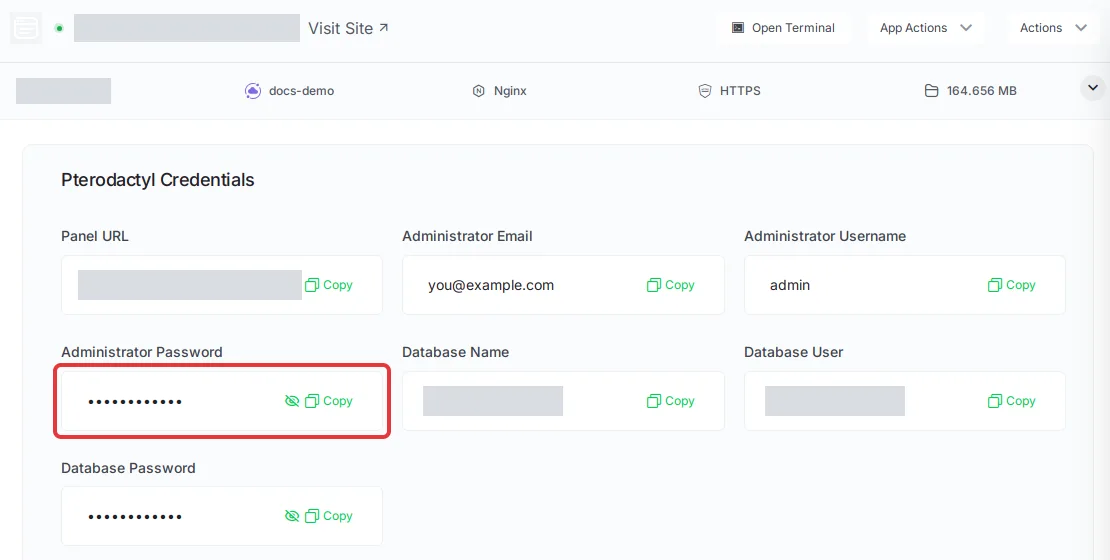
Expected result: You have the Panel URL, your administrator email and the password ready. The card below the credentials shows the same first-run notes as this guide.
The overview also shows Docker Container Health with three containers: the Panel, MariaDB and Redis. All three should show healthy.
Step 8: Sign in to Pterodactyl Panel
Click Visit Site, or open the Panel URL. On Login to Continue, enter your administrator email or username and the password, then click Login.
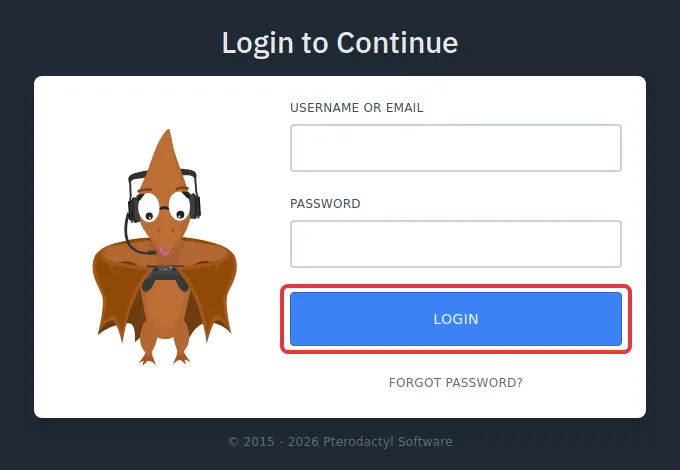
Expected result: The Panel opens on Showing Your Servers, which is empty for now.
The first boot sets up the Panel’s database before it can answer, so the page can take a few minutes to load right after the install. If it shows an error, wait and reload.
After the first sign-in
| Task | What to do |
|---|---|
| Run game servers | In the Panel’s admin area, create a location and add a Wings node on another machine. This app does not run Wings. Follow the Pterodactyl documentation for Wings. |
| Add users | Create each account yourself in the Panel. There is no public sign-up. |
| Change your password | Change it inside the Panel. Editing the admin password in the site’s Environment page does not change an account that already exists. |
| Send email | Mail stays in the Panel’s log until you set up SMTP. On the site’s Environment page, add MAIL_HOST, MAIL_PORT, MAIL_USERNAME, MAIL_PASSWORD and MAIL_ENCRYPTION, set MAIL_FROM_ADDRESS to a real sender, change both MAIL_DRIVER and MAIL_MAILER to smtp, then click Save & Redeploy. Expected result: the containers restart briefly and Panel emails start arriving. |
| Turn on reCAPTCHA | reCAPTCHA is off, so the login works on your domain. Turn it on in the Panel with your own Google keys if you want it. |
| Back up | Use Backup in the site menu. The five volumes belong together, so back up and restore them as one. |
Update Pterodactyl
xCloud pins the Panel to v1.15.2. App Actions → Update pulls the images named in the app’s compose file and recreates the containers, so it pulls v1.15.2 again rather than a newer release. Your data volumes are kept.
To move to a newer Pterodactyl release:
- Read the Pterodactyl release notes for the version you want.
- Back up the site first. All five volumes belong together.
- Change the Panel image version on the site’s Compose page and click Save & Redeploy. Keep the volume names as they are.
The full method, and who can open the Compose page, is in Update a One Click App and edit its Docker Compose.
Troubleshooting
| Symptom | Likely cause | Fix |
|---|---|---|
| The Panel address shows an error right after the install | First boot is still setting up the database | Wait a few minutes, then reload the page. |
| You can’t sign in | Wrong password, or a password changed after install | Copy the password again from the site’s credentials. If you changed it inside the Panel, use the new one. |
| No emails arrive from the Panel | Mail is not set up yet, or the SMTP settings are incomplete | On the site’s Environment page, add MAIL_HOST, MAIL_PORT, MAIL_USERNAME, MAIL_PASSWORD and MAIL_ENCRYPTION, set MAIL_FROM_ADDRESS to a real sender, change both MAIL_DRIVER and MAIL_MAILER to smtp, then click Save & Redeploy. |
| The install won’t start: server doesn’t meet requirements | Less than 1 vCPU, 1 GB RAM or 8 GB free disk | Upgrade the server or pick another one. |
| Game servers don’t start | No Wings node is attached | This app is the Panel only. Add a Wings node on another machine from the Panel. |
Frequently asked questions
Does the xCloud Pterodactyl app run my game servers?
No. It installs the Pterodactyl Panel only. Game servers run on Wings nodes, which you add from inside the Panel on other machines. The install opens no game ports on your xCloud server.
What happens if I leave the administrator password empty?
xCloud creates a strong password for you. You find it with the site’s credentials after the install. Save it in your password manager, because you need it for the first sign-in.
Can people sign up on my Panel?
No. The Panel has no public sign-up page. You sign in with the administrator account from the install form, then create other users yourself inside the Panel.
Does App Actions → Update upgrade Pterodactyl to a newer version?
Not on its own. The app is pinned to Pterodactyl Panel v1.15.2, so Update pulls that same version again. A new version needs a change to the app’s compose file, after a backup.
Related guides
- How to use One-Click App Templates in xCloud
- Manage One Click App domains and public endpoints
- Update a One Click App and edit its Docker Compose
- All One Click Apps
- Pterodactyl Panel documentation
If you run into any issues while deploying Pterodactyl, feel free to reach out to our support team.