

How to Roll Back a Deployment in xCloud
Updated November 10, 2026 · 5 min read
When a deploy goes wrong, you can put an earlier release back in one click. A rollback in xCloud needs Release mode (zero-downtime deployments) on the site: every deploy then keeps its release on the server, and a rollback switches the site to one of them in one step. Visitors keep getting answers while it happens.
If Release mode is not on yet, start with How to use zero-downtime deployments.
What a rollback changes, and what it does not
A rollback switches the code your site runs to the release you pick. It does not change:
- the database, so any migration a newer release ran stays in place;
.env, so your environment values stay as they are now;- the shared files and folders, such as
storageor uploads.
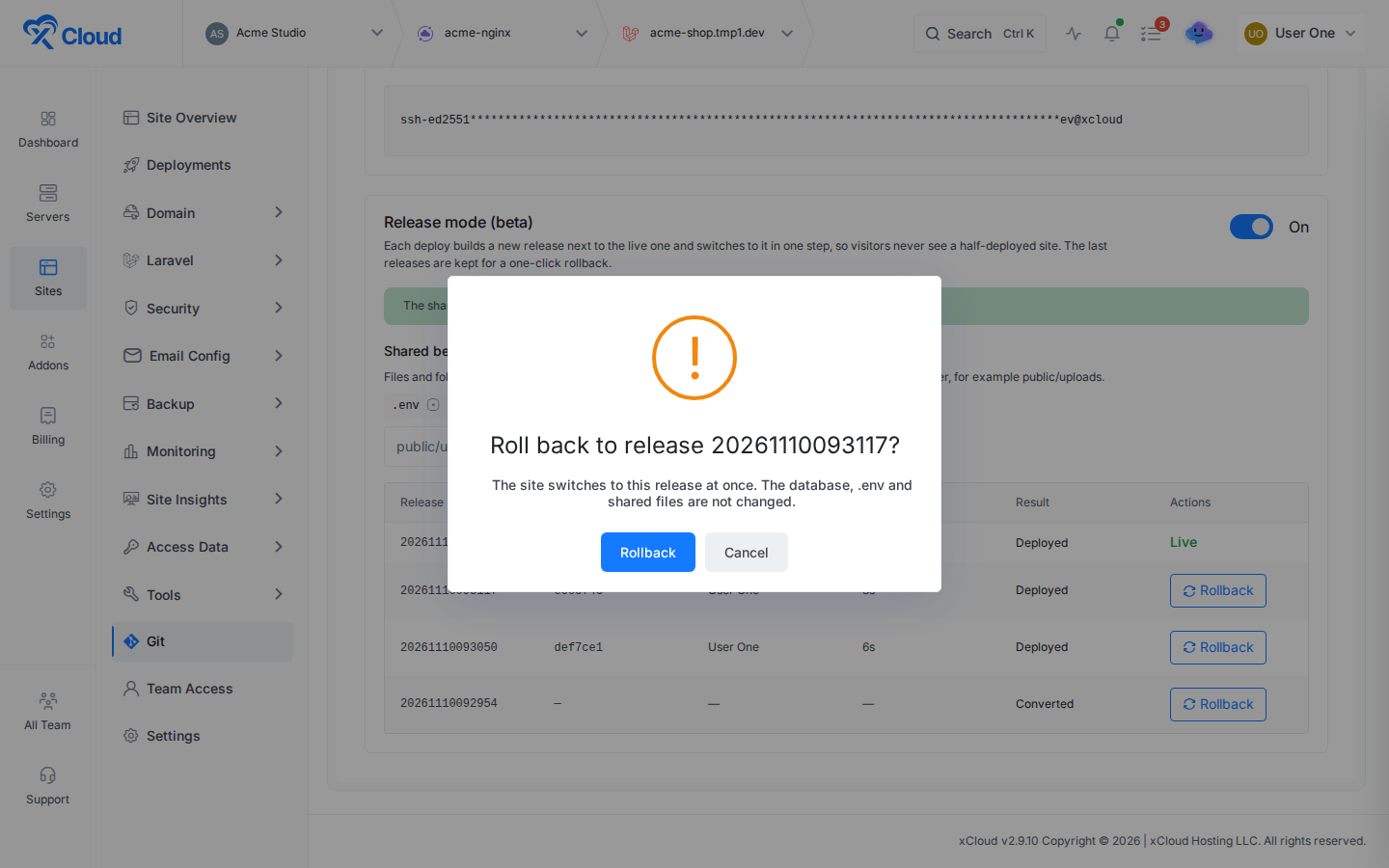
The rollback dialog says the same: “The site switches to this release at once. The database, .env and shared files are not changed.”
After the switch, xCloud restarts the site’s queue workers, Horizon and running Supervisor programs, so they run the code you rolled back to.
Who can roll back
Rollback needs the Manage deploy scripts permission, the same permission as turning Release mode on or off. A member who may only deploy does not see the Rollback button. See who can change a deploy script.
Step 1: Find the release in the list
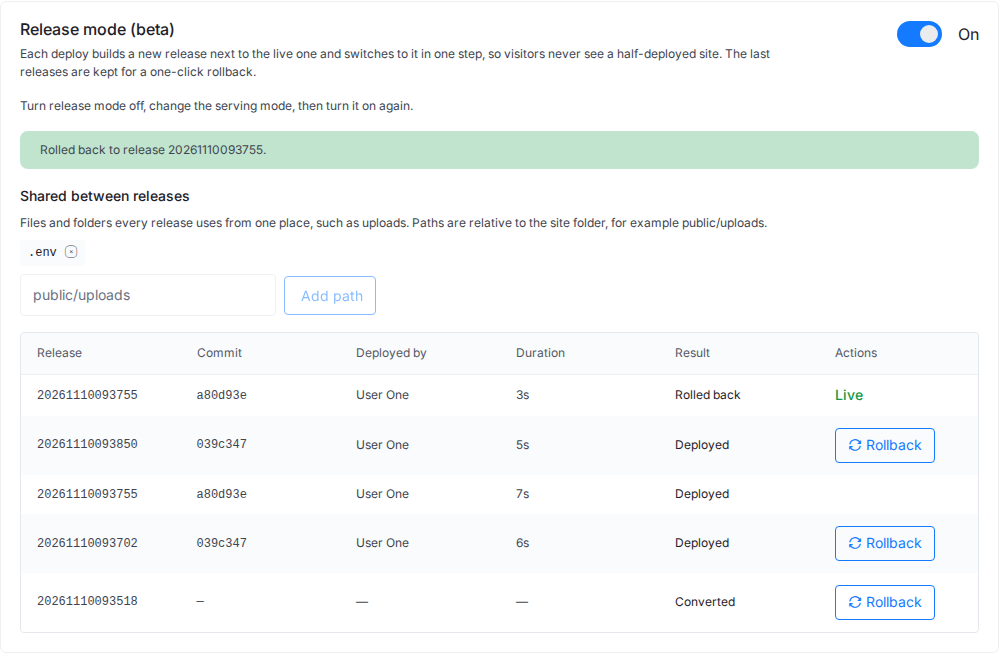
Open your site, click Git, and scroll to the Release mode card. The release visitors get now shows Live. Older releases that went live and are still on the server show Rollback.
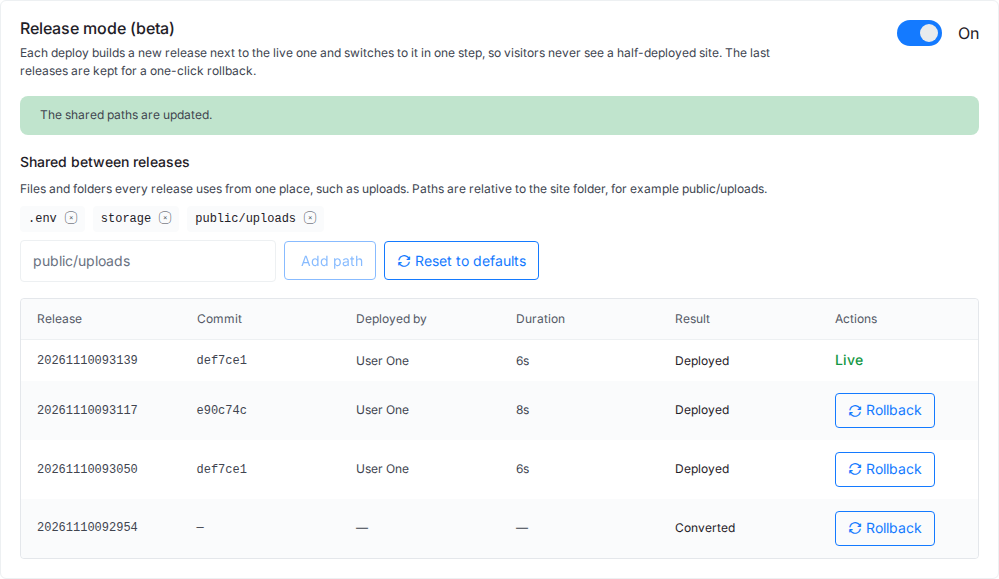
Use the Commit column to find the release you want. A Failed release never went live, so it has no Rollback button.
Step 2: Click Rollback and confirm
Click Rollback on the release. The dialog Roll back to release …? shows the release name. Click Rollback to confirm.
Step 3: Check the result
The card shows “Rolling back to release …” and then “Rolled back to release …”. The release you picked is now Live, with the result Rolled back.
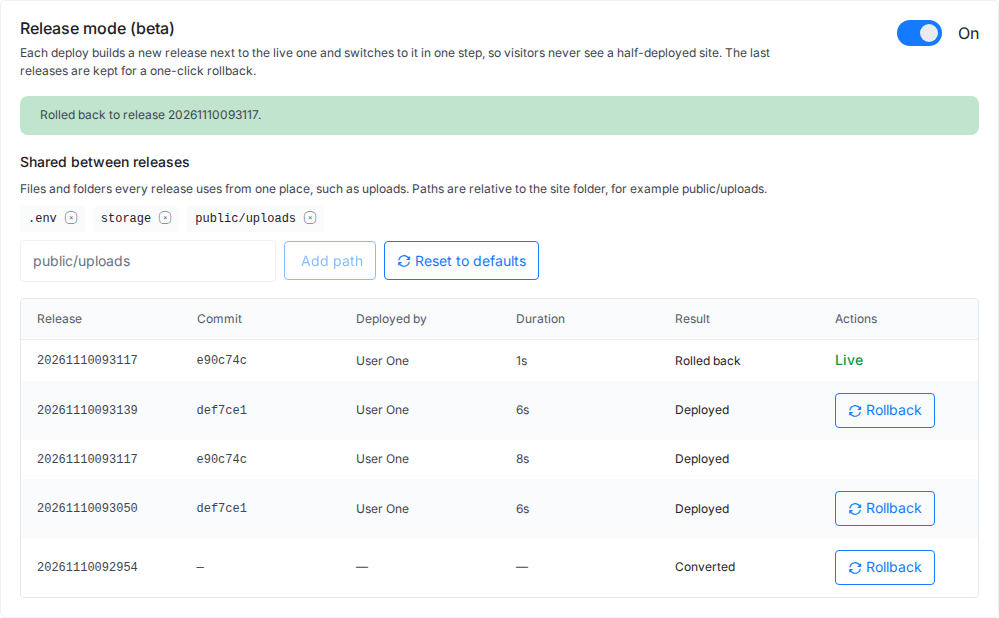
The list shows each release once per deploy or rollback, so a release you rolled back to can appear twice: once as Deployed and once as Rolled back. The Live label is on the newest row.
How long a rollback takes
- Laravel, PHP and WordPress: the site folder switches to the kept release, which usually takes about a second.
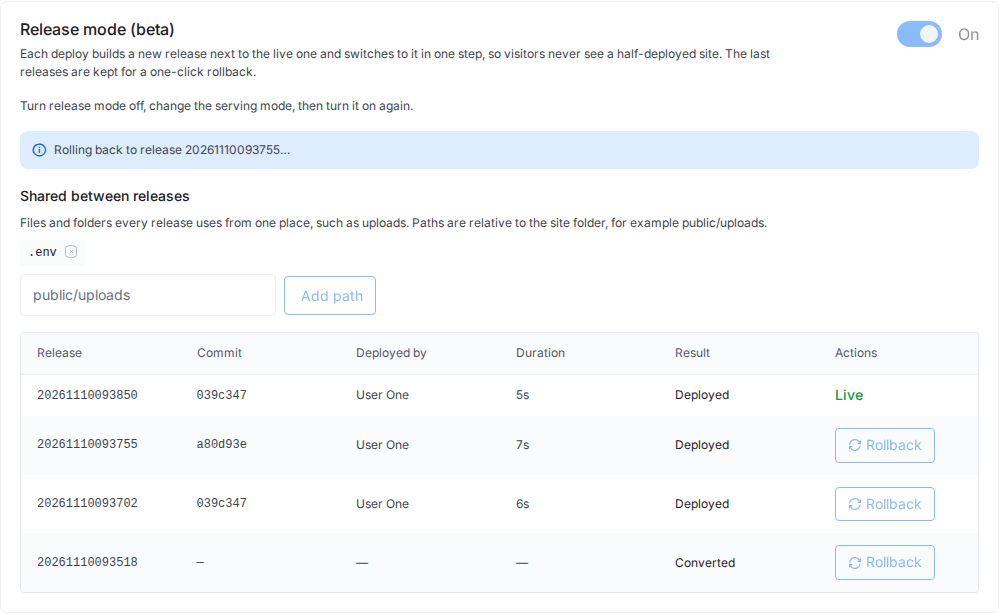
- Node.js and container sites: the kept release has to start on the second port and pass its health check before traffic moves, and the old process gets time to finish its requests. This can take up to a minute. The card shows “Rolling back to release …” until it is done.
Which releases are kept
PHP, Node.js and WordPress sites keep 5 releases on the server. Container sites keep 3 release images, so after three newer deploys the oldest release loses its Rollback button. If you pick a release that is no longer on the server, the rollback fails with “Release … is not on the server; pick a release that is still kept.” and the live release stays.
Roll forward again
A rollback is not permanent. To go back to the newer code:
- click Rollback on the newer release, which is still in the list while it is kept; or
- fix the problem in your repository and deploy again. The deploy builds a new release from your branch.
If you are rolling back because a deploy failed, read the reason first: Release mode messages and fixes.
Frequently asked questions
Does a rollback restore my database?
No. A rollback switches only the code. The database, .env and shared files are not changed, so a database migration from the newer release stays in place.
Why is there no Rollback button on my site?
Rollback needs Release mode turned on for the site and the Manage deploy scripts permission. A release also shows the button only if it went live before and is still kept on the server.
How many releases can I roll back to?
PHP, Node.js and WordPress sites keep 5 releases on the server. Container sites keep 3 release images. Older ones are removed after a new deploy.
How do I undo a rollback?
Roll back again to the newer release: it is still in the list with its own Rollback button. Or deploy again, which builds a new release from your branch.
Related guides
- How to use zero-downtime deployments (Release mode)
- Zero-downtime deployments for Laravel and PHP sites, including how to keep migrations safe to roll back
- Roll back with the Public API and MCP
- How to view Git deployments
If you run into any issues rolling back a deployment, feel free to reach out to our support team.