

How to Deploy Ollama With xCloud One Click Apps
Updated November 6, 2026 · 6 min read
You can deploy Ollama on xCloud in a few clicks: New Site → search “Ollama” → choose a server → Continue → Site Title and domain → Next. xCloud runs Ollama in Docker on an NGINX server, puts it on your domain with HTTPS, and pulls a small first model for you. You never write a docker-compose.yml or touch a terminal. This guide is for developers and teams who want to run open AI models on a server they control.
Ollama is a free, open-source tool that downloads open large language models (LLMs) and runs them on your own server. See the Ollama hosting page for plans, and the self-hosting Ollama guide if you are still choosing where to run it.
Before you start
| Requirement | What you need | Why it matters |
|---|---|---|
| Server stack | An NGINX server | Ollama runs in Docker, and Docker apps run on NGINX servers. OpenLiteSpeed servers can’t run Docker. |
| Memory | Enough RAM for Ollama plus your models | Every model you load needs RAM, so size the server for the models you plan to run. |
| Disk | At least 15 GB free | xCloud checks for 15 GB of free disk before it installs Ollama. Models are large, so leave more room. |
| One per server | No other Ollama on that server | xCloud allows one Ollama installation per server. |
| Domain (optional) | DNS access, if you choose Go Live | Demo Site gives you a temporary address, so you can start without a domain. |
Ollama runs on the server’s processor by default. When xCloud finds an NVIDIA or AMD graphics card on the server, it sets up Ollama to use it. Larger models run much faster on a server with a graphics card.
Step 1: Find Ollama in the app catalog
In the xCloud dashboard, click New Site. On What would you like to host today?, type Ollama in the search box, then click the Ollama card.
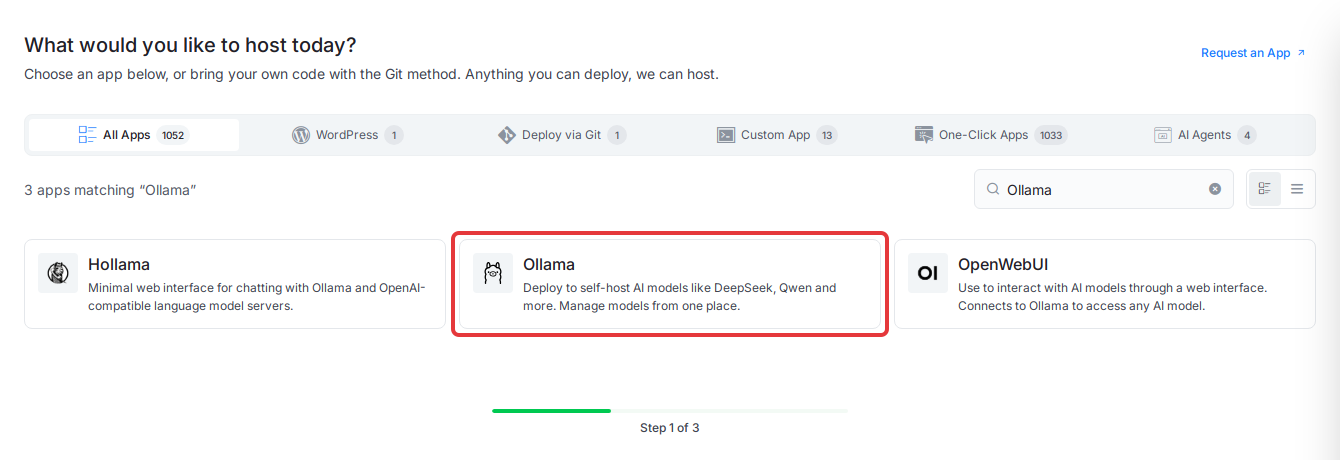
Expected result: The Ollama page opens. It shows Recommended: 15 GB disk.
Step 2: Choose where Ollama runs
Under Where should it run?, click an existing NGINX server card. The card shows the server’s RAM, CPU, free disk and number of sites. If you don’t have a suitable server, choose Deploy on a new server and xCloud creates one for you.
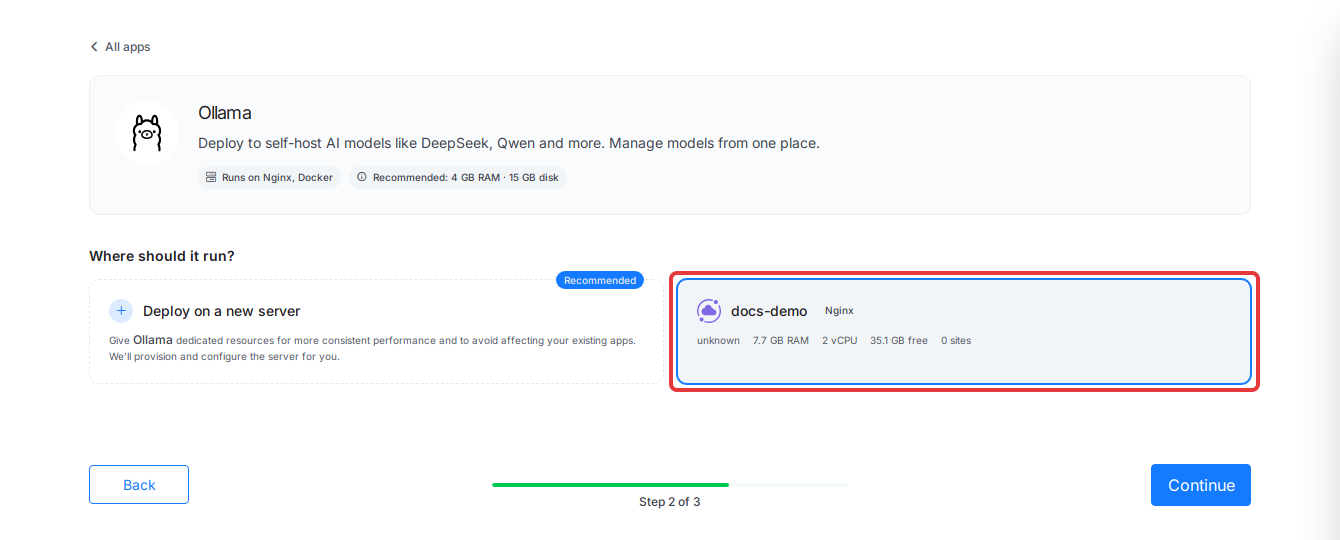
Then click Continue.
Expected result: The Install Ollama Into page opens for the server you chose. If the server already has Ollama, xCloud tells you Ollama Already Installed.
Step 3: Enter a Site Title
Under Site Details, type a name in Site Title, for example Ollama. Use Add Tag (optional) only if your team sorts sites by tags.
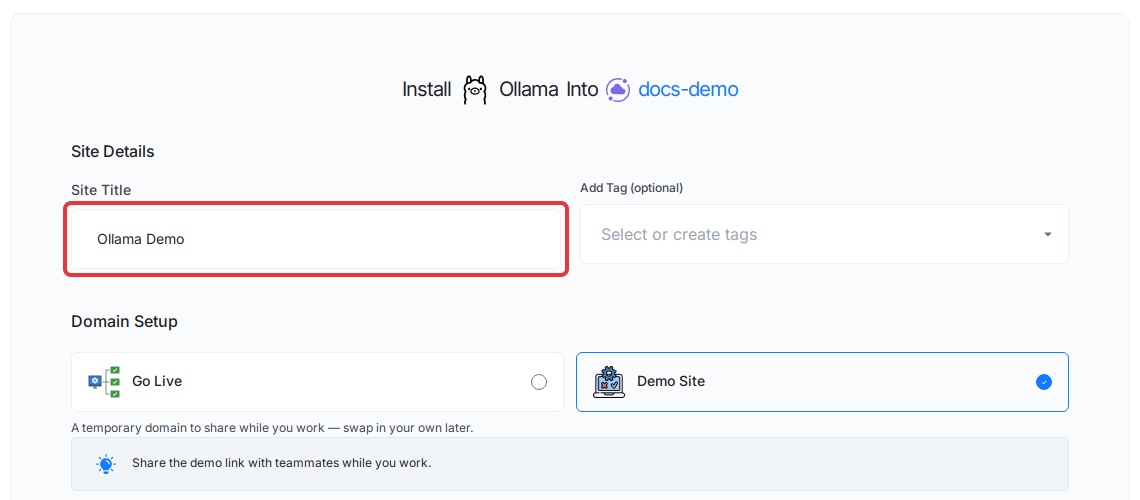
Expected result: The Site Title field shows the name you typed.
Step 4: Choose Demo Site or Go Live
Under Domain Setup, pick one:
- Demo Site: xCloud gives you a temporary domain. You can switch to your own domain later. Good for a first test.
- Go Live: you enter your own domain, and point its DNS at the server.
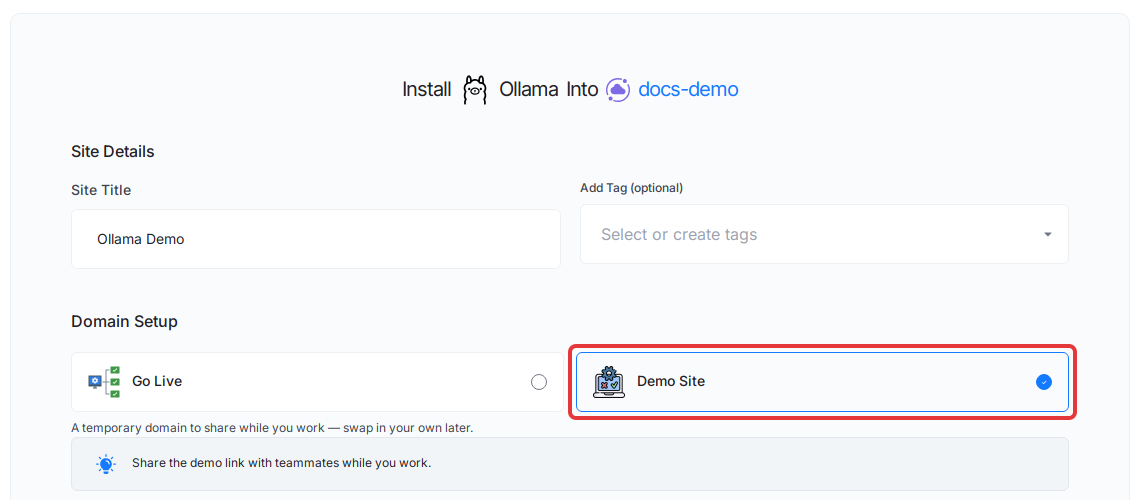
Expected result: With Demo Site, xCloud fills in a Domain Name and a Site User for you. You can keep both.
Step 5: Click Next to install Ollama
Check the details, then click Next.
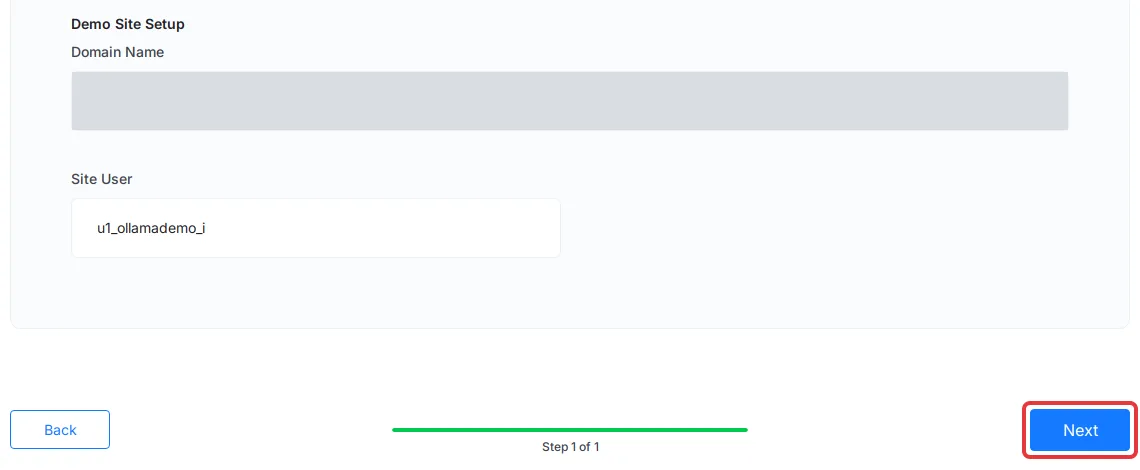
Expected result: xCloud opens the progress page and installs Ollama. It checks free disk space, starts the Ollama container, pulls the first model (deepseek-r1:1.5b, about 1.1 GB), adds HTTPS and sets up the domain. On our test server this took about two minutes. When it finishes, the site opens in the dashboard.
If the install stops with a disk space error, free up space or pick a server with at least 15 GB free, then try again.
Step 6: Check that Ollama is running
Click Visit Site at the top of the site page. Your domain shows the text Ollama is running.
That one line is all the domain shows. Nothing else on your domain is open, so only you can use the models on your server, not strangers on the internet.
To chat with your models in a browser, see How to self-host LLMs with xCloud.
Step 7: Open Ollama Management
In the site menu, open Ollama → Management.
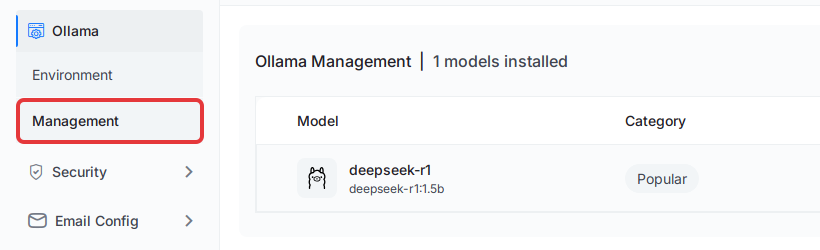
Expected result: Ollama Management lists every installed model with its Category, Size and Status. Right after the install you see deepseek-r1:1.5b with the status Installed.
Step 8: Add a model
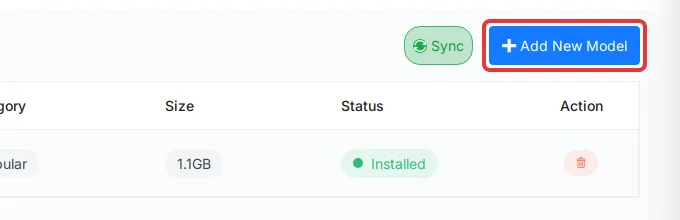
Click Add New Model.
In the Add New Model window, open Select Model and choose a model. Each entry shows its size, for example gemma4:latest - gemma4 (9.6GB). Then click Pull Model.
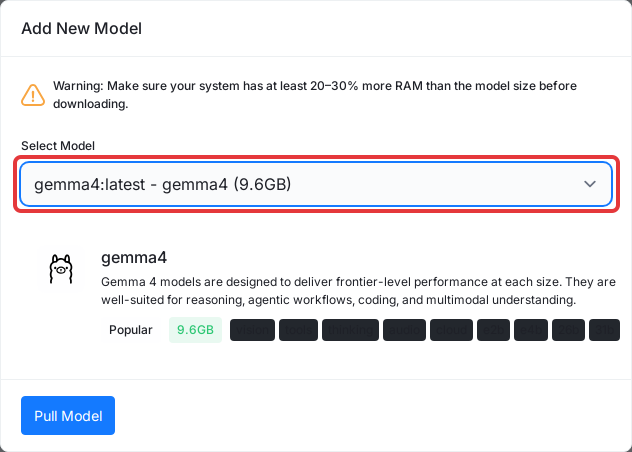
Before you pull, compare the model size with your server’s memory. The window warns: make sure your system has at least 20 to 30% more RAM than the model size. A 9.6 GB model needs a server with about 12 GB of RAM or more.
Expected result: The model downloads, then shows Installed in the list. Large models can take several minutes. If the list looks out of date, click Sync.
Remove a model
On Ollama → Management, click the red delete icon in the model’s Action column, then confirm. Removing a model frees its disk space. You can pull it again later.
Change Ollama settings
Open Ollama → Environment to edit Ollama’s settings file, then click Save. xCloud starts Ollama with these settings:
| Setting | Value at install | What it does |
|---|---|---|
OLLAMA_KEEP_ALIVE |
5m |
How long a model stays in memory after its last request |
OLLAMA_MAX_LOADED_MODELS |
3 |
How many models can be in memory at once |
OLLAMA_MAX_QUEUE |
512 |
How many requests can wait in line |
Change these only if you know you need to. Keeping fewer models loaded uses less RAM.
Troubleshooting
| Problem | Likely cause | Fix |
|---|---|---|
| No server can be picked in Step 2 | The server isn’t NGINX, or it has less than 15 GB free disk | Use an NGINX server with at least 15 GB free disk, or choose Deploy on a new server. |
| Ollama Already Installed | That server already runs Ollama | Use the existing Ollama site, or deploy on another server. |
| The install fails on disk space | Less than 15 GB free on the server | Free up disk space, then try again. |
| Other pages on your Ollama domain show a 403 error | Only the status page is open on your domain, on purpose | This is expected. To chat with your models in a browser, see How to self-host LLMs with xCloud. |
| A model is slow or won’t load | The model is too big for the server’s RAM | Pick a smaller model, remove models you don’t use, or move to a server with more RAM or a GPU. |
Frequently asked questions
Do I need to write a docker-compose.yml to deploy Ollama on xCloud?
No. Pick Ollama in the One Click Apps catalog, choose a server, set the site details and click Next. xCloud sets up the container, the domain and HTTPS for you.
Can I install Ollama twice on the same server?
No. xCloud allows one Ollama installation per server. To run a second copy, deploy it on another server.
Why does my Ollama domain only show “Ollama is running”?
That is expected. The domain answers only that status message, and every other path is blocked, so strangers can’t use your models through your domain. To chat with your models in a browser, see How to self-host LLMs with xCloud.
How much server memory do I need for a model?
Plan for enough RAM for Ollama plus the models you load. The Add New Model window asks for 20 to 30% more RAM than the model’s size. xCloud also checks for 15 GB of free disk before it installs Ollama.
Related guides
- How to self-host LLMs with xCloud: Ollama and Open WebUI together
- How to use Gemma 4 with OpenClaw and Ollama
- How to use One-Click App Templates
- Manage One Click App domains, to move a Demo Site to your own domain
- Explore the One Click Apps catalog
- Upstream: Ollama documentation and the Ollama model library
If you run into any issues deploying Ollama, feel free to reach out to our support team.