

How to Deploy a Gatsby Site from Git on xCloud
Updated November 14, 2026 · 6 min read
You can host a Gatsby site on xCloud straight from its Git repository. xCloud reads your package.json, runs npm run build (which runs gatsby build) on your server, and serves the finished site from the public folder with your web server. No Node.js process keeps running. After the first deploy, every push to your branch can publish a new version.
This guide walks through the setup screen, the build settings to check, and how to add your own domain and turn on deploys on push.
How xCloud sets up a Gatsby site
xCloud fills in these settings when your package.json lists gatsby as a dependency:
| Setting | Value for Gatsby | Why |
|---|---|---|
| App Type | Node.js | Gatsby builds with Node.js, even though the live site is static. |
| Serving mode | Static build | Your web server serves the built files. No Node.js process runs. |
| Web root | public |
gatsby build writes your site to public/. |
| Build & deploy script | npm install, then npm run build |
Runs on every deploy. |
xCloud has no separate Gatsby label yet, so the setup screen shows Framework not recognised — assuming a static build. Review the serving mode. For a Gatsby site, the static build it picks is the right one. You only need to check the settings in Step 4.
If your package.json has no build script, xCloud warns you to set the build command. Gatsby starters include "build": "gatsby build", so most projects already have it.
Before you begin
- An xCloud server with the Nginx or OpenLiteSpeed stack. You can also create one during these steps.
- Your Gatsby project in a Git repository. Public repositories work without any setup. For a private repository, connect your Git provider first.
- A
buildscript inpackage.json.
Step 1: Choose Deploy via Git
Open Sites and click Add New Site. On What would you like to host today?, click the Deploy via Git card.
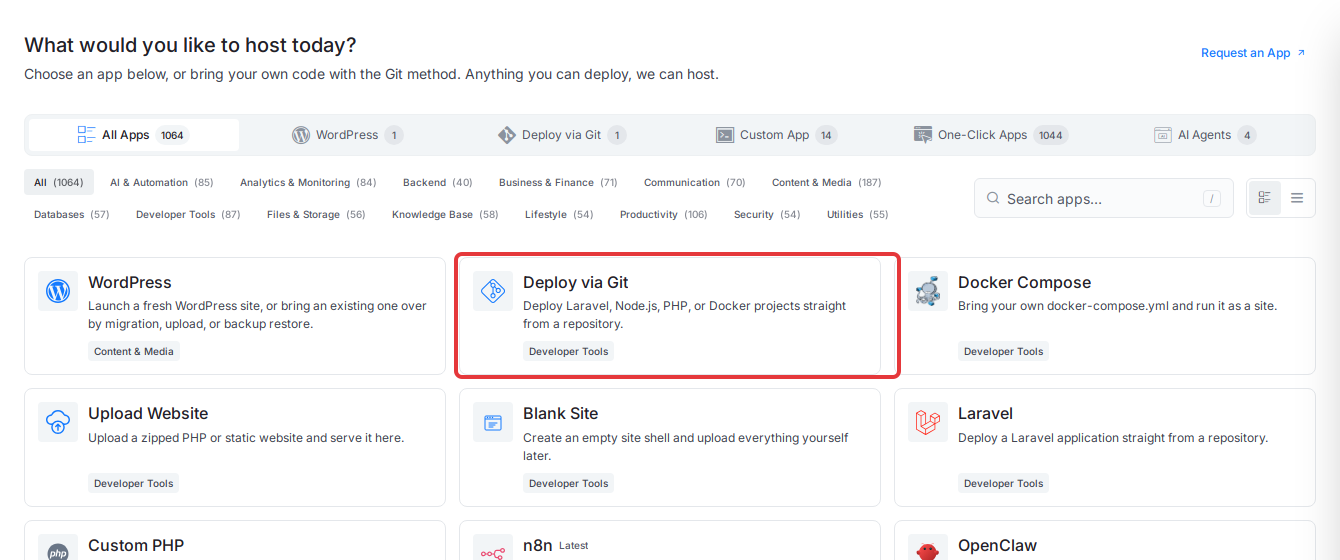
You can also open a server first and use its Deploy via Git tab. Both paths lead to the same setup screen.
Step 2: Pick the server
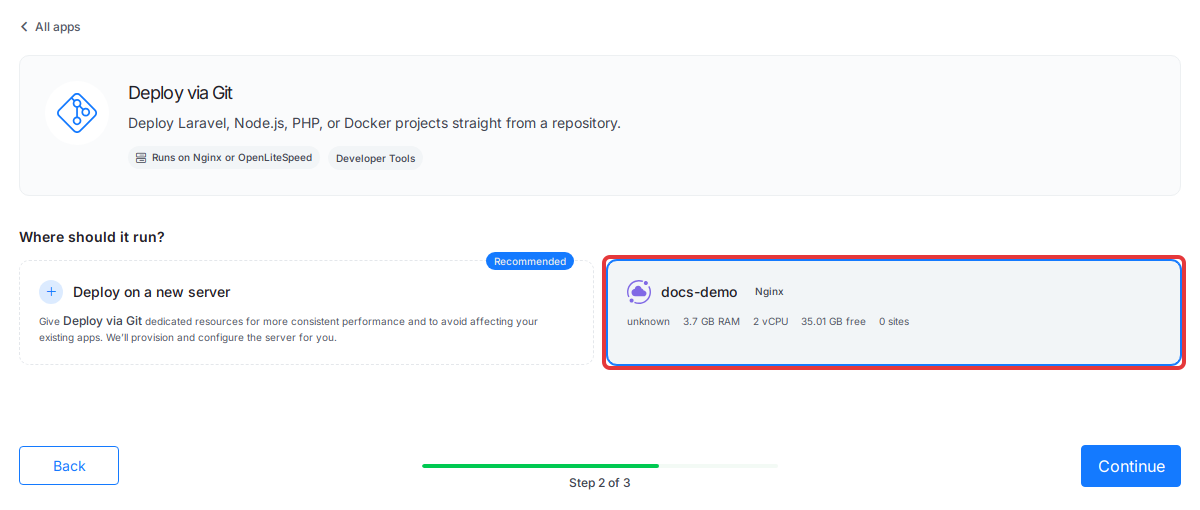
Under Where should it run?, select the server for your Gatsby site and click Continue. If you have no Nginx or OpenLiteSpeed server yet, choose Deploy on a new server and xCloud brings you back here once the server is ready.
Step 3: Add your Gatsby repository
In Deploy Any App From Git, paste your repository URL, for example https://github.com/your-account/your-gatsby-site, then press Enter. For a private repository, switch to Private Repository and pick it from your connected account.
xCloud reads the repository and selects Native app with a Node.js label, and App Type is set to Node.js.
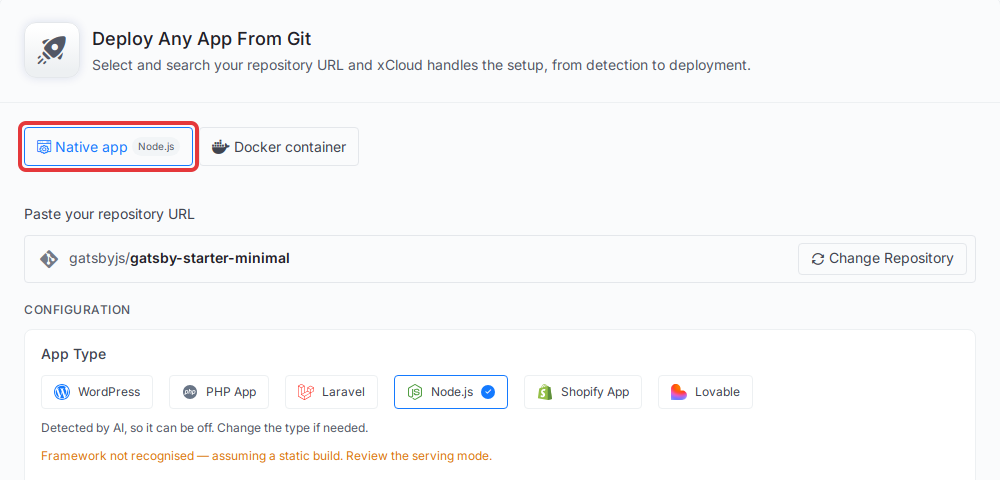
Keep Native app selected. A Gatsby site doesn’t need a Docker container.
Step 4: Check the domain, branch and build settings
Keep the free Staging domain (no DNS) to test first, or click Use a live domain instead to use your own domain. Check that Branch is the branch you want to publish.
Then look at Build & serving. Serving mode should be Static build and Web root should be public. Leave both as they are, unless you changed where Gatsby writes its output.
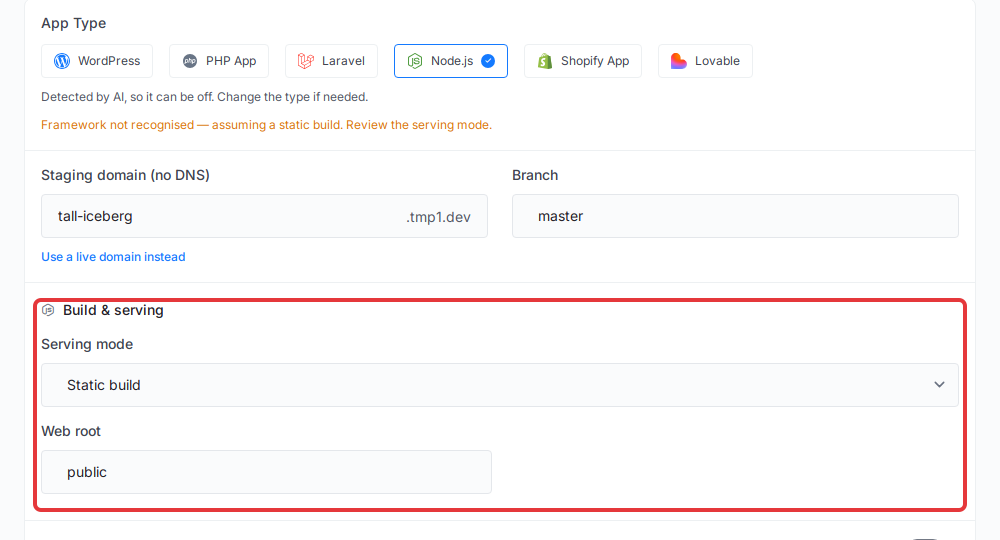
Don’t switch to SSR (Node process). In Gatsby starters the start script runs gatsby develop, a development server, so a static build is the right setup for a live site.
Step 5: Check the build script and environment variables
Open Advance. Under Build & deploy script, xCloud fills in the commands that run on every deploy: install your dependencies, then npm run build. Change them only if your project builds with a different script.
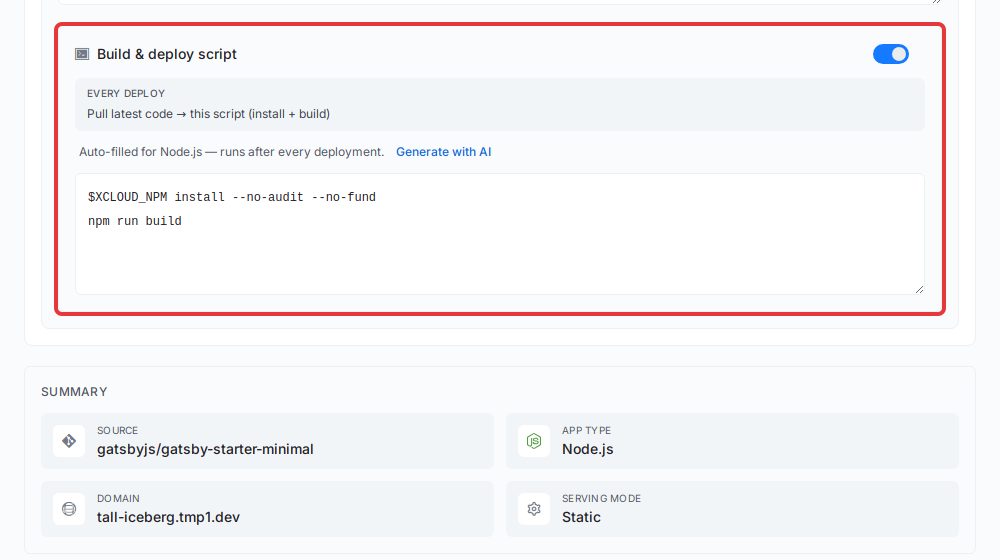
In the same section you can pick the Node.js Version your site builds with and add values to Environment file (.env). Gatsby reads these values while it builds, for example a CMS API key or a GATSBY_ variable. After you change one, deploy again so the site picks it up. Environment Variables and Git Deployments explains how xCloud stores them.
Step 6: Deploy
Check the Summary and click Deploy. xCloud pulls your code, installs dependencies, runs gatsby build and publishes the public folder. When it is done, open Deployments on the site. The latest deployment shows Deployed and LIVE.
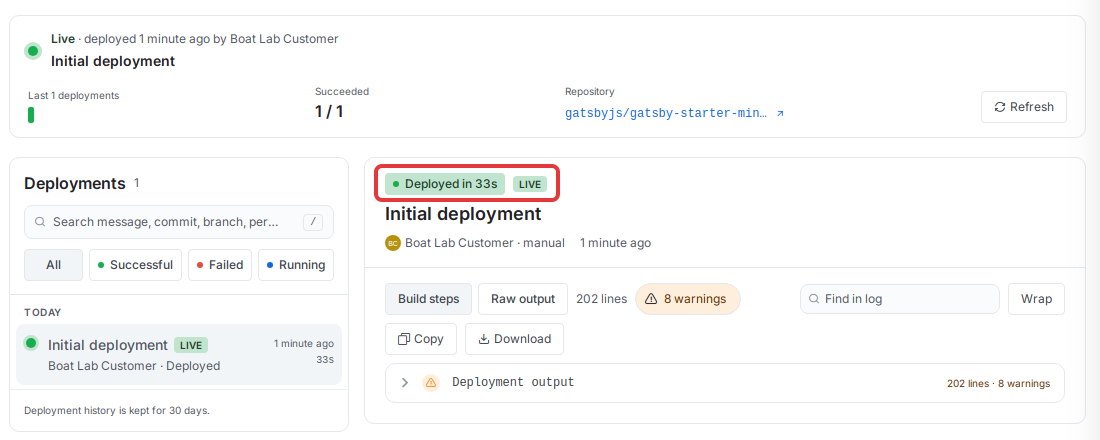
Click Visit Site at the top to open your Gatsby site.
If a deployment fails, open it on the same page and read Build steps to see which step stopped. Common causes for Gatsby:
- The build failed. Open Raw output and look for the Gatsby error. A plugin that needs a newer Node.js version is a frequent one: change the version as shown in How to Change Node Version with xCloud, then click Deploy Now.
- The site shows an error after a successful build. Check that Web root is
public. Gatsby writes nothing todist.
See How to View Git Deployments for Your Site in xCloud for more on this page.
Update your site with a Git push
After the first deploy, publishing a change is a push:
- Turn on Auto-deploy on push (webhook) for a repository from a connected Git provider.
- Push to the branch you deployed. xCloud pulls the new code and rebuilds the site.
- To deploy without a push, click Deploy Now at the top of the site.
If a push doesn’t start a deployment, see Troubleshooting Git Deployments.
Add your own domain and SSL
If you started on a staging domain, add your own domain from the site’s Domain menu, point its DNS to your server, and xCloud sets up a free SSL certificate. How to Deploy Git Projects in One Click with xCloud shows the DNS options, including one-click verification for domains on Cloudflare.
Building with Astro instead? See How to Deploy an Astro Site from Git on xCloud.
Frequently asked questions
Does xCloud run a Node.js process for my Gatsby site?
No. xCloud builds your Gatsby site with npm run build and your web server serves the files in the public folder. No Node.js process stays running after the build.
Why does xCloud say “Framework not recognised” for my Gatsby repository?
xCloud has no separate Gatsby label yet, so it shows the app as Node.js and assumes a static build. For Gatsby that is the right setup. Check that Serving mode is Static build and Web root is public, then deploy.
Can I use Gatsby SSR, deferred static generation or Gatsby Functions on xCloud?
Not with a static build. Those features need a running Gatsby server, and a static build only serves the files gatsby build writes. Pages generated at build time work as usual.
How do I update my Gatsby site after it is live?
Push to the branch you deployed. With Auto-deploy on push turned on, xCloud rebuilds the site and publishes the new version. You can also click Deploy Now on the site.
That’s it! Your Gatsby site is live on xCloud and updates whenever you push.
Still stuck? Contact our dedicated support team for any of your queries.