

How to Ask xCloud AI Assistant About Your Bill
Updated November 15, 2026 · 5 min read
xCloud AI Assistant can answer questions about your xCloud bill in plain language. Ask it what you owe right now, which invoices are unpaid, what next month will roughly cost, what you paid last month and why, or why your dashboard or a server is suspended. It reads the same billing data you see in Billing in your dashboard, and it never pays, changes or cancels anything.
This guide shows who can ask, what to ask and how to read each answer. If you have not used the assistant before, start with How to Use xCloud AI Assistant.
Who can ask about billing
Billing answers go to the same people who can open Billing in the dashboard: the team owner, or a Team Admin who has the billing permission. Anyone else in the team gets a reply that billing details are only visible to team admins. See team roles and permissions in xCloud to check your role.
The assistant answers for the team you have selected in the dashboard. If you belong to more than one team, switch to the right team first.
What you can ask
| Ask about | Example questions | What the answer covers |
|---|---|---|
| Your billing status | “What’s my billing status?” · “How much do I owe right now?” | What you owe now, this month’s cost, next month’s estimate, the next renewal date, how many invoices are unpaid or failed, and whether a payment method is active |
| Next month | “What will I be charged next month?” | The estimated charge and the renewal date (the 1st of next month) |
| Unpaid invoices | “Show me my unpaid invoices” · “Do I have any overdue invoices?” | Each unpaid or failed invoice by invoice number, with its amount and due date |
| Last month’s charges | “Why was I charged this amount last month?” · “What did my last payment cover?” | Each invoice you paid last month, its lines, and the bill’s own explanation of each charge |
| A lock or suspension | “Why is my dashboard asking me to pay?” · “Why was my server suspended?” | Whether your dashboard is locked for billing, which servers are suspended, and what you owe behind it |
Step 1: Open xCloud AI Assistant
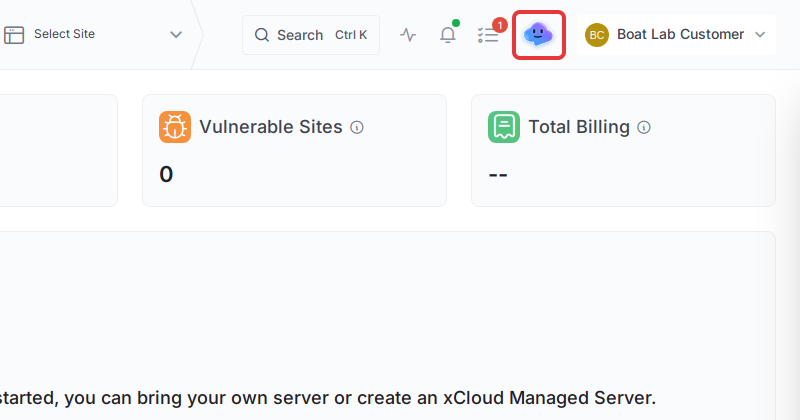
Log in to your xCloud dashboard and click the AI Assistant icon in the top header, just left of your profile name. The AI Assistant panel opens on the right side of the screen.
Step 2: Ask your billing question
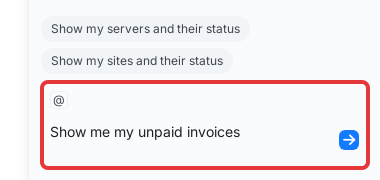
Type your question in the message box at the bottom of the panel, for example “Show me my unpaid invoices”, and press Enter or click the Send button. Plain words work. You don’t need to name the team or open the Billing page first.
If the assistant asks to create its access key, click Create key. This happens only the first time it looks up data for you. Billing answers work at the default Read level, so you don’t need to switch to Read & Write.
Step 3: Read the answer
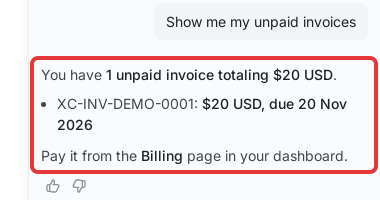
The assistant leads with the number you asked for, always with its currency, then lists the details. For unpaid invoices it gives the total count and amount due first, then each invoice as invoice number, amount and due date, and points you to Billing in your dashboard to pay.
To pay an invoice, go to Billing → Detailed Invoices, open the invoice’s action menu (the three dots at the end of the row) and select Pay Now. The full steps are in How Billing Works in xCloud.
How to read each billing answer
Next month’s charge is an estimate
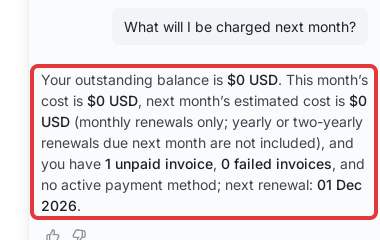
The next-month figure is an estimate, and the assistant says so. It covers monthly renewals only: a yearly or two-yearly renewal that falls due next month is not included. Coupons are counted the way the renewal applies them. The renewal date it quotes is the 1st of next month, the day cards are charged. See When will I be charged? for how the monthly charge works.
Last month’s charges use the bill’s own words
When you ask why you were charged an amount, the assistant goes through each invoice you paid last month and quotes the explanation written on each bill line, such as a prorated charge for part of a month, a credit for unused time after a resize, or an advance payment. It does not recalculate your bill. To check a line yourself, see How to Read Your xCloud Invoice.
A billing lock and a server suspension are different
The assistant tells apart two things people often both call “suspended”:
- Your dashboard is locked for billing. An invoice is past due, so the dashboard is restricted to Billing until you pay. Your servers and sites keep running. Paying the outstanding invoices unlocks the dashboard.
- A server is suspended. The server is powered off. The assistant says whether the suspension is for billing, and if so, which months are unpaid and how much is due. If a server is suspended for a reason that is not billing, the assistant does not guess why and asks you to contact support.
The assistant may suggest that you contact support once you have paid. Once every due invoice is paid, xCloud lifts billing suspensions on its own, usually within a few minutes. If a server is still suspended after that, contact support. The full process is in Why xCloud Suspends a Site or Server and Paid an Overdue Invoice? How Reactivation Works.
What the assistant can’t do with billing
Billing answers are read-only. xCloud AI Assistant cannot:
- pay an invoice or retry a failed payment,
- add, change or remove a card,
- change, upgrade or cancel a plan,
- issue a refund or apply a coupon.
It also never shows card numbers. It only says whether your team has an active payment method. For anything that changes your bill, use Billing in the dashboard, or contact our support team for refunds and invoice corrections.
Frequently asked questions
Can xCloud AI Assistant pay an invoice or change my plan?
No. The billing answers are read-only. The assistant cannot pay an invoice, add or remove a card, change a plan or issue a refund. To pay, open ‘Billing’ → ‘Detailed Invoices’ in your dashboard.
Is the next-month figure the exact amount I will be charged?
No, it is an estimate. It covers monthly renewals only, so a yearly or two-yearly renewal that falls due next month is not included. Coupons are counted the way the renewal applies them.
Why does the assistant say billing details are only for team admins?
The assistant shows billing only to the people who can see Billing in the dashboard: the team owner, or a Team Admin who has the billing permission. Ask your team owner for access, or ask them to check the bill for you.
Does the assistant show my card number?
No. It only tells you whether your team has an active payment method. Card details stay on the Billing page.
Still stuck? Feel free to reach out to our support team for help.