

How to Deploy LimeSurvey With xCloud One Click Apps
Updated November 9, 2026 · 6 min read
You can run LimeSurvey on your own server with xCloud without writing a Docker Compose file. Click New Site, pick LimeSurvey in the app catalog, choose a server, enter a site title and the administrator email, choose Demo Site or Go Live, and click Next. xCloud starts LimeSurvey with its own database, serves it over HTTPS and shows you the login. This guide walks through each screen up to your first survey.
Who this is for: anyone who wants to run questionnaires, polls and feedback forms on a server they control, and keep the responses there. For server sizes and prices, see LimeSurvey hosting on xCloud.
What the LimeSurvey app includes
| Part | What you get |
|---|---|
| LimeSurvey | A current LimeSurvey Community Edition release, built by the LimeSurvey community. |
| Database | MariaDB in its own container. It is only reachable by LimeSurvey, not from the internet. xCloud generates the database name, user and passwords. |
| Web address | The public survey list on your domain and the administration area at /admin, both served over HTTPS. |
| Saved data | Storage areas on the server (called volumes) for the database, uploads and LimeSurvey’s own files. They survive restarts and redeploys. |
| Administrator account | The username is admin. You enter the email and xCloud generates the password. |
LimeSurvey Community Edition is open source under the GPL-2.0-or-later licence.
Before you start
- An xCloud account. LimeSurvey has no licence fee, but you still pay for the server that runs it. See how billing works.
- An Nginx server. xCloud installs Docker on it if needed. An existing server needs at least 512 MB RAM, 1 CPU core and 5 GB free disk. You can also create a new server during setup.
- An email address for the LimeSurvey administrator.
- For Go Live: a domain you can point at the server. For a first try, Demo Site needs no domain.
Step 1: Find LimeSurvey in the app catalog
From the xCloud dashboard, click New Site. On What would you like to host today?, type LimeSurvey in the search box, then click the LimeSurvey card.

The LimeSurvey page opens. It shows Runs on Nginx, Docker and the recommended size: 4 GB RAM · 1 vCPU · 5 GB disk. A new server you buy from xCloud for this app needs at least 4 GB of RAM. An existing server can be smaller, down to the minimum listed above.
Step 2: Choose where LimeSurvey will run
Under Where should it run?, follow the option that fits:
- Use an existing server: click its card, then click Continue. Each card shows the server’s RAM, CPU and free disk.
- Create a new server: click Deploy on a new server and finish creating the server. xCloud brings you back to finish the install.
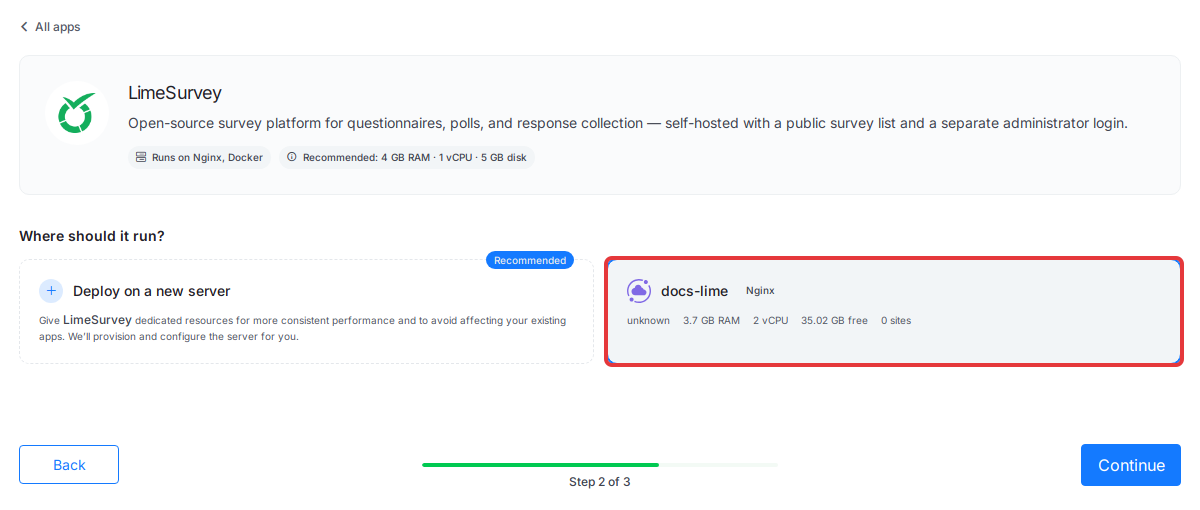
If no server on your account can run LimeSurvey, you see No compatible server yet and no Continue button. Click Create Managed Server to get a server from xCloud, or Connect a Provider to use your own cloud provider. xCloud brings you back to finish the install.
A server that is too small or on the wrong stack is listed under server cannot run this app. Open that list to see why.
Step 3: Add the site title and choose a domain
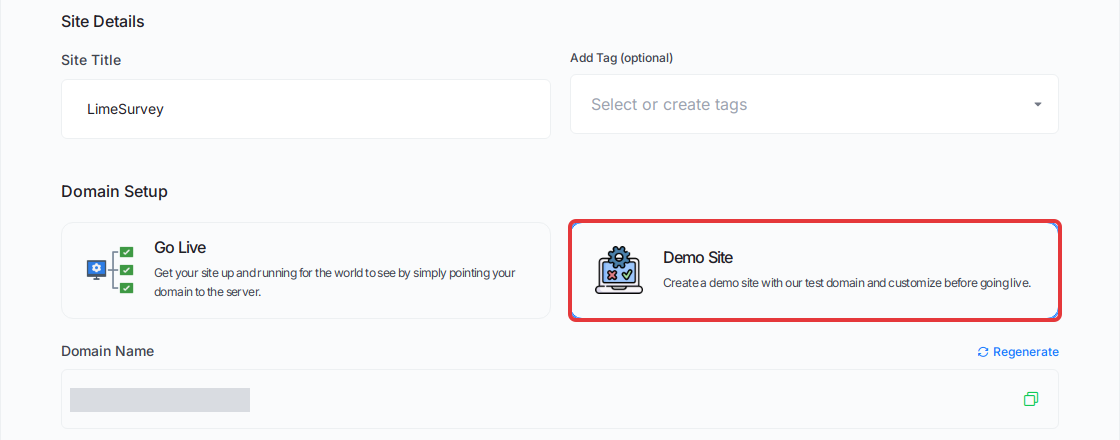
The Install LimeSurvey Into form opens.
- Enter a Site Title, for example
LimeSurvey. Add Tag (optional) helps you group sites. - Under Domain Setup, choose one:
- Demo Site: xCloud gives you a test domain, shown under Domain Name. Click Regenerate for a different one. Use this to try LimeSurvey first.
- Go Live: enter your own domain and point its DNS at the server.
Step 4: Enter the administrator email and install
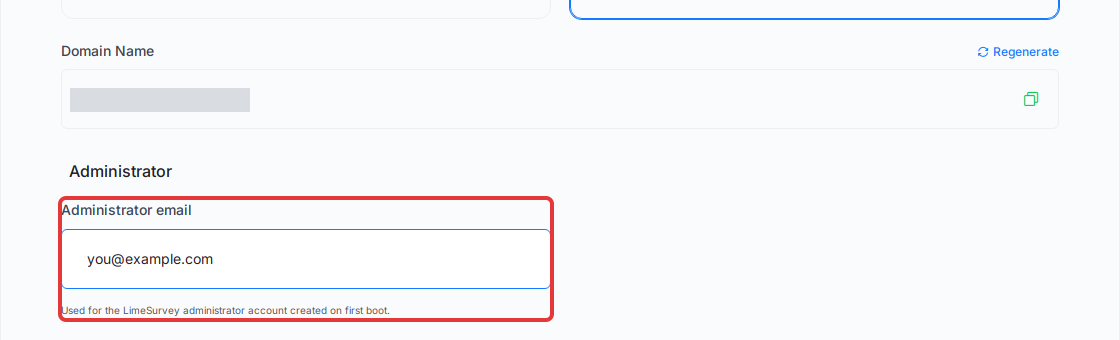
Under Administrator, enter the Administrator email. It is required. Then click Next.
Step 5: Wait for the setup to finish
xCloud shows a progress page with each stage: checking the server and DNS, installing Docker, setting up the app, SSL, HTTPS, Nginx and monitoring. You can leave this page; the setup keeps running.
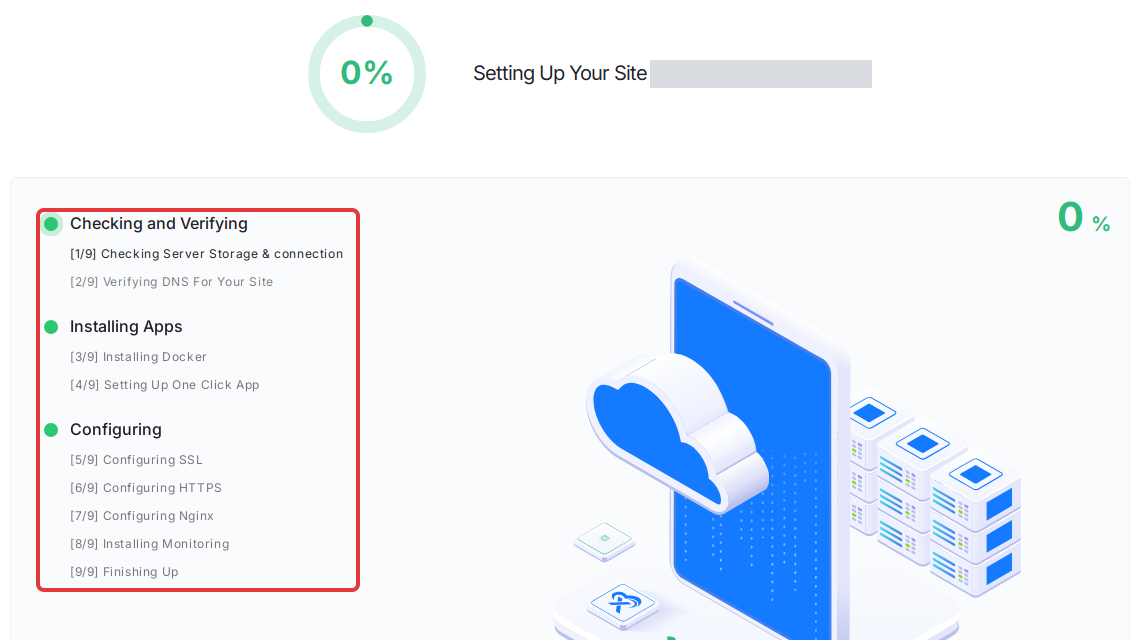
When it finishes, the site’s Site Overview page opens.
If a stage fails, open Recent Events on the site, click View on the failed event, and fix what it reports (often DNS for Go Live). Then try again, or contact support with the event output.
Step 6: Copy the LimeSurvey login
On Site Overview, the LimeSurvey Credentials card shows the Site URL, Admin URL, Admin username, Admin password and Admin email. Click the eye icon to show the password, or click Copy next to each value.
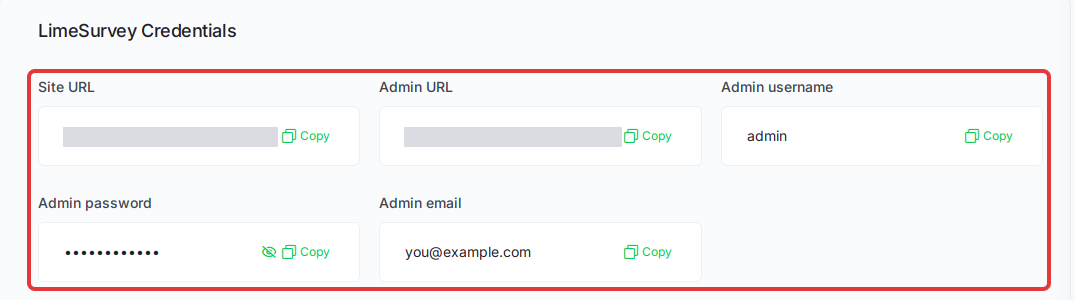
The Site URL is the public page that lists your surveys. It is empty until you publish one. Visitors there can’t reach the administration area without the login.
Step 7: Sign in to LimeSurvey
Open the Admin URL. On the Administration page, enter the Username admin and the Password you copied, then click Log in.
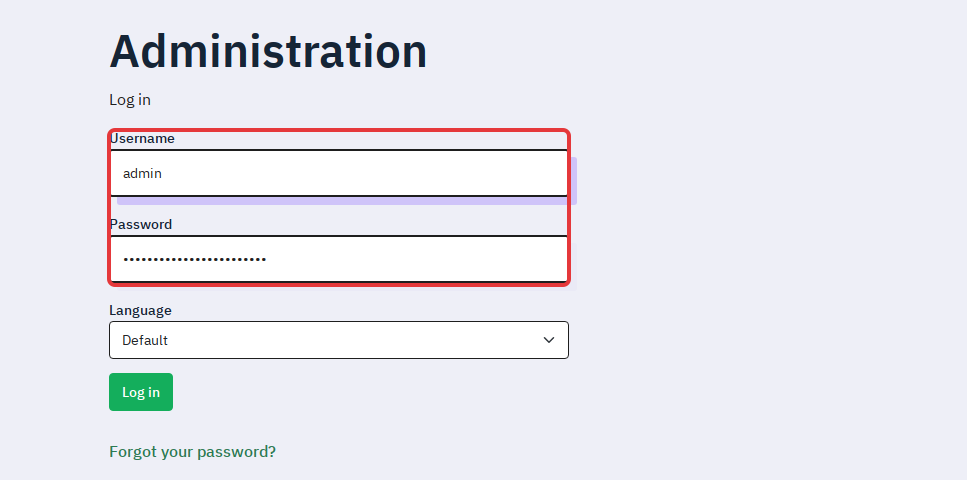
On the first start, LimeSurvey waits for its database and then runs its installer. If the page doesn’t load yet, wait a minute and reload.
Step 8: Create your first survey
The first sign-in opens a Welcome to LimeSurvey! message. Click Close, then click Create survey on the dashboard.

Add a question group and questions, then activate the survey to start collecting responses. The LimeSurvey manual covers question types, themes and survey settings.
After your first sign-in
Change the admin password
Change this password in xCloud. A password you change only inside LimeSurvey may be reset to the LIMESURVEY_ADMIN_PASSWORD value when the app restarts, so change it on the Environment page to be safe.
- Open the site in xCloud and click Environment in the site menu.
- Change the value of
LIMESURVEY_ADMIN_PASSWORD. - Click Save & Redeploy. LimeSurvey restarts and is unavailable for a moment.
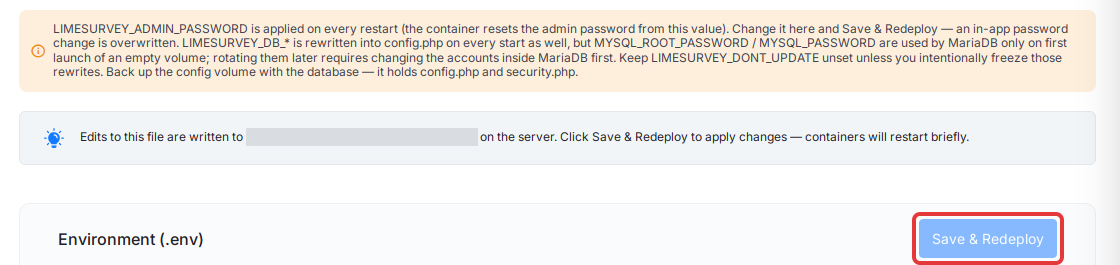
The LimeSurvey Credentials card then shows the new password.
Email and the API
For survey invitations and reminders, set up email in LimeSurvey as its global settings guide describes; for the API, see its RemoteControl 2 API guide.
Updating LimeSurvey
LimeSurvey runs in a container that xCloud can restart from a fresh copy, so changes made with LimeSurvey’s built-in updater (ComfortUpdate) may not last. Back up first and ask our support team before you change the version.
Database passwords
The MYSQL_* and LIMESURVEY_DB_* values on the Environment page connect LimeSurvey to its database. Don’t change these values. If you do, LimeSurvey can’t connect to its database and your surveys stop working.
Back up LimeSurvey
xCloud’s backup saves the app’s volumes together, so you don’t need to copy anything yourself. The database holds your surveys and responses.
- Open the site in xCloud.
- In the site menu, click Backup, then Previous Backups.
- Click Backup Now. The app stops briefly during the backup, then restarts.
Expected result: the backup’s row changes from Running to Completed. Refresh the page if the status doesn’t change.
See Back up and restore Docker apps for what xCloud backs up and how to restore it.
Common mistakes
- Changing the admin password only inside LimeSurvey. A restart may reset it to the value on the Environment page.
- Choosing Go Live before the domain’s DNS points at the server. Start with Demo Site, then go live from the demo site.
- Updating LimeSurvey with ComfortUpdate without asking support first. A restart may undo it.
Frequently asked questions
Do I need to write a Docker Compose file to deploy LimeSurvey on xCloud?
No. The LimeSurvey One Click App already defines the LimeSurvey container, its database and its storage. You pick LimeSurvey in the app catalog, choose a server, enter a site title and the administrator email, choose Demo Site or Go Live, and click Next.
What server does LimeSurvey need on xCloud?
An Nginx server. xCloud installs Docker on it if needed. An existing server needs at least 512 MB of RAM, 1 CPU core and 5 GB of free disk. The install page shows 4 GB RAM, 1 vCPU and 5 GB disk as the recommended size, because a new server you buy from xCloud for this app needs at least 4 GB of RAM.
Where do I find the LimeSurvey admin login?
Open the site in xCloud. The Site Overview page shows a LimeSurvey Credentials card with the Site URL, Admin URL, Admin username, Admin password and Admin email. Sign in at the Admin URL. The username is admin and xCloud generates the password.
How do I change the LimeSurvey admin password?
Change LIMESURVEY_ADMIN_PASSWORD on the site’s Environment page in xCloud and click Save & Redeploy. A password you change only inside LimeSurvey may be reset when the app restarts, so the Environment page is the safe place to change it.
Related guides
- Use One Click App templates in xCloud
- Update a One Click App and edit its Docker Compose
- Back up and restore Docker apps
- Go live from a demo site
If you run into any issues while deploying LimeSurvey, feel free to reach out to our support team.