

One Alert Email for Many Servers in xCloud
Updated November 21, 2026 · 4 min read
When several of your servers or sites hit the same alert within 10 minutes, xCloud sends one email that lists them all, instead of one email per server. For example, a security update that asks 12 servers to reboot now gives you one Reboot Required email naming all 12, not 12 separate emails.
This works on its own. There is nothing to turn on. You choose which of these emails you receive in Settings → Notifications, as shown in the steps below.
Which alerts are grouped
Five alerts are grouped. Each one is collected separately, so a disk alert and a reboot alert never share an email.
| Alert | Grouped for | Email subject when several are listed |
|---|---|---|
| Reboot Required | Servers | Reboot Required on 3 servers |
| Server Disconnected | Servers | Unable to connect to 3 servers |
| Disk Space Low | Servers | Disk Space Low on 3 servers |
| SSL Certificate Renewed | Sites | SSL Renewed Successfully for 3 sites |
| SSL Renewal Failed | Sites | SSL Renewal Failed for 3 sites |
Failed backup emails were already grouped before this change. Other emails, such as deployment emails, are sent one by one.
What the grouped email looks like
The email opens with one line that says what happened and how many servers or sites are affected. Below it is a list with one line per server or site, then a button to open them in xCloud (View Servers or View Sites).
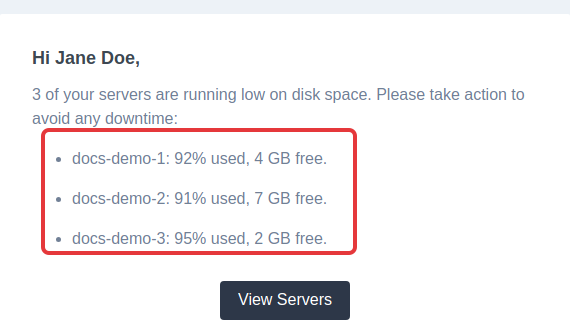
Some alerts add detail to each line:
- Disk Space Low shows each server’s disk use, for example “docs-demo-1: 92% used, 4 GB free.”
- Reboot Required says when a server with automatic reboots turned on will restart, with the time and time zone set in its security settings, and adds “You can also reboot it now.” Other servers say they need a reboot.
- Server Disconnected, SSL Certificate Renewed and SSL Renewal Failed list the server or site names.
A server that restarted during those 10 minutes is left off the Reboot Required email. A server or site you deleted or moved to another team is left off every grouped email.
Who gets which servers
Each person gets their own version of the email. It lists only the servers and sites that person would have been emailed about on their own:
- The team owner gets every server or site that their own email preferences allow.
- Team members get only the servers and sites they have access to, and only those they have not muted in their own Email Preferences.
If two teammates would get the same list, they get the same email. A teammate never sees a server they cannot open in xCloud.
Slack, Telegram, WhatsApp, Discord and webhooks
When the team has Slack, Telegram, WhatsApp, Discord or a webhook connected and turned on for these alerts, it gets one message too. The message names up to five servers or sites, then says how many more there are, for example “7 of your servers are running low on disk space: web-1, web-2, web-3, web-4, web-5 and 2 more. Please take action to avoid any downtime.”
What stays the same
- One server or site still gets the usual email. When only one server or site hits the alert in those 10 minutes, you get the same email as before.
- The dashboard still shows one alert per server. Grouping only changes the email and chat messages.
- Your choices still apply. An email type you turned off stays off, grouped or not.
Step 1: Open the notification settings
Select Settings in the left bar, then Notifications under Team. The Server Notifications card at the top sets where server alerts such as Reboot Required and Disk Space Low are sent: Telegram, WhatsApp, Slack, Discord, Webhook, Email and the xCloud dashboard. The Site Notifications card below it does the same for site alerts, including SSL.
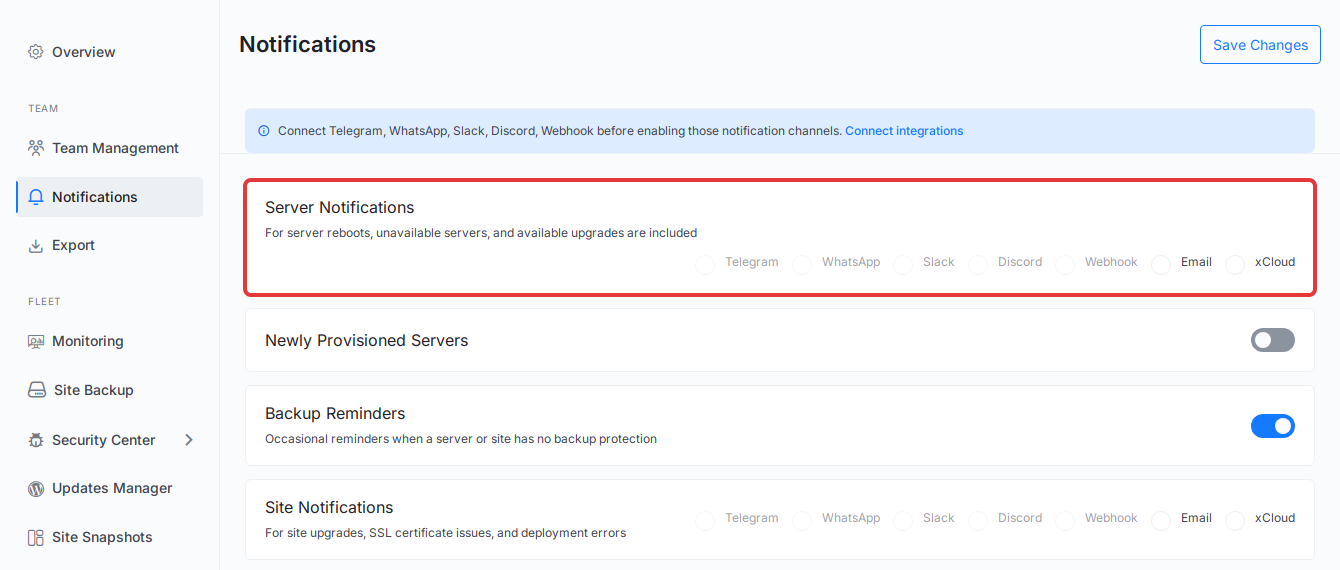
Only the team owner’s channel choices decide where team alerts go. For each setting, see How to disable notifications in xCloud.
Step 2: Choose which grouped emails you receive
Scroll down to Email Preferences. On the Servers card, select Customize email types to see Server Disk Space Low, Server Disconnected and Server Reboot Required. The Sites card holds SSL Certificate Renewed and SSL Renewal Failed.
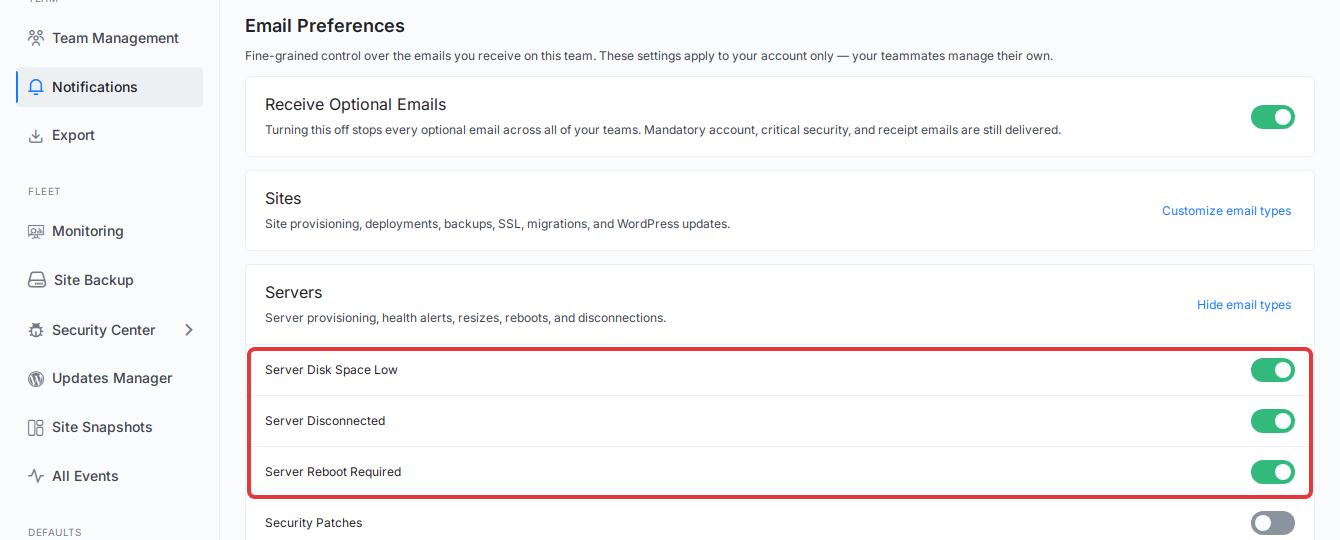
Turn off any email type you don’t want. The change applies to your account in the current team only; each teammate sets their own. How to manage email preferences in xCloud explains every option, including muting one server or site.
If you still get several emails for the same alert, check whether the alerts came more than 10 minutes apart. Each 10-minute window sends its own email.
Frequently asked questions
How long does xCloud wait before it sends a grouped alert email?
xCloud collects the same alert for 10 minutes from the first one. Every server or site that hits that alert within those 10 minutes is listed in one email.
Will I still get an email when only one server has a problem?
Yes. When only one server or site hits an alert in those 10 minutes, you get the same email you got before, for that server or site alone.
Can a teammate see servers they don’t have access to in a grouped email?
No. Each person’s email lists only the servers and sites they would have been emailed about on their own, based on their access and their own email preferences.
Does the dashboard also group these alerts?
No. The dashboard still shows one alert for each server or site. Only the email and the Slack, Telegram, WhatsApp, Discord and webhook messages are grouped.
Related docs
- How to manage email preferences in xCloud
- How to disable notifications in xCloud
- Configure Slack integration in xCloud
- Configure Telegram integration in xCloud
- Configure WhatsApp integration in xCloud
- Monitor all your servers with xCloud Monitoring
If you run into any issues with alert emails, feel free to reach out to our support team.