

How to Get Alerts When a Docker Site's Container Stops in xCloud
Updated November 22, 2026 · 4 min read
xCloud alerts you when a container of a live Docker Compose site has stopped, even though Docker is set to keep it running. You get a Docker Container Down alert that names the stopped services, and a Docker Container Recovered alert when they run again. Use this guide to turn the alerts on, read them, and find out why a container stopped.
When the alert is sent
xCloud checks your Docker sites each time your server sends its regular monitoring report. A Docker Container Down alert goes out when a container of the site is not running and its restart policy is always or unless-stopped (the containers meant to stay up).
- One alert per outage. While the same containers stay down, xCloud does not repeat the alert. If another container of the same site stops during the outage, you get a new alert with the full list.
- A recovery alert. When every stopped container runs again, you get a Docker Container Recovered alert listing the services that came back.
- No alert for stops you made. A disabled site, a One Click app you stopped from xCloud, and a container stopped while xCloud backs up or restores that site do not trigger an alert. A container without a keep-running restart policy, such as a one-time migration task, is ignored too.
What the alerts look like
The email for a stopped container has the subject “A Docker container on your-site is not running”. It says Docker found one or more containers for your site stopped, lists Affected service(s), and has a View Site button.
The recovery email has the subject “Docker container on your-site is running again”, lists Recovered service(s), and links to the site the same way. The same message appears in the xCloud notification bell and in any chat channel you connected.
Step 1: Choose where site alerts go
Go to Settings → Notifications. In the Site Notifications row, tick Email and xCloud, plus any connected Slack, Telegram, WhatsApp, Discord or Webhook channel. Click Save Changes.
Docker container alerts use these site channels. Chat channels are greyed out until you connect them; see Slack, Telegram or Discord and webhooks.
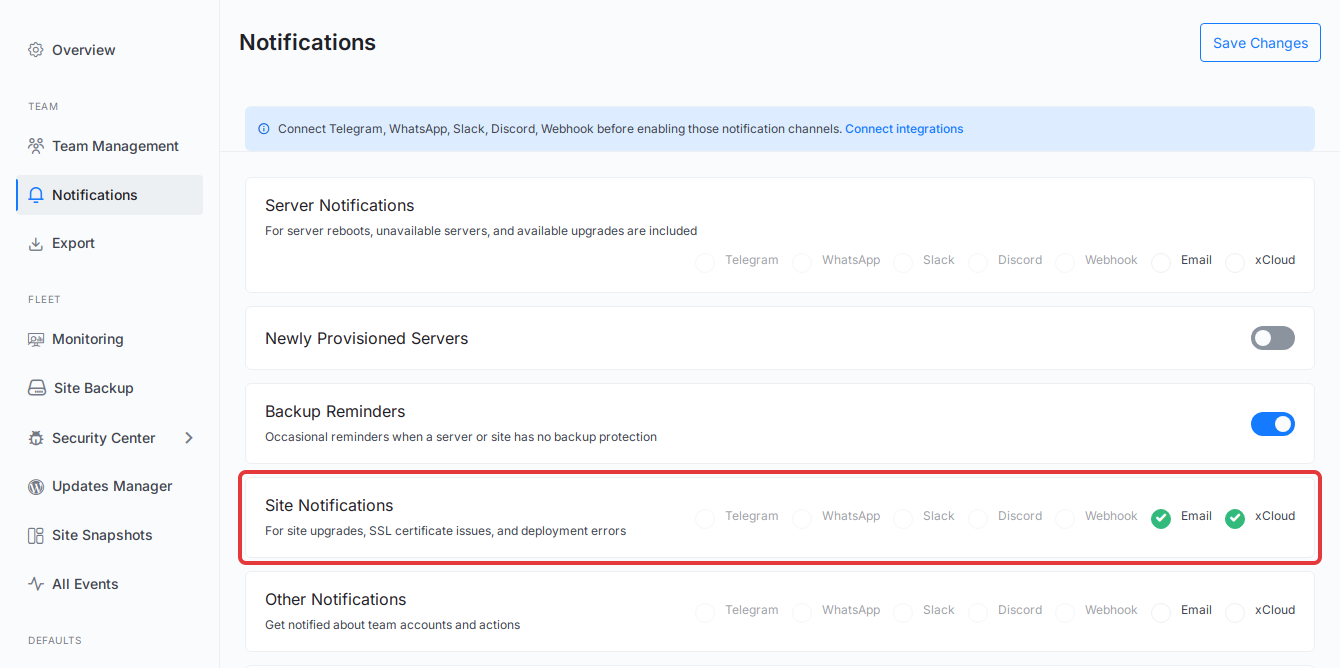
The channel settings belong to the team owner. Other team members choose only which emails reach their own inbox, in the next step.
Step 2: Open the site email types
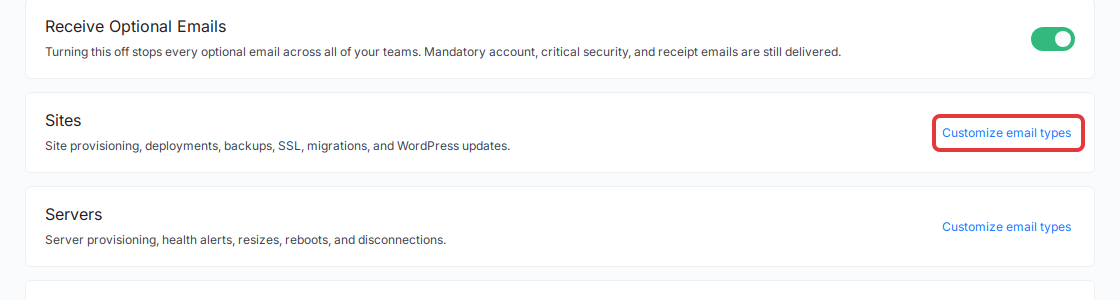
Scroll down to Email Preferences. Make sure Receive Optional Emails is on, then click Customize email types in the Sites card.
Step 3: Turn on the Docker container emails
In the list that opens, turn on Docker Container Down and Docker Container Recovered. Each switch saves as soon as you click it.
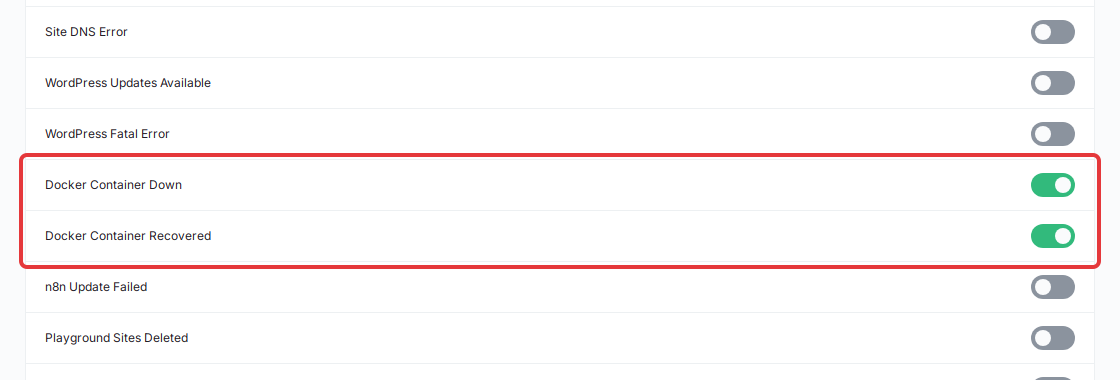
To stop these emails, turn the same switches off. This changes only your own inbox; the dashboard and chat alerts follow the channels in Step 1. For more on these settings, see How to Manage Email Preferences and Unsubscribe in xCloud.
What to check when a container is down
- Open the site. Click View Site in the alert to go straight to the site in xCloud.
- Read the container logs. Open the site’s logs and pick Docker Container Log for the service named in the alert. A crash, an out-of-memory error or a bad setting usually shows in the last lines. See View logs and events of your server and site.
- Check the server. A full disk or exhausted memory can stop containers. Look at the server’s monitoring for disk and memory use.
- Redeploy after a fix. If the cause was in your code or Compose file, push the fix and deploy again. For Git-based Docker sites, see Zero-downtime deploys for Docker container sites.
When the containers run again, the Docker Container Recovered alert confirms it. You don’t need to clear the down alert yourself.
Frequently asked questions
Will I get an alert every hour while my container stays down?
No. xCloud sends one Docker Container Down alert when a container stops. It stays quiet while the same containers stay down, and sends a new alert only if another container of the same site stops. You get a Docker Container Recovered alert when they run again.
Why didn’t I get an alert when I stopped my app?
xCloud does not alert for a site you disabled, an app you stopped from xCloud, or a container that is stopped for a backup or restore of that site. These stops are on purpose. A container that is not set to keep running, such as a one-time setup task, is also left out.
Can I get the alert in Slack or Telegram instead of email?
Yes. The alert goes to every channel you tick in the Site Notifications row: Email, the xCloud dashboard, and any connected Slack, Telegram, WhatsApp, Discord or Webhook channel.
If you run into any issues, feel free to reach out to our support team.