

How to Change the Web Root of a Site in xCloud
Updated November 23, 2026 · 4 min read
The web root is the folder inside your site that the web server shows to visitors. You change it in ‘Settings’ → ‘Update Web Root’ on the site: type the folder name (for example public) and click ‘Update’. xCloud then serves the site from that folder.
The option is available on Laravel, custom PHP and Node.js sites. WordPress sites and One Click apps don’t show it.
When to change the web root
Change it when your site’s index file (index.php or index.html) is not in the site’s main folder. Common cases:
| Your site | Web root to enter |
|---|---|
| Laravel app | public (new Laravel sites already use it) |
| PHP app uploaded from shared hosting | public_html |
| App whose public files sit in a subfolder | the folder name, for example client or app/public |
| Site built into an output folder | the build folder, for example dist |
A wrong web root is the usual cause of a 403 Forbidden or 404 Not Found page right after you deploy or migrate a custom PHP or Laravel site.
What the web root field accepts
The web root is a path inside your site’s folder, not a full server path.
- Use letters, numbers, dots, dashes and underscores. Separate subfolders with
/, as inapp/public. - Don’t start or end it with
/, and don’t use... - Leave it empty to serve the site from its main folder.
If the value breaks a rule, the field shows an error such as “The web root must not start or end with a slash.”
Step 1: Open the site’s Settings
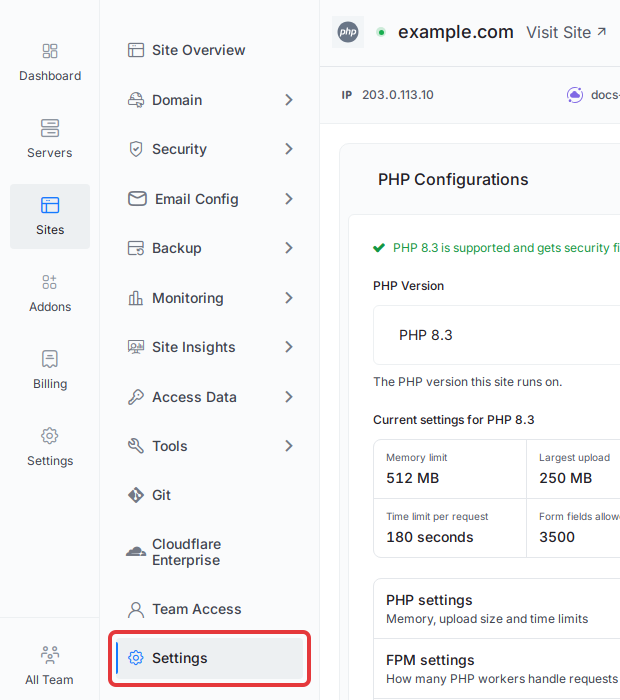
Log in to your xCloud dashboard and open the site. In the site menu on the left, click ‘Settings’.
Step 2: Enter the new web root
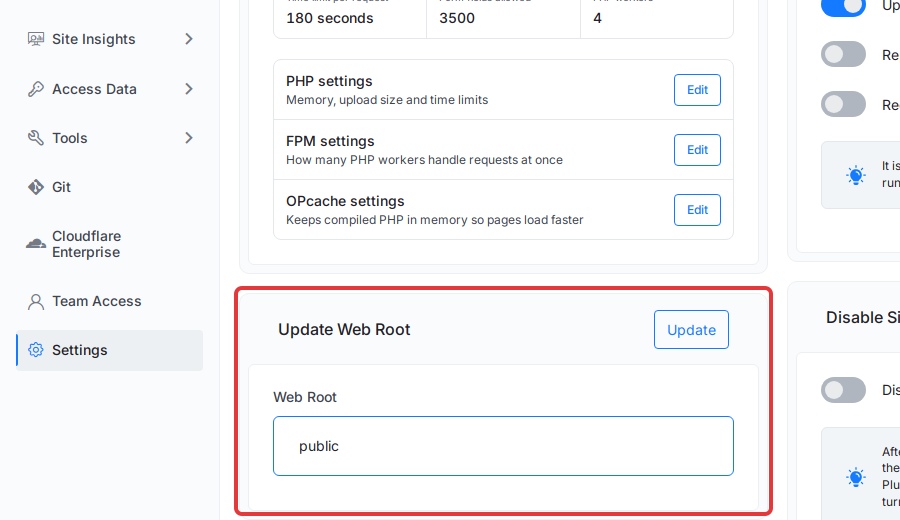
Scroll to the ‘Update Web Root’ card. In the ‘Web Root’ field, type the folder that holds your site’s index file, for example public. Then click ‘Update’.
Step 3: Check the confirmation
A ‘Web Root updated successfully’ message appears. xCloud now updates your site’s web server settings (Nginx or OpenLiteSpeed) to serve the new folder. It also does two more things:
- If File Manager or Adminer is turned on for the site, xCloud moves their access files to the new folder, so both keep working.
- On a Node.js app, xCloud restarts the app so it runs from the new folder.
Step 4: Visit the site
Open the site in your browser. It should load the page from the new folder. If you still see the old page, wait a minute and reload without cache.
Troubleshooting
The site shows 403 Forbidden or 404 Not Found. The web root points at a folder with no index file, or at a folder that doesn’t exist. xCloud doesn’t create or move folders. Open File Manager or connect over SFTP, check the folder name and its spelling, then update the web root again. For a Laravel site, the web root must be public, not the project’s main folder.
You see “Please enable Nginx regeneration from your site settings”. You turned off xCloud’s management of this site’s web server settings, so xCloud can’t apply a new web root. Go to ‘Security’ → ‘Overview & Firewall’, turn off ‘Disable Nginx Config Regeneration’ (‘Disable OpenLiteSpeed Config Regeneration’ on OpenLiteSpeed), confirm, and save the web root again.
The ‘Update Web Root’ card is missing. The site is a WordPress site or a One Click app, which have no web root setting, or your team role doesn’t include site settings. Ask the team owner for access.
Frequently asked questions
Can I change the web root of a WordPress site or a One Click app?
No. The ‘Update Web Root’ card shows only on Laravel, custom PHP and Node.js sites. A One Click app starts from its own folder, so it has no web root to change.
Does xCloud move my files when I change the web root?
No. xCloud only changes the folder your site is served from. The folder must already exist and hold your site’s index file, or visitors get a 403 or 404 error.
How do I go back to serving the site from its main folder?
Clear the ‘Web Root’ field so it is empty and click ‘Update’. An empty web root means the site’s own folder.
Related guides
- Deploy custom PHP applications with xCloud
- Deploy Laravel applications
- Deploy a Node.js application
- Change the primary domain of a site
- File Manager and Adminer settings
If you run into any issues while changing the web root, feel free to reach out to our support team.