

Approve Server Deletion Requests from AI Agents in xCloud
Updated November 23, 2026 · 6 min read
An AI agent connected to xCloud MCP can ask to delete a server, but it cannot delete one by itself. xCloud saves the request, emails your team a review link, and deletes the server only after a team member opens that link in the browser and clicks Approve server deletion. If nobody approves it within 15 minutes, the request expires and the server stays.
Deleting a server cannot be undone. Approving removes the server and every site on it from xCloud, exactly like deleting it from the dashboard. If the request says Provider deletion: Yes, the server is also deleted at your cloud provider. Take a backup of anything you need first.
Who it’s for: teams that let Claude, ChatGPT, Cursor or another AI client manage their servers through xCloud MCP. Available since xCloud v3.0.2.
How a deletion request works
The agent always shows you a preview first, then asks. Here is the full path:
- You ask the agent to delete a server. It runs a preview: the server, its IP, the sites that will be removed and whether the provider server is deleted too. Nothing changes.
- You tell the agent to go ahead. It sends the request, and xCloud answers: “Nothing was deleted. An authorized team member must approve this request in their browser.” The agent gets the review link and the time the request expires.
- xCloud emails the review link to your team (see who gets the email).
- A team member opens the link, checks the details and clicks Approve server deletion or Decline.
- If approved, xCloud deletes the server the same way the dashboard does. The agent can check the status of its request at any time.
Prerequisites
- An AI client connected to xCloud MCP with write access: Full access on the OAuth approval screen, or an API token that can use MCP and has write permissions. See Connect xCloud MCP to your AI agent.
- The person whose connection asks must be allowed to delete servers on that team.
- The approver must be a team member who can delete that server, signed in to xCloud with their own account.
Step 1: Open the email and the review link
Look for an email with the subject Approval requested to delete followed by the server name. It names the team, the app or token that asked (Requested by), when it was requested and when it expires. It also says “Nothing has been deleted.”
Click Review deletion request. Sign in if xCloud asks. Opening the page does not approve or delete anything.
Step 2: Check the request and decide
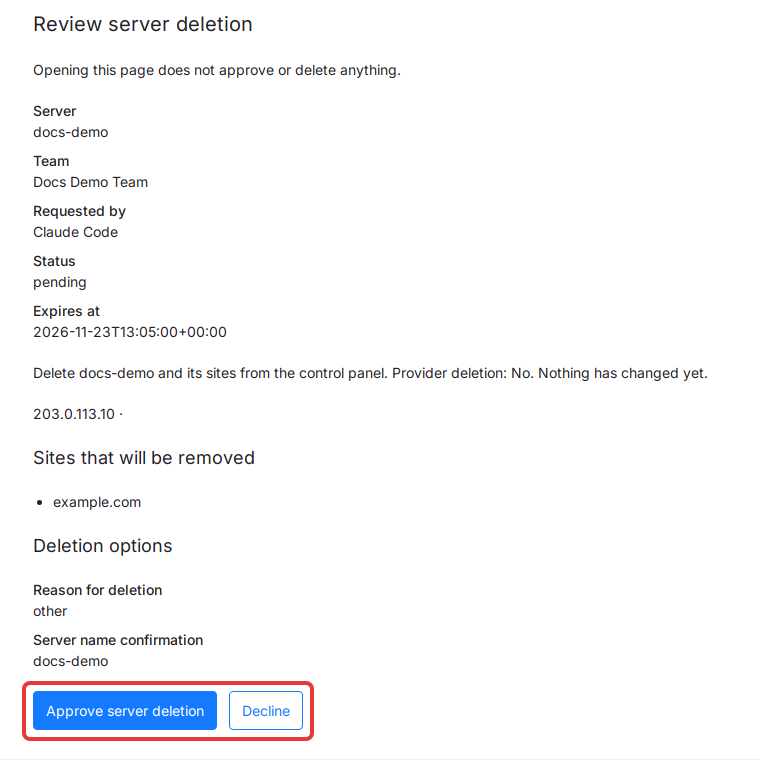
The Review server deletion page shows:
| Field | What it tells you |
|---|---|
| Server, Team | The server the agent wants to delete and the team it belongs to |
| Requested by | The name of the API token, or of the connected app, that made the request |
| Status, Expires at | Whether the request is still waiting, and until when (15 minutes after the request) |
| Summary line and IP | What will happen, for example “Provider deletion: No” |
| Sites that will be removed | Every site on the server. They are deleted with it |
| Deletion options | The options the agent sent, such as Reason for deletion, Delete DNS records and Delete from provider |
If everything is right, click Approve server deletion. If anything looks wrong, or you did not expect the request, click Decline.
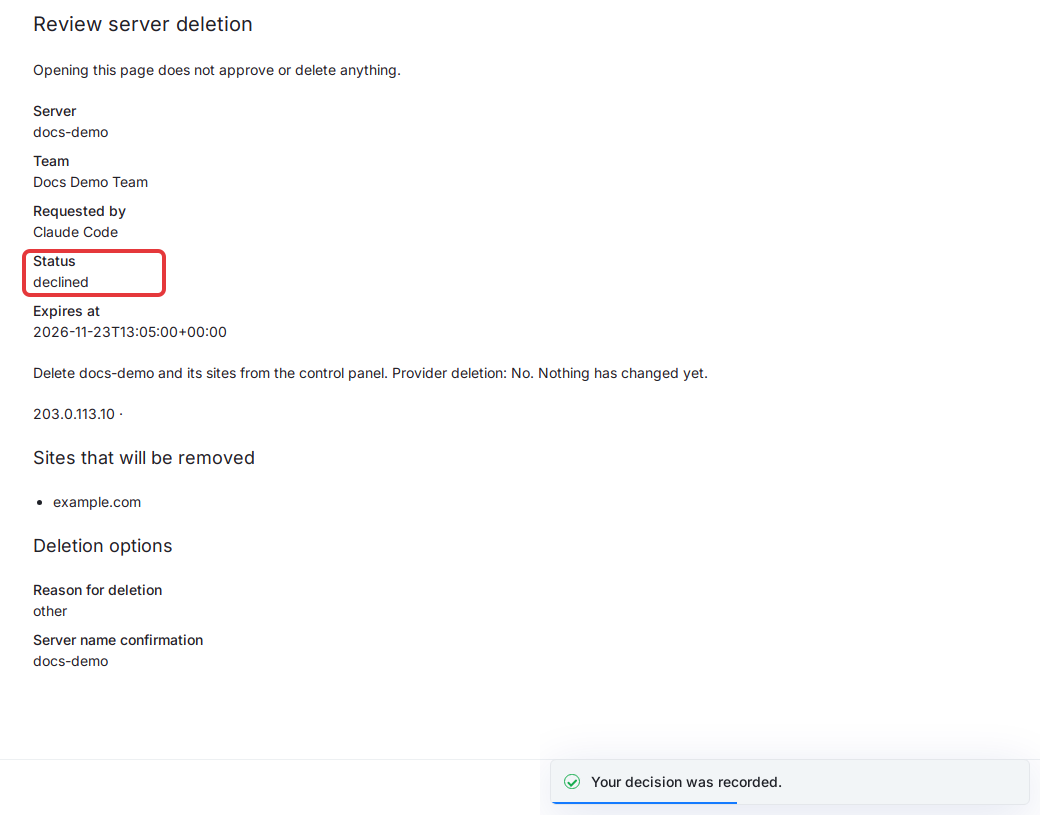
Expected result: xCloud shows Your decision was recorded. and the Status changes. After Decline, the status is declined and the server stays. After Approve server deletion, the server deletion starts, just as it would from the dashboard.
Step 3: Confirm the result
Reopen the same link at any time to see where the request stands. The agent can check too, and it sees the same status.
| Status | What it means |
|---|---|
pending |
Waiting for a decision. Nothing has been deleted |
approved / deleting |
Approved, and the server is being deleted |
deleted |
The server is gone |
failed |
The deletion did not finish. Open the server in the dashboard to see what happened and try again from there |
declined |
A team member declined. Nothing was deleted |
expired |
Nobody decided within 15 minutes. Nothing was deleted |
superseded |
The agent sent a newer request for the same server, which replaced this one. Use the newest link |
Who gets the email and who can approve
The email goes to the person whose connection made the request, the team owner, and Team Admins who are allowed to delete servers. Team members without that permission are not emailed.
Anyone who opens the link must still be allowed to delete that server. xCloud checks the person who is signed in, not the email they received. A team member without permission to delete servers, or someone from another team, cannot approve. If your team is suspended or its billing has expired, the link stops working and nothing is deleted.
When the buttons are missing
If the page says “This server changed or deletion is unavailable. Ask your agent for a new preview.”, xCloud no longer shows the buttons. This happens when the server changed after the agent’s preview, for example a site was added or the server was renamed. xCloud only deletes exactly what the request showed. Ask the agent to preview the deletion again, then approve the new request.
If the page shows expired, declined or superseded, the request is closed. Ask the agent again if you still want the server deleted.
Stop an agent from asking at all
Approval is the safety net, but you can also take deletion off the table:
- An API token with Refuse destructive actions turned on can never delete a server, even if someone would approve it. xCloud refuses the request before anything is created, so no email is sent. See Refuse destructive actions.
- A read-only connection (OAuth Read, or a token without write permissions) cannot ask either.
For developers: Public API and MCP
- An API token reaches MCP only if it carries the
mcp:invokescope, plus write permissions for the delete call. - Deleting a server over MCP is the
api.server.deleteoperation. Call it withoutconfirmfirst: it returns a preview and afingerprint. Repeat the call withconfirm: trueand thatfingerprint. A call without the fingerprint is refused, and nothing is requested. - The confirmed call returns HTTP
202with codeapproval_requiredanddata.uuid,data.status(pending),data.approval_url,data.expires_atanddata.poll. - Poll with the
mcp.approvals.showoperation, orGET /api/v1/mcp-approvals/{uuid}with theread:serverspermission. Only the token or connected app that made the request can read it. The answer hasstatus,server_name,expires_at,decided_atandtask_status. - If the server changed between the preview and the confirmed call, the call returns
409and the agent must preview again.
Frequently asked questions
Can an AI agent delete my xCloud server on its own?
No. Over MCP an agent can only ask. xCloud emails your team a review link, and the server is deleted only after a team member who can delete servers opens the page and clicks Approve server deletion.
How long does a server deletion request stay open?
15 minutes. A request that nobody approves in that time expires, and the server stays. The agent has to ask again.
Who can approve a server deletion request?
A member of the team who is allowed to delete that server, signed in to xCloud as themselves. The email goes to the person whose connection made the request, the team owner and Team Admins with permission to delete servers.
Can a token with Refuse destructive actions ask to delete a server?
No. xCloud refuses the request before anything is created, so no email is sent and nothing can be approved. A read-only connection cannot ask either.
Related docs
- Connect xCloud MCP to your AI agent
- Manage xCloud API tokens and MCP connections across multiple teams
- See team activity with the xCloud Public API and MCP
- How billing works for a deleted server
If you run into any issues with a server deletion request, feel free to reach out to our support team for help.