

How to Deploy Actual Budget With xCloud One Click Apps
Updated November 23, 2026 · 7 min read
Deploy Actual Budget from Sites → Add New Site, then search Actual Budget, pick a server, choose Demo Site or Go Live, then select Next. xCloud runs the official Actual Budget server in Docker behind Nginx with HTTPS, so you don’t write a docker-compose.yml or set up a reverse proxy. This guide is for anyone who wants a private budgeting app on a server they control, from the first click to the first sign-in.
Want to know what’s included first? See the Actual Budget hosting page or browse the full One Click Apps catalog.
What the Actual Budget template ships
You don’t fill in any app settings during setup. The template sets everything below for you.
| Item | What you get |
|---|---|
| Actual Budget version | The official Actual Budget server image, fixed to the version shown in the catalog until you update it |
| Containers | One Actual Budget container. No separate database. |
| Stack | Nginx server with Docker. xCloud installs Docker during deployment if the server doesn’t have it yet. |
| Server size | An existing server needs at least 512 MB RAM, 1 vCPU and 2 GB free disk. A new server from the catalog starts at the recommended 4 GB RAM. |
| Web access | Your site’s HTTPS domain. The app is only reachable through your domain, not by server IP and port. |
| Storage | The app’s data volume, holding your server password (saved in a protected form, never as plain text), budget files and settings |
| Login | No default credentials. You set the server password the first time you open the site. |
Before you start
- An xCloud account that can create sites, and an Nginx server, or room to create a new one. OpenLiteSpeed servers can’t run Docker apps.
- For Go Live: a domain or subdomain you can point at the server. For a quick test, use Demo Site and go live later.
- A password manager for the Actual Budget server password. xCloud can’t recover it for you.
Step 1: Find Actual Budget in the catalog
Go to Sites → Add New Site. On What would you like to host today?, type Actual Budget in Search apps…, then select the Actual Budget card.
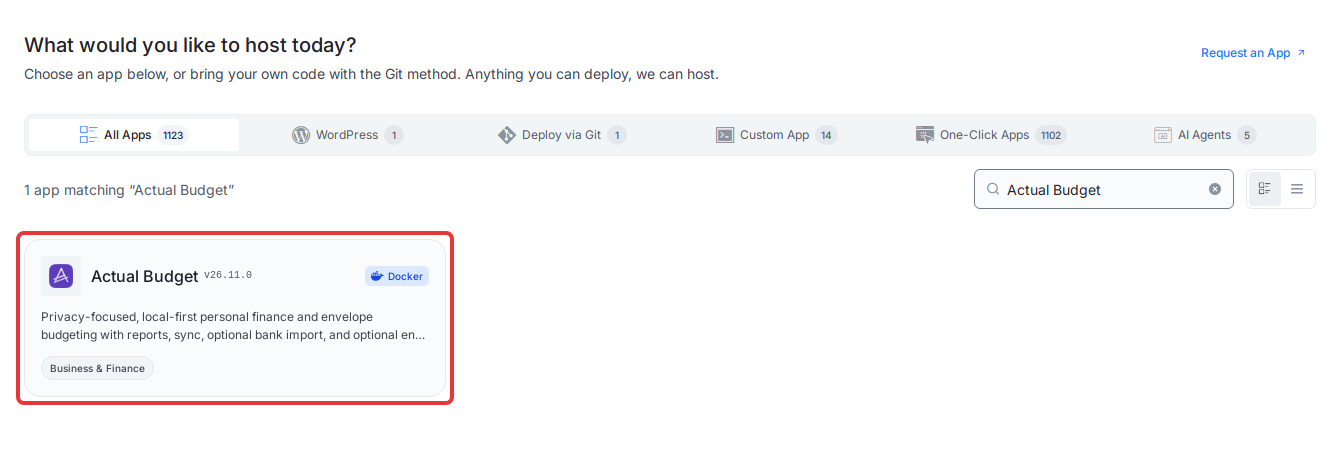
Expected result: The Actual Budget page opens and shows the stack it runs on, the recommended server size and the version it installs.
Step 2: Choose where it runs
Under Where should it run?, select an existing Nginx server, or select Deploy on a new server to create one for Actual Budget. Each server card shows its stack, RAM, vCPU, free disk and site count. Then select Continue.
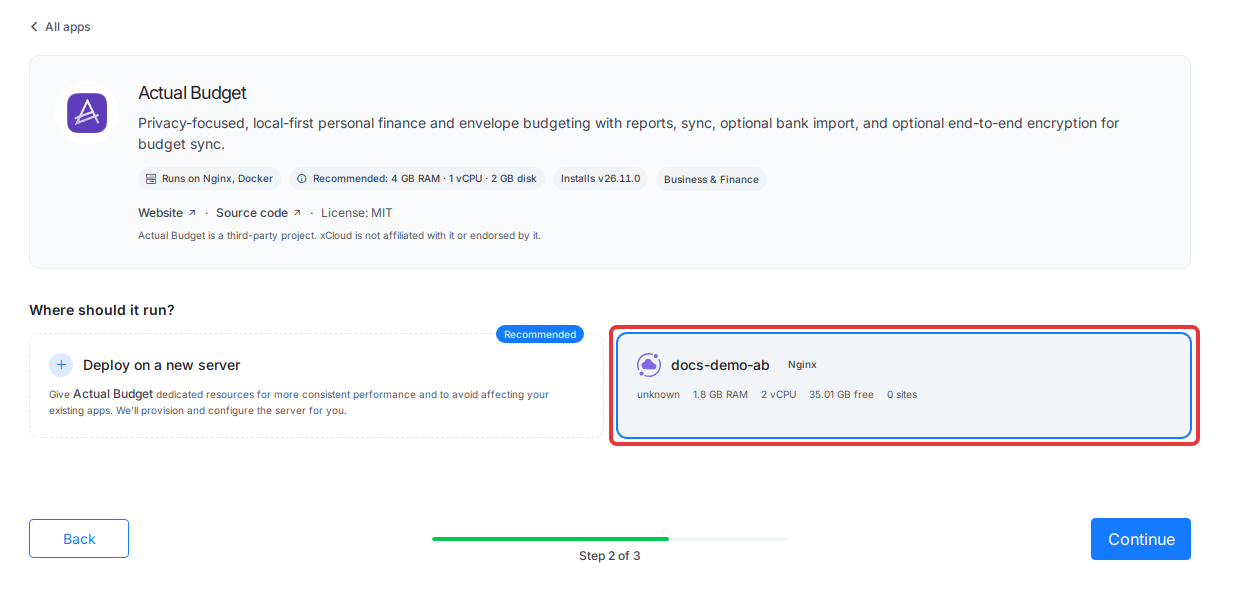
Expected result: The Install Actual Budget Into page opens for the server you chose.
If a server you expected isn’t in the list, open server cannot run this app below the list to see why (for example, the wrong stack or not enough RAM), or choose Deploy on a new server.
Step 3: Name the site and pick a domain
Enter a Site Title, for example Actual Budget. Add tags under Add Tag (optional) only if your team uses them. Under Domain Setup, choose:
- Demo Site to get an xCloud test domain right away. Select Regenerate if you want a different name.
- Go Live to use your own domain. Point the domain at your server first, so xCloud can set up HTTPS.
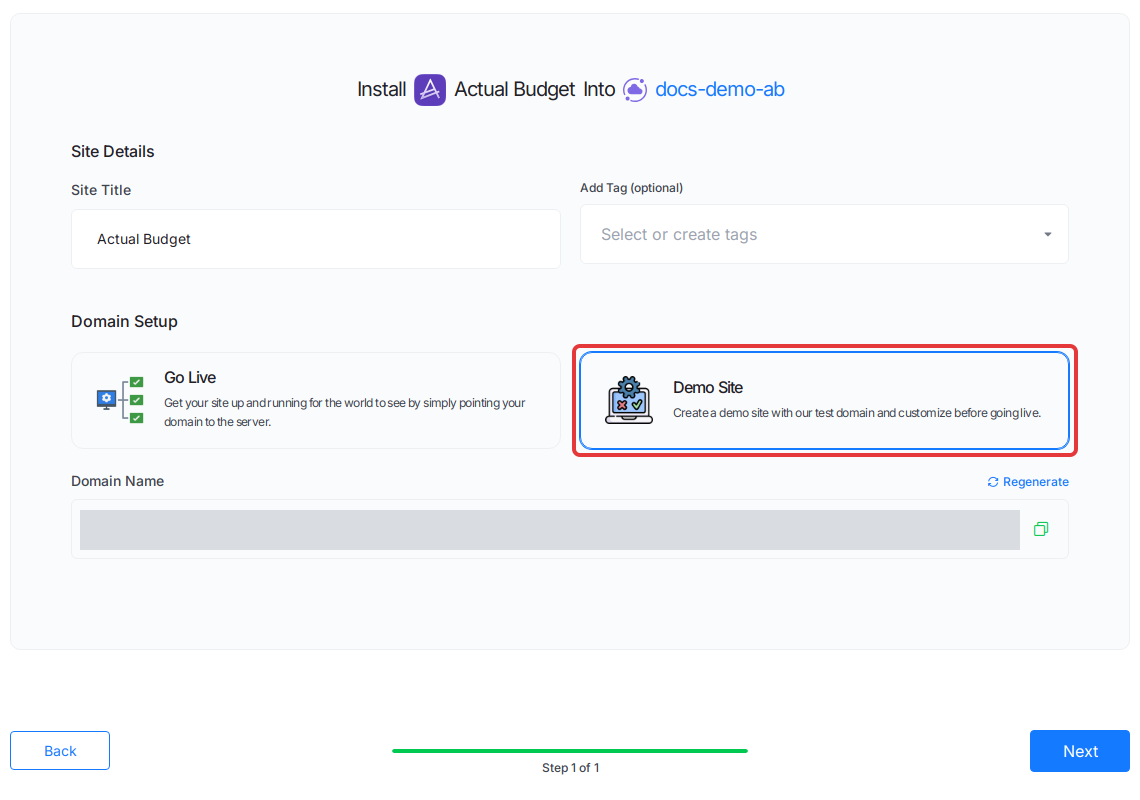
Select Next to start the installation.
Expected result: xCloud opens the Setting Up Your Site progress screen.
Step 4: Wait for the installation to finish
xCloud checks the server, installs Docker if needed, sets up the Actual Budget app, configures SSL, HTTPS and Nginx, then installs monitoring. You can leave the page while it runs.
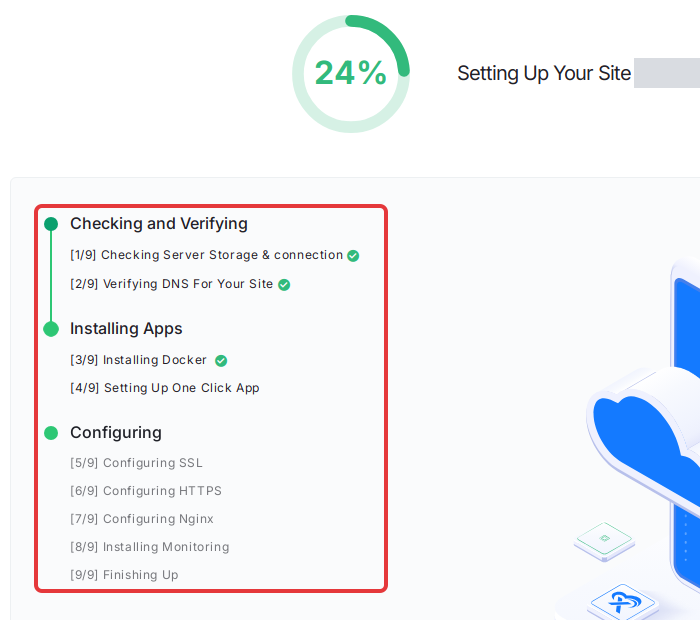
Expected result: When it finishes, the site’s Site Overview opens. The Actual Budget Credentials panel shows the version and the site URL, with a reminder to set your server password now.
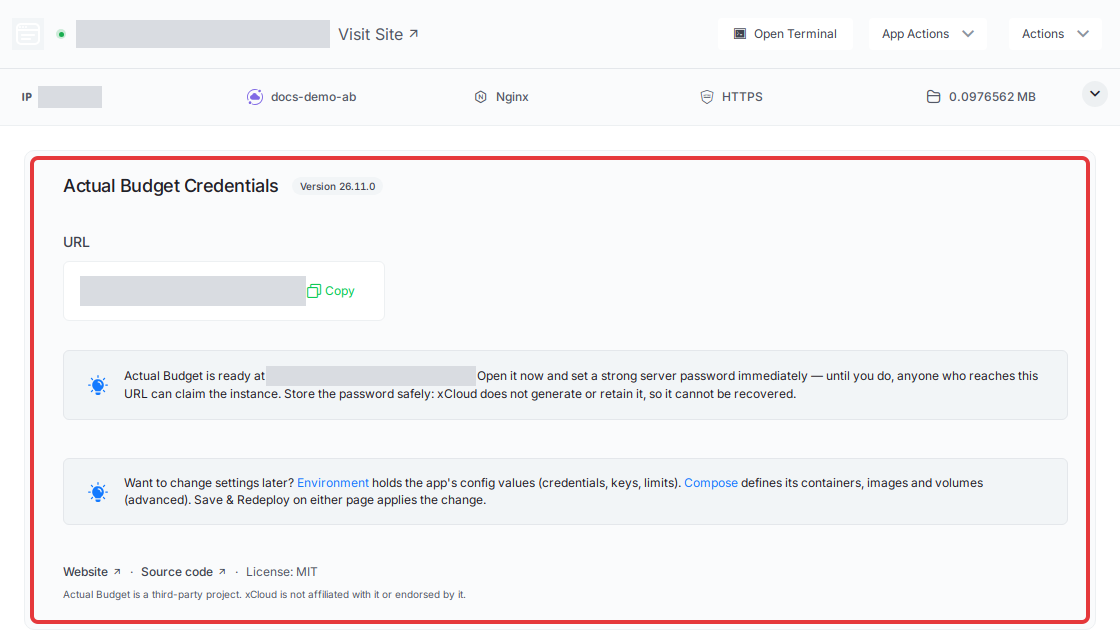
If the installation fails, open the site’s Events page and select the failed event to read its output (view logs and events shows how). Fix what it reports (for example, low disk space or a domain that doesn’t point at the server yet), and try again.
Step 5: Set your server password
Select Visit Site, or copy the URL from Actual Budget Credentials. Actual Budget opens on Welcome to Actual!. Enter a strong password in Password and again in Confirm password, then select OK.
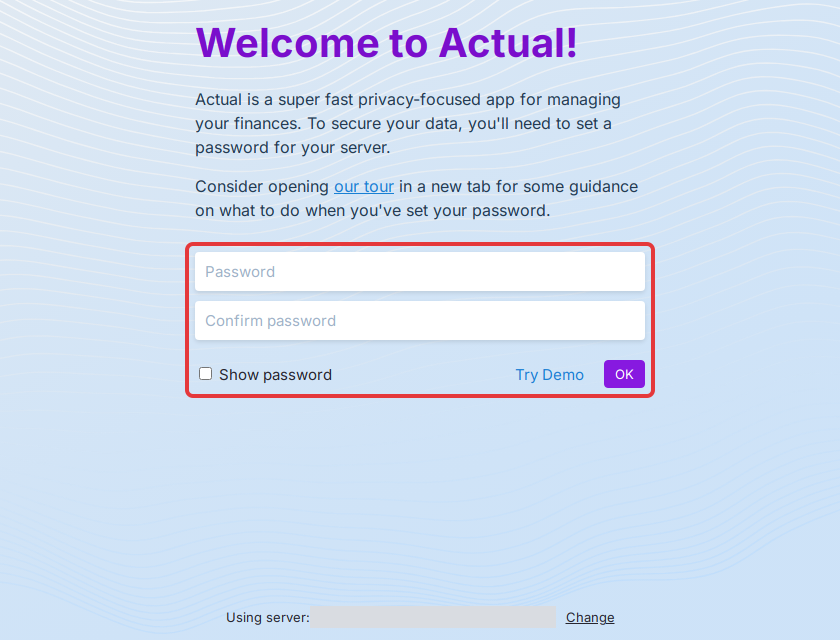
Do this right after deployment. Until a password is set, anyone who opens the URL can set one and take over the app. Store the password in your password manager: xCloud doesn’t create or keep it, so it can’t be recovered.
Expected result: Actual Budget shows Sign in to this Actual instance.
Step 6: Sign in and create your first budget
Enter the password you just set and select Sign in.
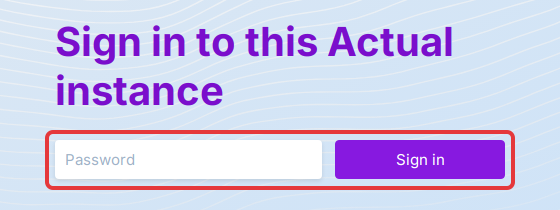
Then create a new budget, or import one you exported from another Actual Budget install, and add your accounts and categories. Actual Budget uses one server password for everyone who signs in; it has no separate user names in this setup.
If you plan to connect bank sync, you set it up inside Actual Budget with your own account at a supported provider (see Actual Budget’s bank sync docs). It’s optional, and the provider may charge for it separately.
Back up your budgets
Everything Actual Budget stores lives in the app’s data volume: your protected server password, your budget files and its settings. Protect it two ways:
- Back up the app with xCloud’s Docker backups. Back up and restore Docker apps shows how to run one now and schedule more.
- Export each budget from Actual Budget from time to time (in Actual’s settings, Export data) and keep the file somewhere off the server.
Test a restore before you rely on a backup.
Update Actual Budget
The template keeps Actual Budget on one fixed version, so it doesn’t change by itself. When xCloud offers a newer version, it shows on Site Overview and on the site’s App Updates page, which backs up the app first and can undo the update. Update a One Click App and edit its Docker Compose walks through it.
Before any update, export your budgets and read Actual Budget’s release notes. Don’t delete the app’s data volume when you change the app: it holds all your data.
Troubleshooting
| What you see | Likely cause | What to do |
|---|---|---|
| No existing server can run Actual Budget | The server uses OpenLiteSpeed, or has too little RAM | Open server cannot run this app to read the reason, use an Nginx server, or choose Deploy on a new server |
| The site opens without HTTPS | DNS doesn’t point at the server yet | Fix the DNS record, wait for it to update, then let xCloud finish HTTPS |
| Sign in shows instead of Welcome to Actual! on a new site | Someone already set the server password | If it wasn’t you, delete the site and deploy it again, then set the password straight away |
| You forgot the server password | xCloud doesn’t keep it | Restore the app from a backup taken when you knew the password, or deploy a fresh site and import your exported budget |
| The installation failed | Low disk space, or a domain issue | Read the failed event under the site’s Events, fix it, and try again |
Frequently asked questions
Does Actual Budget on xCloud come with a default password?
No. xCloud does not create or keep an Actual Budget password. The first person who opens the site sets the server password on the Welcome to Actual! screen, so set it right after deployment.
I forgot my Actual Budget server password. Can xCloud recover it?
No. xCloud never sees the password, so support cannot read it back. Keep it in a password manager, and keep regular exports of your budgets so you can start again from a backup if you need to.
How much server do I need for Actual Budget?
An existing Nginx server needs at least 512 MB RAM, 1 vCPU and 2 GB free disk. If you create a new server, the catalog recommends 4 GB RAM. Larger budgets and imports need more disk over time.
Do I need a database for Actual Budget?
No. Actual Budget keeps its data in its own files inside the app’s data volume. The template runs no separate database container.
Related resources
- Actual Budget hosting on xCloud, the plans and what is included
- How to use One-Click App Templates for App Actions, the Environment editor and events
- Back up and restore Docker apps
- Update a One Click App and edit its Docker Compose
- Deploy Vaultwarden with xCloud for a self-hosted password manager to keep your server password in
- Upstream: Actual Budget documentation and backing up Actual Budget
If Actual Budget does not come up after deployment, feel free to reach out to our support team with the site’s failed event output.