

How to Deploy Mealie With xCloud One Click Apps
Updated November 24, 2026 · 7 min read
Deploy Mealie from Sites → New Site → search Mealie → choose a server → Continue → fill in the form → Next. xCloud supplies the Mealie template, so you do not write a docker-compose.yml. This guide is for xCloud users who want their own recipe manager, meal planner and shopping list for a household, on a server they control.
What the Mealie template includes
| Part | What it does | Good to know |
|---|---|---|
| Mealie | The recipe manager, meal planner and shopping lists, in one container from Mealie’s official image | It is only reachable through your domain over HTTPS, not by server IP and port. |
| SQLite database | Stores users, recipes, meal plans and lists inside the same container | Mealie recommends this setup for 1 to 20 users. |
mealie_data volume |
Holds the database, recipes, uploaded images and Mealie’s own secrets | This is the one thing you back up. |
| Administrator account | Your first Mealie login | You choose the email. Leave the password blank and xCloud generates one. |
Public sign-up is off. Email (SMTP), single sign-on (OIDC or LDAP) and an external PostgreSQL database are not part of the template.
Before you start
| Requirement | Recommendation | Why it matters |
|---|---|---|
| Server | An NGINX server. xCloud installs Docker on it if it is not there yet. | Mealie runs in Docker. OpenLiteSpeed servers can’t run Docker. |
| Memory and CPU | At least 1 GB RAM and 1 CPU core. For a new server, the Mealie page recommends 4 GB RAM. | 1 GB is the minimum the Mealie template asks for. The Mealie container itself is capped at 1000 MB of memory. |
| Disk | At least 5 GB free | Recipe images and the backups you keep grow over time. |
| Domain | DNS access if you choose Go Live | Mealie builds its links from your domain. |
Step 1: Find Mealie in the catalog
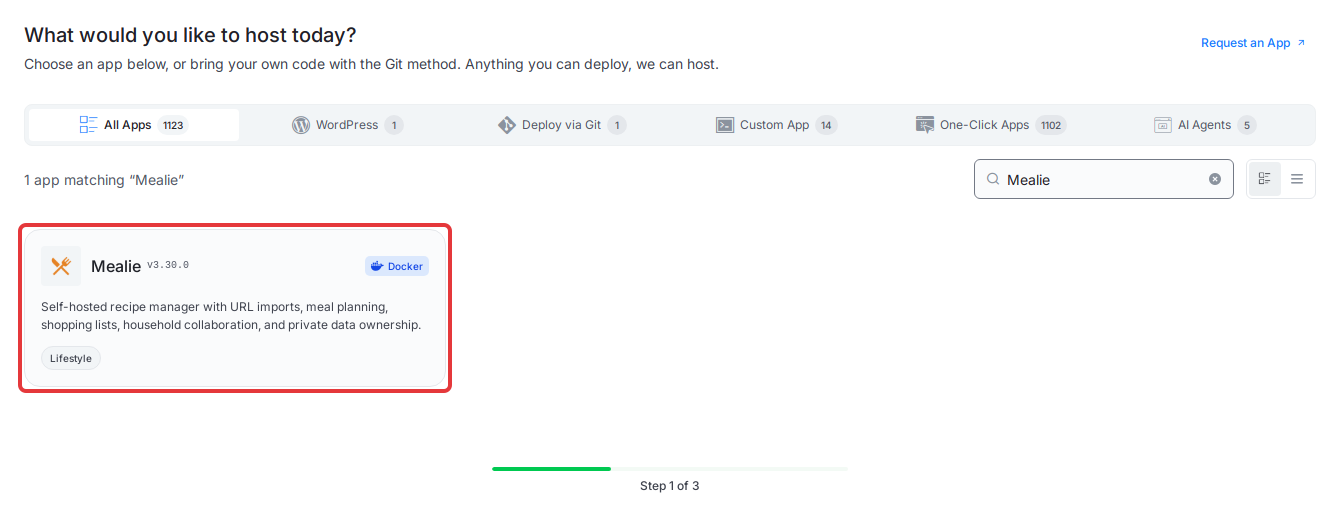
Go to Sites → New Site. Type Mealie in Search apps… and click the Mealie card.
Expected result: The Mealie page shows Runs on Nginx, Docker, a Recommended server size, the version it installs, and Where should it run? with your servers.
Step 2: Choose where it runs
Under Where should it run?, click one of your servers, or Deploy on a new server to create a dedicated one. Then click Continue.
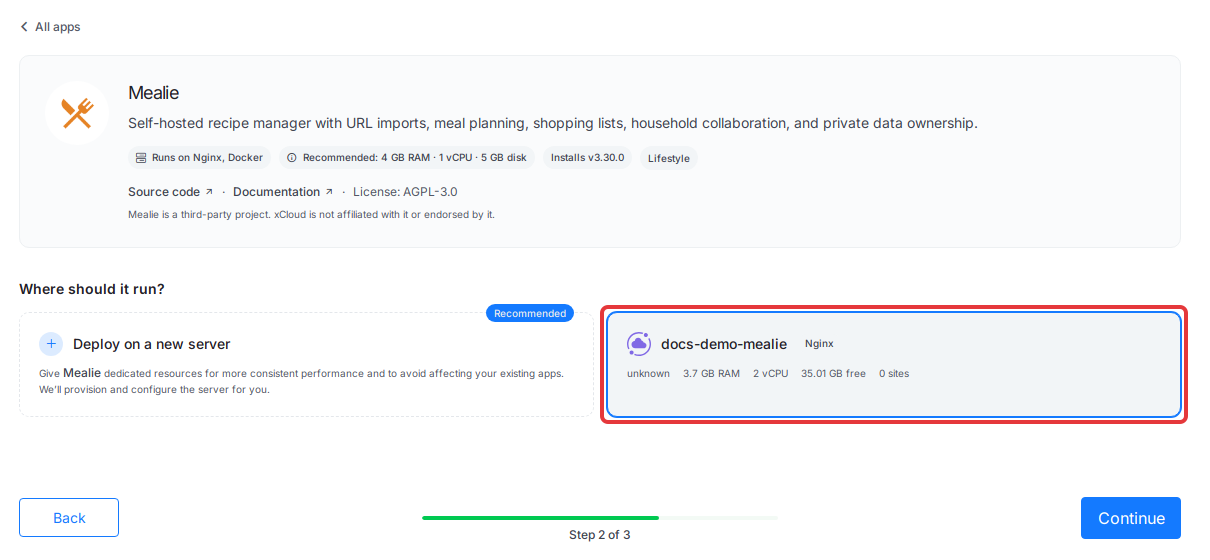
Expected result: xCloud opens the Install Mealie Into form for the server you chose. A server that is too small or on the wrong stack is not in the list. Click the servers cannot run this app link under the list (it starts with the number of servers, for example 2 servers cannot run this app) to see why.
Step 3: Fill in the site form
- Enter a Site Title, for example
Mealie Recipes. Tags are optional. - Under Domain Setup, choose Demo Site to try Mealie on a test domain, or Go Live to use your own domain.
- Under Administrator Credentials, enter the Administrator Email you will sign in with.
- Leave Administrator Password empty to get a generated 24-character password, or type your own of at least 12 characters.
- Under Application Settings, set the Timezone to your time zone, written like
UTCorAmerica/New_York. Mealie uses it for meal plans and scheduled tasks.
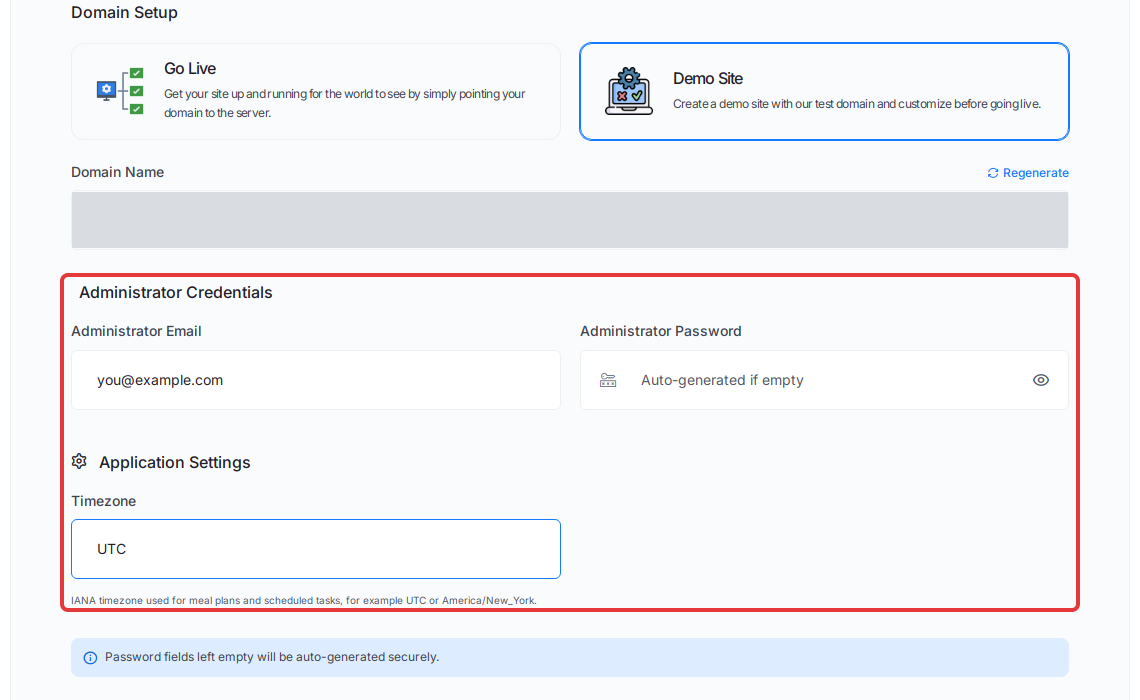
Expected result: The form shows your title, the domain, the administrator email and the timezone.
Step 4: Click Next and wait for the setup
Click Next. xCloud shows the setup progress: it checks the server, installs Docker if needed, sets up the app, then adds SSL and NGINX. Before it finishes, xCloud replaces Mealie’s built-in default login with your administrator email and password.
Expected result: The site opens on its overview when the setup is done.
Step 5: Copy your sign-in details
On the site’s Site Overview, the Mealie Credentials card lists the URL, the Email and the Password. Click Copy next to the password and save it in your password manager.
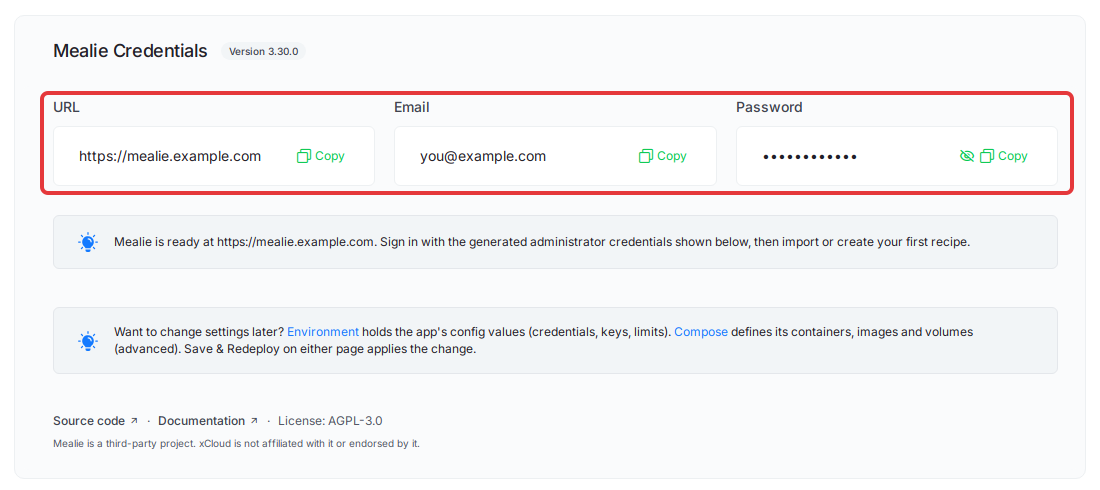
Expected result: You have your Mealie address and the administrator login.
Step 6: Sign in and set up your kitchen
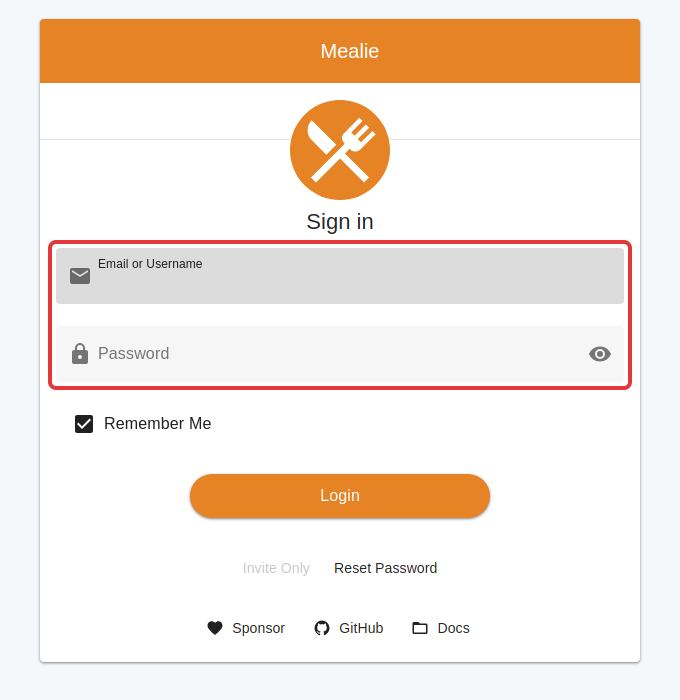
Open the URL from the credentials card. Mealie shows its Sign in page. Enter the administrator email in Email or Username and the password in Password, then click Login. The page says Invite Only because public sign-up is off.
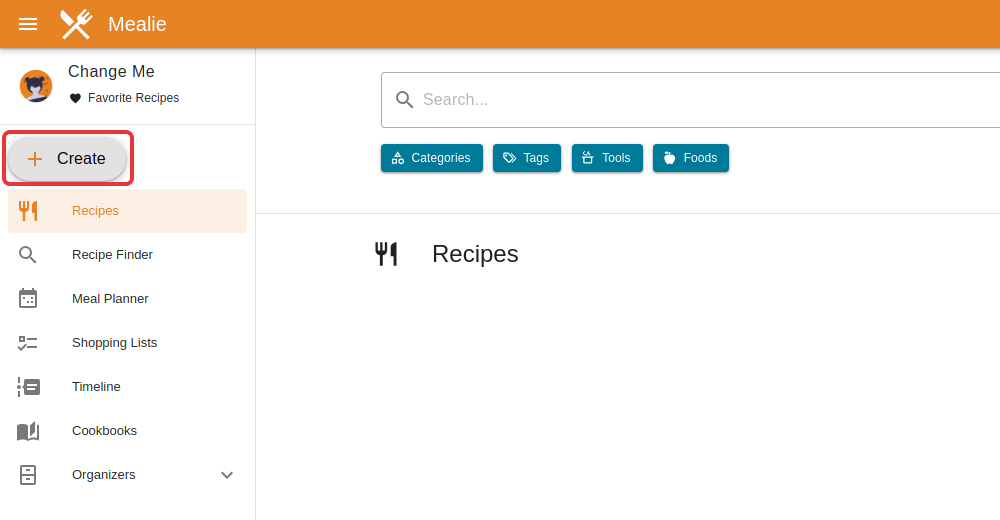
Expected result: Mealie opens on Recipes, with Create, Meal Planner, Shopping Lists and Cookbooks in the menu. Your display name starts as Change Me.
Then get Mealie ready for your household. Recipes, meal plans, shopping lists and adding the people you cook with all happen inside Mealie, not in xCloud. Mealie’s own guides cover them:
- Mealie’s features overview for importing recipes, meal plans and shopping lists.
- Mealie’s user management guide for adding household members as the administrator.
The steps inside Mealie after the first sign-in come from Mealie’s documentation and were not tested on an xCloud install.
If the sign-in page does not load yet, wait a minute and refresh. Mealie can take a short while on its first start.
Back up and update Mealie
Everything Mealie stores is on the mealie_data volume: the SQLite database, recipes, uploaded images and Mealie’s own secrets. An xCloud Docker backup includes the app’s named volumes, so it saves mealie_data together with the app’s Compose file and environment file.
- Open Sites, select your Mealie site, then go to Backup → Previous Backups and click Backup Now. The steps are in Create an On-demand Backup.
- To back up on a schedule, follow Configure Scheduled Local Backups.
- To keep a copy off the server, follow Configure Remote Backups and choose S3-compatible storage or an SFTP server.
Expected result: On Backup → Previous Backups, a new backup row changes from Running to Completed. With remote backups on, the Remote Backup tab lists the copy for your destination.
A restore replaces the Mealie data on the same site. Read Restore a Docker App Backup before you use one. Don’t put Mealie’s data on network storage (NAS). For a larger setup, Mealie’s own PostgreSQL install is the better fit.
Your site stays on the Mealie version it installed until you choose to update. When a newer version is available, xCloud shows it on Site Overview and on the site’s App Updates page, which backs up the app’s data before it moves you. Update a One Click App and edit its Docker Compose walks through it. Read Mealie’s release notes before a big jump, and never delete the mealie_data volume when you recreate the app.
Editing the administrator email or password in the app’s environment settings later does not change your Mealie login. Change them inside Mealie instead: the email in Profile, the password with Profile → Change Password.
Troubleshooting
| Problem | Likely cause | Fix |
|---|---|---|
| Your server is not in the list | It has less than 1 GB RAM, 1 CPU core or 5 GB free disk, or it runs OpenLiteSpeed | Click the servers cannot run this app link under the list (it starts with the number of servers, for example 2 servers cannot run this app) to see why. Pick an NGINX server with enough room, or choose Deploy on a new server |
| The URL shows an error right after setup | Mealie is still starting | Wait a minute and refresh |
| The password doesn’t work | It was changed in Mealie, or it was copied with extra spaces | Copy it again from the Mealie Credentials card. If you changed it in Mealie, use the new one |
| A household member can’t register | Public sign-up is off in this template | Add them yourself as the administrator. Mealie’s user management guide shows how |
| Password reset or invitation emails never arrive | The template does not set up email | Follow Mealie’s user management guide to manage the account as the administrator |
Frequently asked questions
Do I need a custom docker-compose.yml to deploy Mealie on xCloud?
No. The One-Click Apps catalog supplies the Mealie template. You pick Mealie, choose a server, fill in the site form and click Next.
What size server does Mealie need on xCloud?
The Mealie template asks for at least 1 GB RAM, 1 CPU core and 5 GB of disk. Recipe images and the backups you keep can need much more disk over time.
Can I change the Mealie admin password by editing the environment variables?
No. The administrator email and password from the install form only set up the first account on the first start. Change the email in Profile and the password with Profile → Change Password inside Mealie.
Can people sign up to my Mealie on their own?
No. Public sign-up is turned off in the xCloud template. You add the people you cook with from inside Mealie. Email invitations need SMTP settings, which the template does not include.
Related resources
- Mealie hosting on xCloud: plans and what is included
- How to use One-Click App Templates: App Actions, the environment editor and events
- Update a One Click App and edit its Docker Compose
- Back up and restore Docker apps
- Browse the One-Click Apps catalog
- Mealie’s own guides: Installation with SQLite and Backend configuration
If you run into any issues while deploying Mealie, feel free to reach out to our support team.