

How to Find and Fix a Failing Cron Job in xCloud
Updated November 24, 2026 · 6 min read
When a custom cron job in xCloud doesn’t do its work, run it once with Run Now, then open its Output to read the exact error. The output window shows what the last run printed, including error messages, so you can see whether the problem is a wrong path, the wrong user or a missing program. This guide shows where both controls are, how to read what you see, and how to fix the most common causes.
You need a cron job you already added. To add one, see how to add a custom cron job in xCloud.
Where your cron jobs live
xCloud has two Cron Jobs pages. Both have the same Run Now and Output controls in the Actions column.
| Cron job type | Where to find it | Runs as |
|---|---|---|
| Server cron job | Server → Management → Cron Jobs | The user you pick in the User field (root, a sudo user or a site user) |
| Site cron job | Site → Tools → Cron Jobs | The site user, always |
Step 1: Open the Cron Jobs list
Open your server from Servers, then click Cron Jobs under Management in the left menu. For a site cron job, open the site and go to Tools → Cron Jobs.
You see each job with its Command, User, Frequency and Actions.
Step 2: Run the job now
Click the green Run Now (play) button on the row of the job that fails. xCloud runs the command right away, as the job’s user, and shows “Cron job execution initiated.” when it starts.
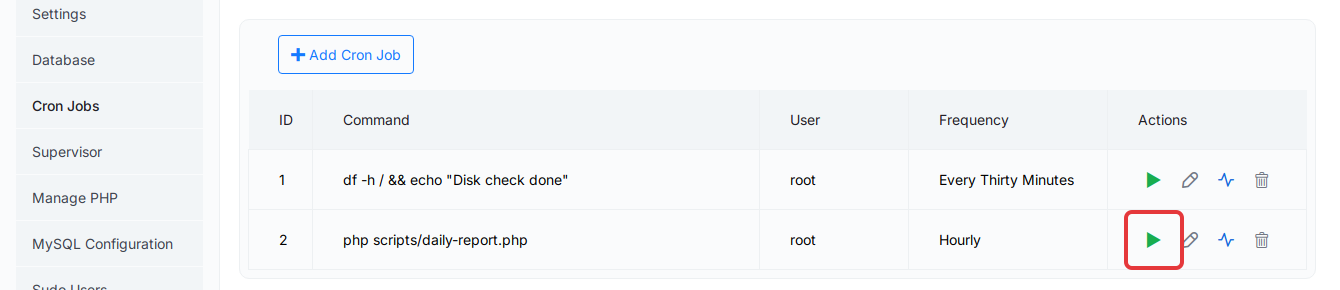
If the job is already running from its schedule, Run Now waits up to 10 seconds for that run to finish. If it is still running after that, the manual run is skipped and the output says “Skipped — a previous run of this cron job is still running.” Clicking Run Now clears the output of the run that is still going, so wait for it to finish if you want to read it.
Step 3: Open the output
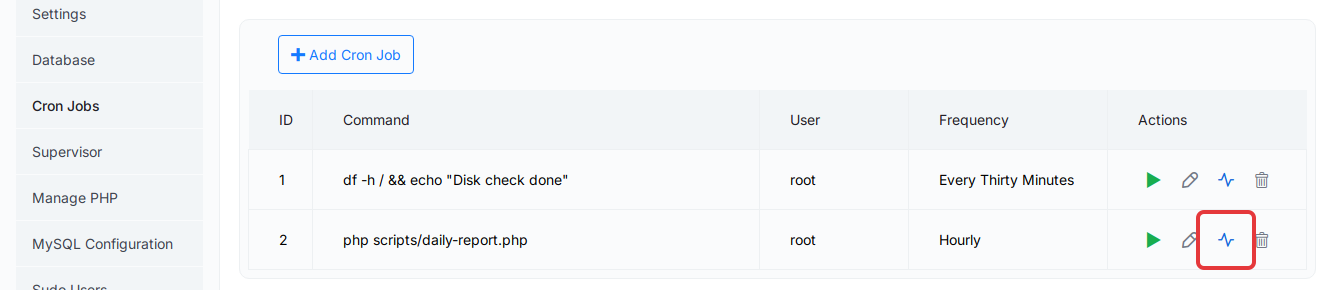
Click the Output icon (the pulse line, next to Edit) on the same row. The Cron Job Output window opens.
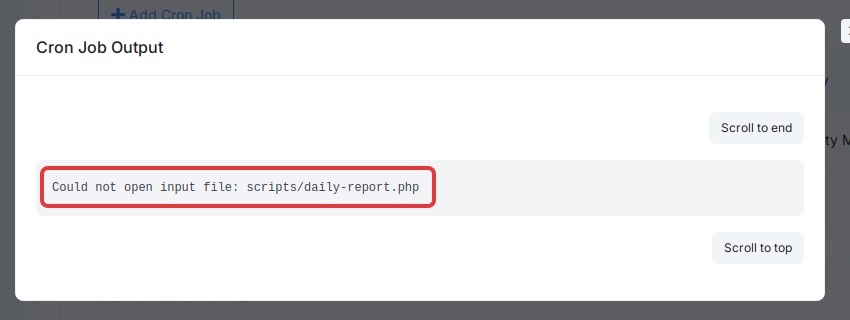
The window shows what the last run printed: normal output and error messages together. Use Scroll to end for long output. In this example, PHP could not find the script the job points to:
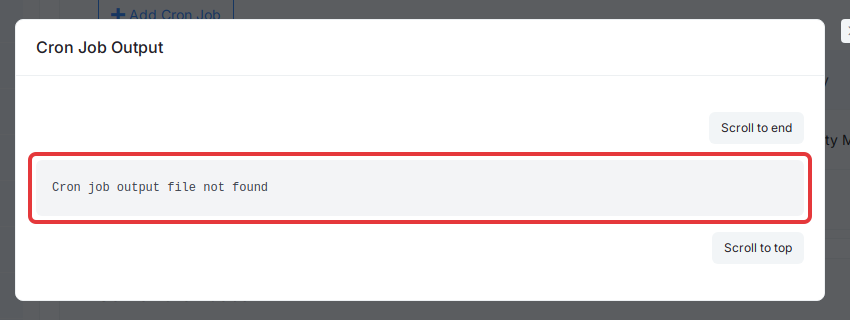
If the window says Cron job output file not found, the job has not run yet since it was added or changed. Click Run Now and open the output again.
Step 4: Match the error to its cause
Read the first error line in the output and find it below.
| What the output says | Likely cause | Fix |
|---|---|---|
Could not open input file: ... or No such file or directory |
The command uses a relative path. Jobs start in the job user’s home folder, not in your site’s folder. | Use the full path, for example php /var/www/example.com/scripts/report.php, or start with cd /var/www/example.com && .... |
Permission denied |
The job runs as a user who can’t read or write those files. | Pick the user who owns the files. For a site’s files, use the site user or add the job from the site’s Tools → Cron Jobs page. |
Error: YIKES! It looks like you're running this as root. |
A WP-CLI command runs as root. | Run it as the site user. The site’s Cron Jobs page does this for you. |
command not found |
The program isn’t installed, or isn’t on the user’s path. | Use the full path to the program (which <program> in SSH shows it), or install it first. |
| A PHP error that only happens in the cron job, such as a missing function or a syntax error | The php command uses the server’s default PHP version, which can differ from your site’s version. |
Call the version you need, for example php8.2 /full/path/script.php. See how to change your site’s PHP version. |
Skipped — a previous run of this cron job is still running. |
The last run took longer than the time between runs. xCloud skips the new run so the two don’t overlap. | Make the job faster, or choose a longer Frequency. |
| Nothing at all | The command hides its output, usually with > /dev/null 2>&1 at the end. |
Remove that part while you troubleshoot, run the job again and read the output. |
Step 5: Fix the command and run it again
Click the Edit (pencil) icon on the job’s row. Change the Command or User field, then click Update.
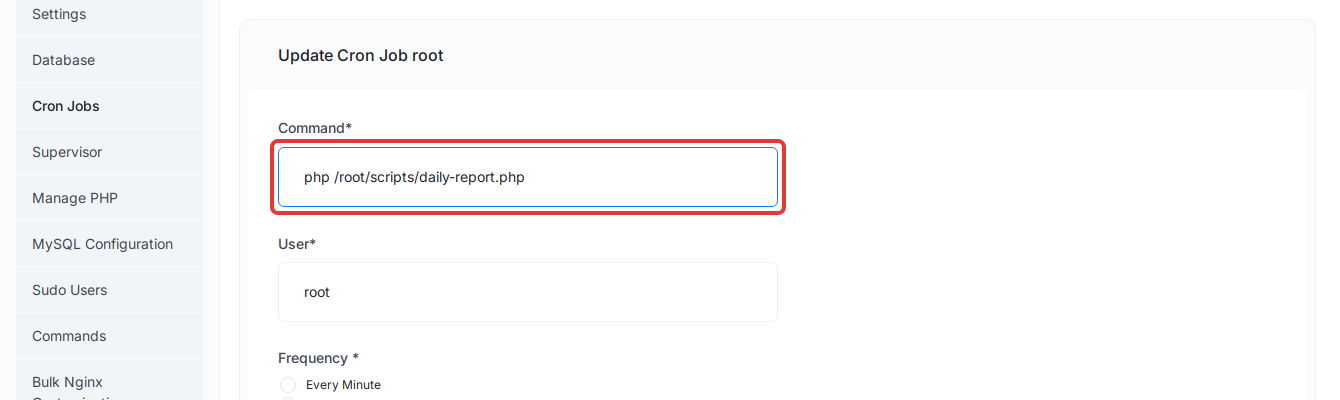
Go back to the Cron Jobs list, click Run Now, and open Output again. When the error is gone and the output shows what you expect, the scheduled runs will work the same way.
If the form says “The command is too long once the overlap lock is added. Shorten it, or put it in a script file and run that.”, move the command into a script file on the server and make the cron job run that file.
What the output keeps
- Only the last run. Each run, scheduled or manual, starts the output over. If a scheduled run is skipped, its “Skipped” line is added under the output of the run that is still going. If Run Now is skipped, the window shows only the “Skipped” line.
- Normal output and errors together. Both appear in the same window, in the order the command printed them.
- One output per job. It is saved as a file in the
.xcloudfolder of the job user’s home folder on the server.
xCloud’s own WordPress cron (xCloud-Cron) is set in the site’s settings, not in this list. To check it, see how to configure xCloud cron job. To see every cron job across the sites on one server, see how to check the cron job list of all sites in your server.
For developers: read the output with the Public API
You can read the same last-run output from a script with the xCloud Public API:
- Server cron job:
GET /api/v1/servers/{server}/cron-jobs/{cronJob}/output - Site cron job:
GET /api/v1/sites/{site}/cron-jobs/{cronJob}/output
The response holds the text in output. To run a one-off command and read its exit code, use site commands instead of a temporary cron job.
Frequently asked questions
What does ‘Cron job output file not found’ mean?
The job has not run yet, so there is no output to show. Click Run Now, or wait for the next scheduled run, then open the Output icon again.
Does the output show every past run?
No. It shows the most recent run only, both normal output and error messages. Each new run starts the output over.
Why is the output empty even though the job ran?
The command sends its output somewhere else, usually with > /dev/null 2>&1 at the end. Remove that part while you troubleshoot so the error reaches the output window.
Why does my WP-CLI command fail as root?
WP-CLI refuses to run as root by default, and the site’s files belong to the site user. Add the job from the site’s Tools → Cron Jobs page, which runs it as the site user.
If you run into any issues while fixing a cron job, feel free to reach out to our support team.