

How to Host a Sitereal Site on xCloud
Updated November 25, 2026 · 6 min read
Sitereal is a desktop app for building websites on a visual canvas. Everything it builds is a plain Astro project in a folder on your computer, so you can host it on your own xCloud server like any other Astro site. The easiest way is to push the site to GitHub from Sitereal and deploy it from Git on xCloud: xCloud recognizes Astro, builds the site and can publish every new push.
We tested this on 24 November 2026 with an Astro 7 project shaped like a Sitereal site, on an xCloud server with Nginx and Node.js 24.
Choose how to publish
Sitereal can publish in two ways, and both work with xCloud:
| Sitereal publish option | Use it when | What xCloud does |
|---|---|---|
| GitHub (recommended) | Any Sitereal site, including forms and API routes | Builds the site from your repository and redeploys on every push |
| Web hosting (SFTP) | A site with no server part, and you prefer uploading from Sitereal | Serves the files Sitereal uploads into the site’s folder |
Use one of them per site. If Sitereal uploads files and xCloud also deploys from GitHub into the same site, each publish replaces the other.
Before you begin
- Sitereal with your site open. See Sitereal’s Publishing & hosts guide for its side of the setup.
- An xCloud server with the Nginx or OpenLiteSpeed stack. You can also create one during the steps below.
- For the GitHub option: a GitHub account connected to Sitereal. A private repository works too: connect your Git provider in xCloud first.
Option 1: Push to GitHub and deploy on xCloud
Step 1: Push the site to GitHub from Sitereal
In Sitereal, give the project a GitHub repository under Settings → Repository. Then open Publish settings, set Hosting → Provider to GitHub and turn on Push to GitHub. Click Publish to push your site.
Step 2: Choose Astro in xCloud
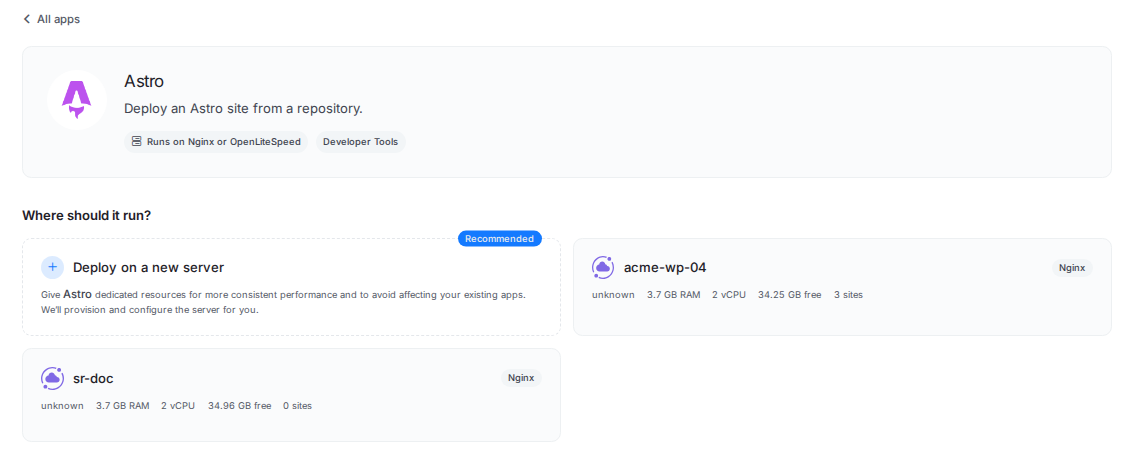
In xCloud, open Sites and click Add New Site. Click the Astro card, then select the server for your site under Where should it run? and click Continue.
Step 3: Add your repository and check the settings
Paste your repository URL and press Enter. xCloud reads the project and shows Native app with an Astro label, with App Type set to Node.js.
Under Build & serving, a Sitereal site without a server part gets Static build with dist as the Web root. That’s where Astro writes the finished site, so leave both as they are. Check that Branch is the branch Sitereal pushes to.
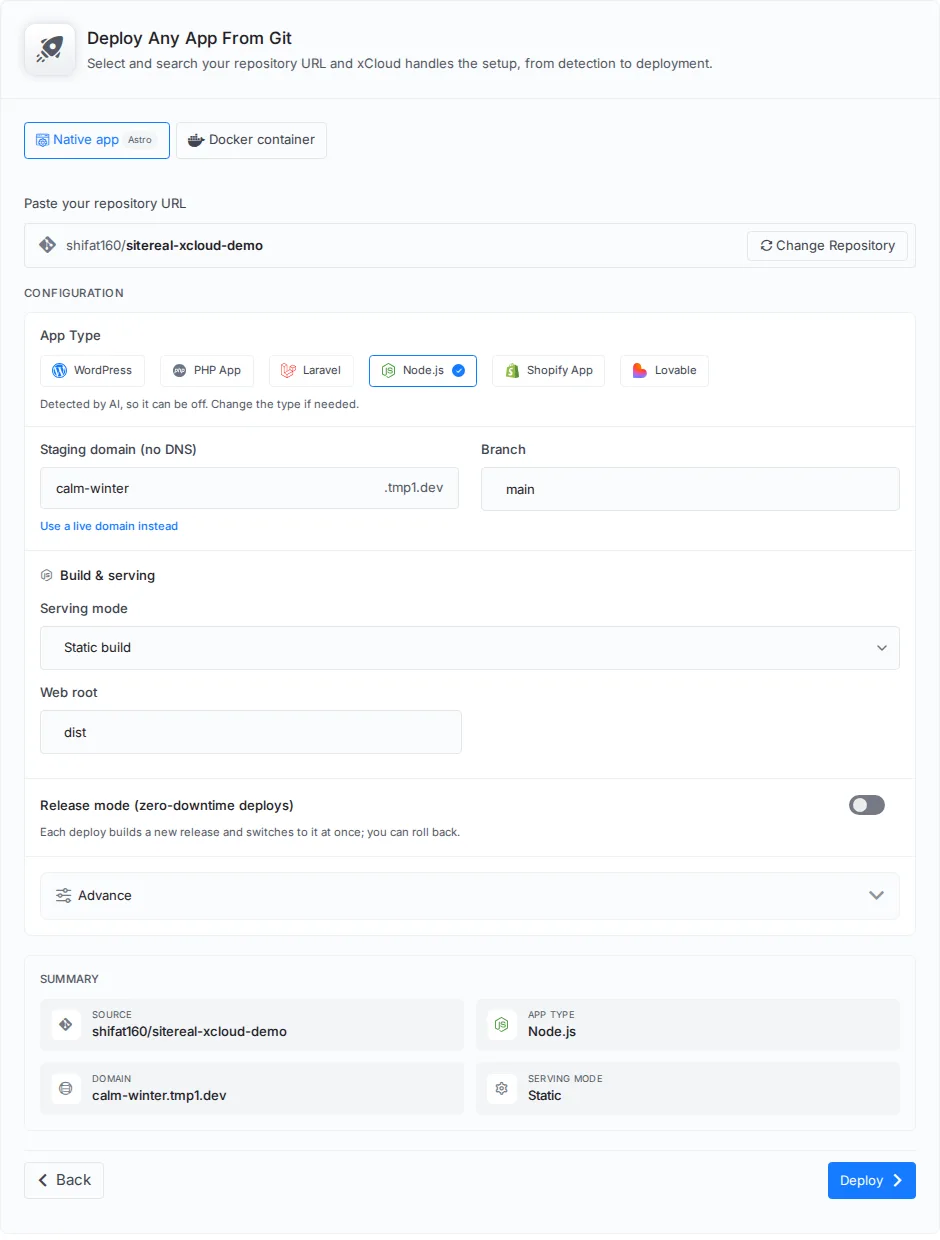
Keep the free Staging domain (no DNS) to test first, or click Use a live domain instead to use your own domain.
Step 4: Deploy
Click Deploy. xCloud clones the repository, installs the packages, runs the build and publishes the site. When it’s done, open Deployments on the site. The deployment shows LIVE.
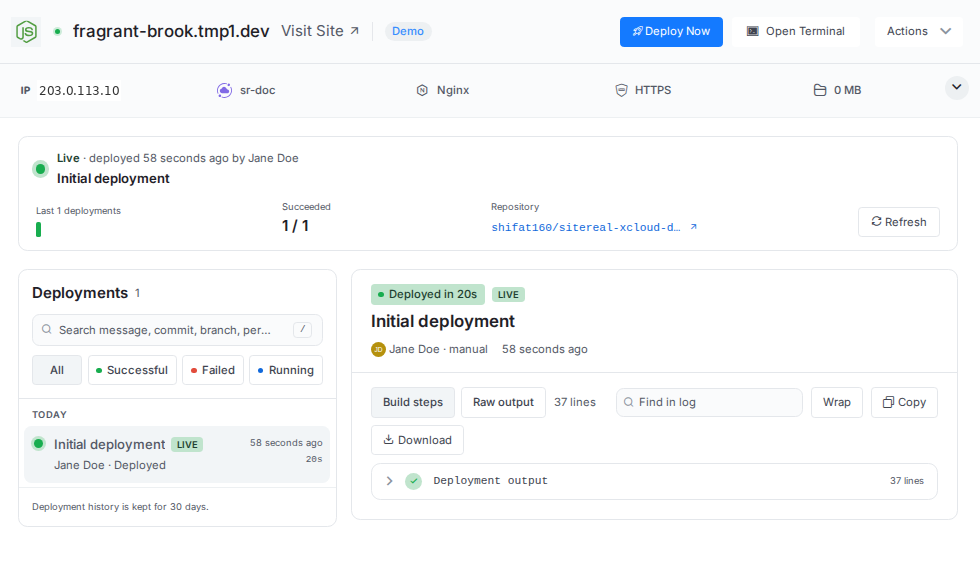
From now on, publish from Sitereal as usual. To deploy every push automatically, turn on Auto-deploy on push (webhook). This works for repositories from a connected Git provider. Otherwise click Deploy Now on the site after you publish. See How to View Git Deployments for Your Site in xCloud for the build log and earlier deployments.
Sites with forms, API routes or pages rendered on request
Sitereal asks for a host’s Astro adapter when your site needs a server, for example a form endpoint or an API route. Its Add button only offers the Vercel, Netlify and Cloudflare adapters. For xCloud, use the Node adapter instead:
npx astro add nodeCheck that astro.config.mjs uses standalone mode:
import { defineConfig } from 'astro/config';
import node from '@astrojs/node';

export default defineConfig({
  output: 'server',
  adapter: node({ mode: 'standalone' }),
});
Commit and push. xCloud then sets Serving mode to SSR (Node process) with the start command node ./dist/server/entry.mjs and runs the site as a Node.js process that restarts on its own. In our test, an API route answered on every request and the site’s own 404 page came back with a real 404 status.
If you keep a Vercel, Netlify or Cloudflare adapter, xCloud removes it during the deploy and builds the site as a static site, with a warning on the setup screen. How to Deploy an Astro Site from Git on xCloud explains both modes, environment variables and live domains in more detail.
Option 2: Upload from Sitereal over SFTP
Sitereal’s Web hosting option builds the site on your computer and uploads the files. It suits a site with no server part.
- In xCloud, create a blank PHP site. Its folder is where Sitereal uploads the files.
- On the site, open Access Data → SSH/sFTP. Note the Site Username and Site Path, and add your computer’s SSH key or set a password under SSH Authentication. See How to Configure SFTP Access for details.
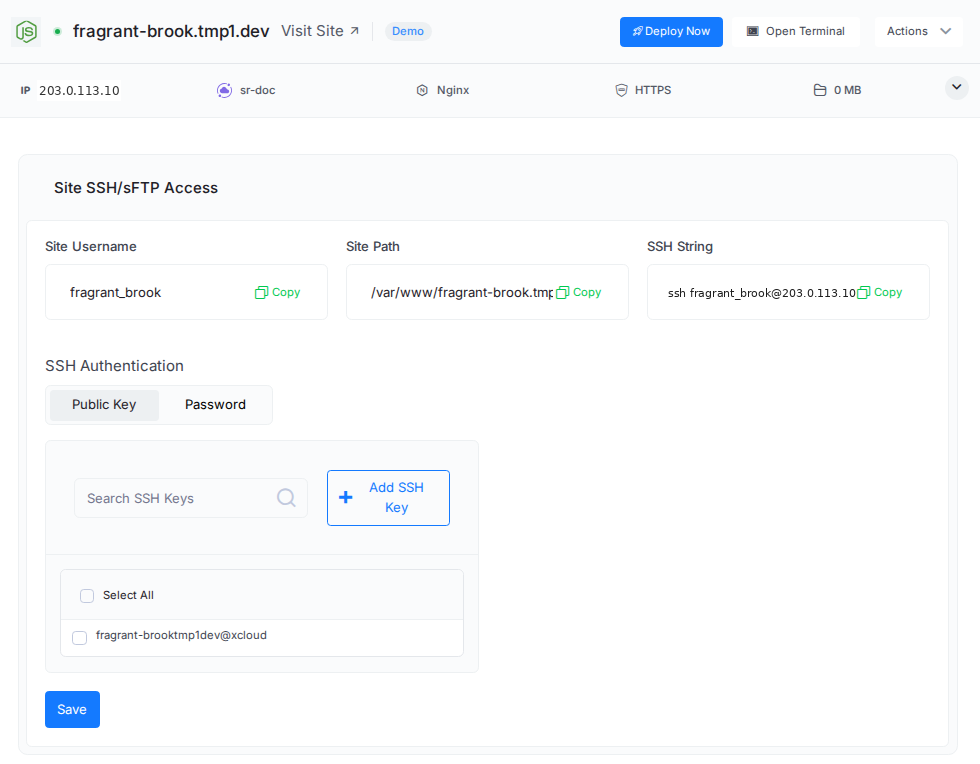
- In Sitereal, open Publish settings, set Hosting → Provider to Web hosting, choose SFTP, and enter your server’s IP address, the site username and its password or key. Click Test connection, pick the site’s folder and click Publish.
Sitereal also writes a .htaccess file with your redirects and the 404 page. Nginx servers don’t read .htaccess, so on Nginx those redirects and the custom 404 page are not used. On an OpenLiteSpeed server, the redirects work after the web server restarts. If you rely on redirects, prefer Option 1.
Good to know
- Node.js version: Sitereal sites use Astro 7, which needs Node.js 22.23.4 or newer. xCloud installs Node.js 24 by default.
- Missing pages on a static build: a URL that doesn’t exist currently shows your home page instead of your 404 page. Sites that use the Node adapter return their own 404 page.
- Environment variables: add the keys your site reads (a mail key, a database address) under Advance → Environment file (.env) before you deploy, not in your repository.
If you run into any issues while hosting your Sitereal site, feel free to reach out to our support team.
Frequently asked questions
Can I host a Sitereal site on xCloud?
Yes. A Sitereal site is a plain Astro project. Push it to GitHub from Sitereal, then deploy the repository on xCloud. xCloud recognizes Astro and fills in the build settings for you.
My Sitereal site has a form or an API route. Will it work on xCloud?
Yes, with the Node adapter. Add @astrojs/node in standalone mode instead of the Vercel, Netlify or Cloudflare adapter, then push. xCloud runs the site as a Node.js process and starts it for you.
Can I use Sitereal’s Web hosting (SFTP) publishing with xCloud?
Yes, for sites without a server part. Create a blank PHP site on xCloud and enter its SFTP details in Sitereal. Redirects and the custom 404 page that Sitereal writes to .htaccess are not used on Nginx servers.
Which Node.js version does a Sitereal site need?
Sitereal sites use Astro 7, which needs Node.js 22.23.4 or newer. xCloud installs Node.js 24 by default, which meets that requirement.