

How xCloud Renews Free SSL Certificates (and What to Do When Renewal Fails)
Updated November 27, 2026 · 5 min read
xCloud renews the free SSL certificate it issues for your site automatically, starting one week before it expires. You don’t have to click anything. If a renewal fails, xCloud emails you, retries on its own, and you can fix the cause and click Retry SSL to renew it right away.
This guide explains which certificates xCloud renews, which emails you get, and what to do when you get an SSL Renewal Failed email. To set up the certificate in the first place, see How to enable HTTPS and configure SSL certificates.
How automatic renewal works
The free certificate comes from Let’s Encrypt. xCloud checks your certificate on a schedule and renews it once it is within 7 days of its expiry date.
You can see both dates on the site’s SSL/HTTPS page. Open your site, then go to Domain → SSL/HTTPS. Expires On is the day the current certificate ends. Renew Date is one week earlier: the day xCloud starts renewing it.
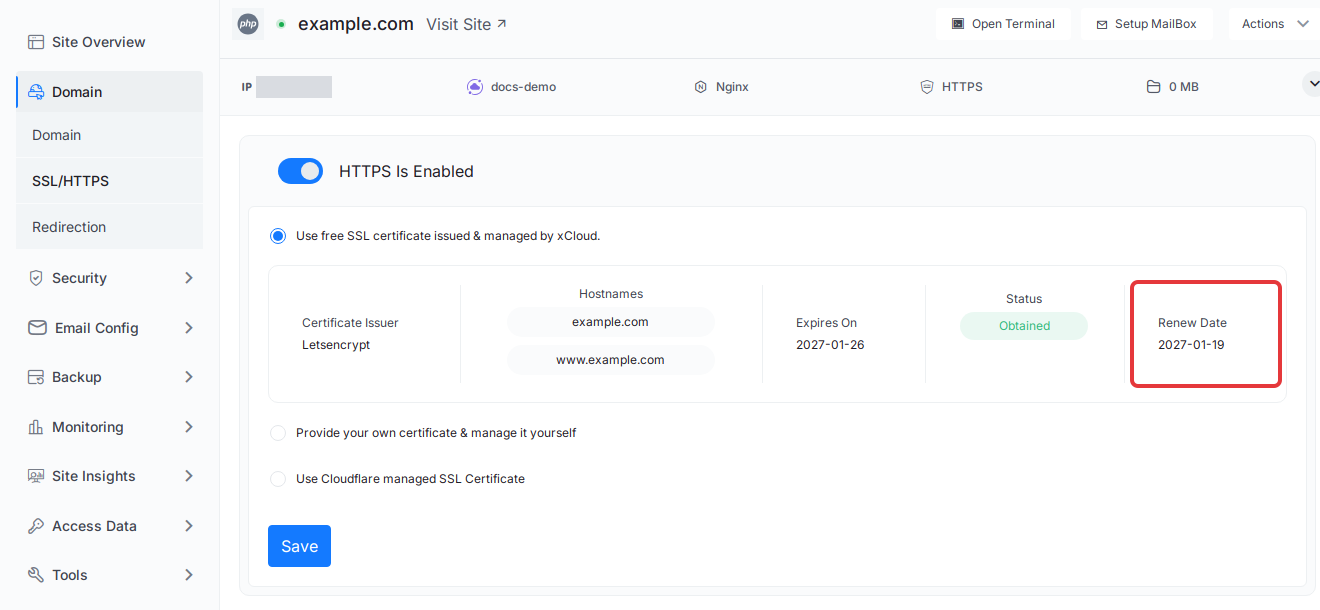
When the renewal works, the status stays Obtained and both dates move forward. Visitors notice nothing.
Which certificates xCloud renews
| Certificate | Renewed by xCloud? |
|---|---|
| Use free SSL certificate issued & managed by xCloud | Yes, automatically. |
| Provide your own certificate & manage it yourself | No. Renew it with your certificate provider and paste the new one in. |
| Use Cloudflare managed SSL Certificate | No. Cloudflare manages that certificate. |
| Wildcard certificate on WordPress Multisite with subdomains | No. It uses DNS records you add by hand, so the page shows Wildcard SSL needs renewal and a Renew now button when it is due. |
xCloud also skips a site that is disabled. Turn the site back on and its certificate renews on the next check.
When www no longer points to your server
If your certificate covers both example.com and www.example.com, but www no longer points to your server, renewing the same names would fail. In that case xCloud issues a new certificate for your site’s domain without www. If you want www back on the certificate, point its DNS record to your server again and click Save on the SSL/HTTPS page.
The emails you get
| When it is sent | |
|---|---|
| SSL Renewed Successfully | The certificate was renewed. No action needed. |
| SSL Renewal Failed | xCloud could not renew the certificate. Follow the steps below. |
If several of your sites renew, or fail, around the same time, you get one email that lists them all, such as “SSL Renewal Failed for 3 sites”. If a renewal keeps failing, xCloud reminds you again, less often as time goes on.
xCloud doesn’t send a warning before the certificate expires, because it renews the certificate a week ahead. You can turn these emails on or off under Settings → Notifications → Email Preferences. See Manage email preferences in xCloud.
What to do when renewal fails
A failed renewal almost always means Let’s Encrypt couldn’t reach your site to confirm you own the domain. The usual causes are a DNS record that points somewhere else, an IPv6 (AAAA) record, the Cloudflare proxy, or a closed port 80.
Step 1: Check the SSL/HTTPS page
Open the site, then go to Domain → SSL/HTTPS. Under the certificate details, xCloud shows a notice that it will retry the renewal automatically in 12 hours. Once the expiry date has passed, the Status shows Expired.
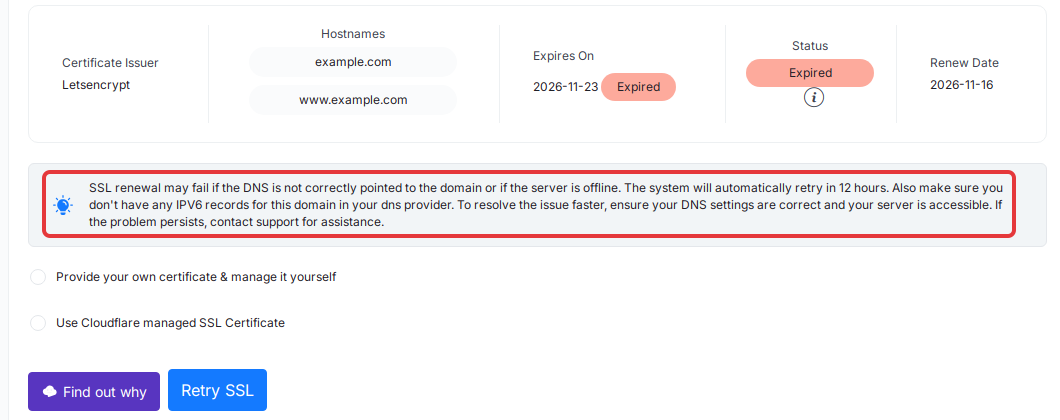
Your site keeps using the old certificate until it expires. After that, browsers show a security warning to visitors, so fix the cause before the Expires On date when you can.
Step 2: Fix the cause
Check that every name under Hostnames points to your server, that there is no AAAA record for the domain, that the Cloudflare proxy is off (DNS only) while the certificate is issued, and that port 80 is open. How to fix a failed free SSL certificate walks through each check with the commands to run.
Step 3: Click Retry SSL
You don’t have to wait for the automatic retry. Leave Use free SSL certificate issued & managed by xCloud selected and click Retry SSL at the bottom of the page.
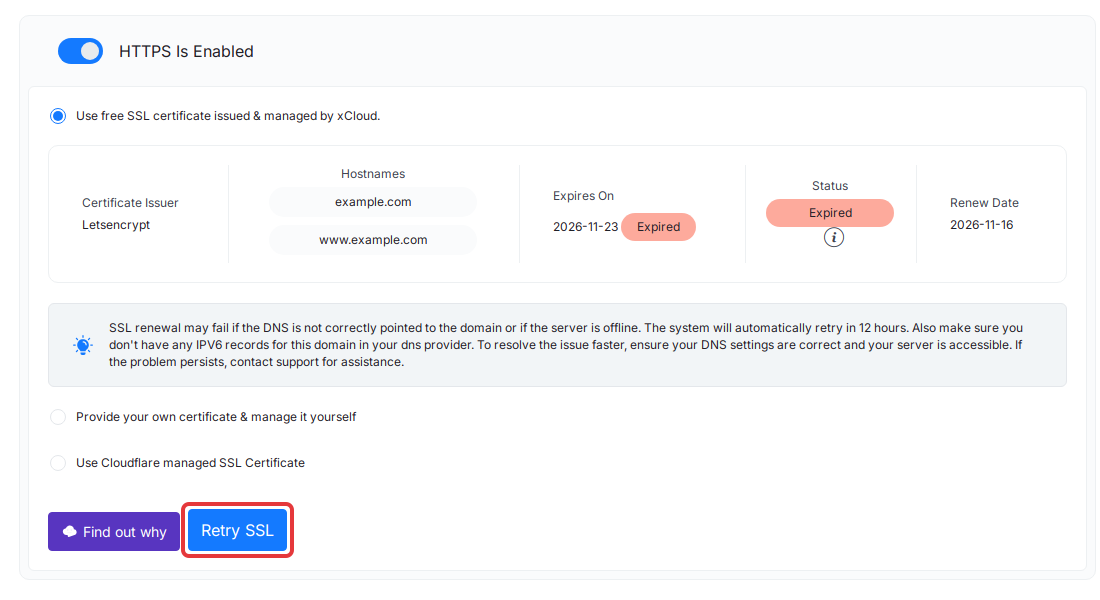
When it works, the status changes to Obtained, the dates move forward, and you get an SSL Renewed Successfully email. If the status goes back to failed, the cause is still there. Go back to Step 2.
When automatic renewal has stopped
xCloud keeps retrying a failed renewal: about every 12 hours at first, then less often. Once the certificate has been expired for more than 30 days, xCloud stops retrying and the page says: Automatic renewal has stopped because this certificate expired more than 30 days ago.
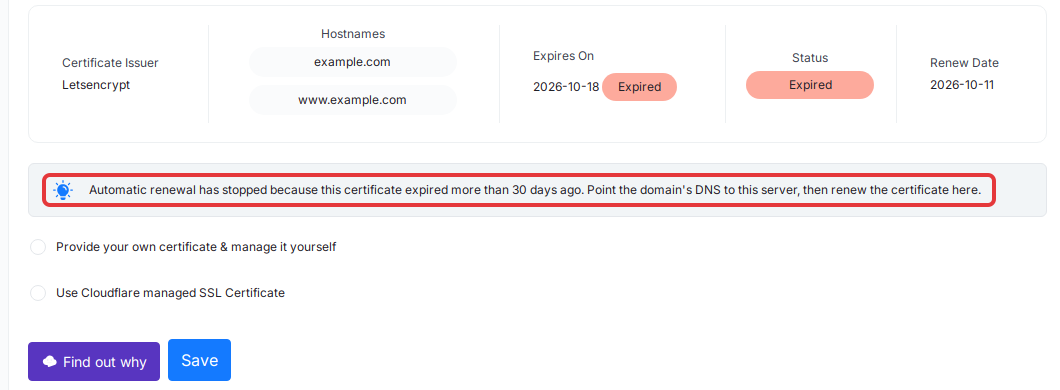
In this state the button says Save instead of Retry SSL. Point the domain’s DNS to your server, then click Save to request a new certificate. Once it is issued, automatic renewal starts again.
Frequently asked questions
Do I need to do anything to renew my free SSL certificate?
No. xCloud renews the free certificate it issued for your site on its own, starting one week before it expires. You only need to act if you get an SSL Renewal Failed email or the SSL/HTTPS page shows the certificate as Expired.
Does xCloud renew my Cloudflare or custom certificate?
No. xCloud renews only the free certificate it issued and manages. A certificate you pasted in yourself, or one from Cloudflare, is renewed by you or by Cloudflare.
Does xCloud send an email before my SSL certificate expires?
No. xCloud doesn’t send a warning before expiry, because it renews the certificate for you a week ahead. It emails you after each renewal: SSL Renewed Successfully when it worked, SSL Renewal Failed when it didn’t.
Why did my certificate stop renewing automatically?
xCloud stops retrying a failed renewal once the certificate has been expired for more than 30 days. The SSL/HTTPS page then says automatic renewal has stopped. Point your domain’s DNS to the server, then click Save on the SSL/HTTPS page to renew it.
If you run into any issues with SSL renewal, feel free to reach out to our support team.