

How to Deploy Navidrome With xCloud One Click Apps
Updated November 27, 2026 · 7 min read
Deploy Navidrome from Sites → New Site → search Navidrome → choose a server → Continue → fill in the form → Next. xCloud supplies the Navidrome template, so you do not write a docker-compose.yml. This guide is for xCloud users who want their own music streaming server, with a web player and support for Subsonic apps on their phone, on a server they control.
What the Navidrome template includes
| Part | What it does | Good to know |
|---|---|---|
| Navidrome | The music server and web player, in one container from Navidrome’s official image | The app page shows the version it installs (for example Installs v0.64.2), and the credentials card shows the version on your site. It is only reachable through your domain over HTTPS. |
| Built-in SQLite database | Stores users, playlists, favourites, play counts and the library index inside the same container | No separate database server to run. |
navidrome_data volume |
The database and the artwork cache, at /data inside Navidrome |
Users, playlists and play history live only here. Back it up. |
navidrome_music volume |
Your music files, at /music inside Navidrome |
This is the library folder Navidrome scans. |
xCloud creates the Navidrome admin account during the install, so nobody else can claim your server by opening the address first. Email, single sign-on and Last.fm or ListenBrainz links are not set up by the template.
Before you start
| Requirement | Recommendation | Why it matters |
|---|---|---|
| Server | An NGINX server. xCloud installs Docker on it if it is not there yet. | Navidrome runs in Docker. OpenLiteSpeed servers can’t run Docker. |
| Memory and CPU | At least 512 MB RAM and 1 CPU core. The Navidrome page recommends 4 GB RAM. | Converting music to a smaller format while it streams uses CPU. Playing the original files does not. |
| Disk | At least 10 GB free, and room for your whole collection | Music files and artwork take the space. Backups need room too. |
| Sudo user | A sudo user on the server | Navidrome has no upload button. You copy music in over SSH. |
| Domain | DNS access if you choose Go Live | Phone and desktop apps connect to your site by its address. |
Step 1: Find Navidrome in the catalog
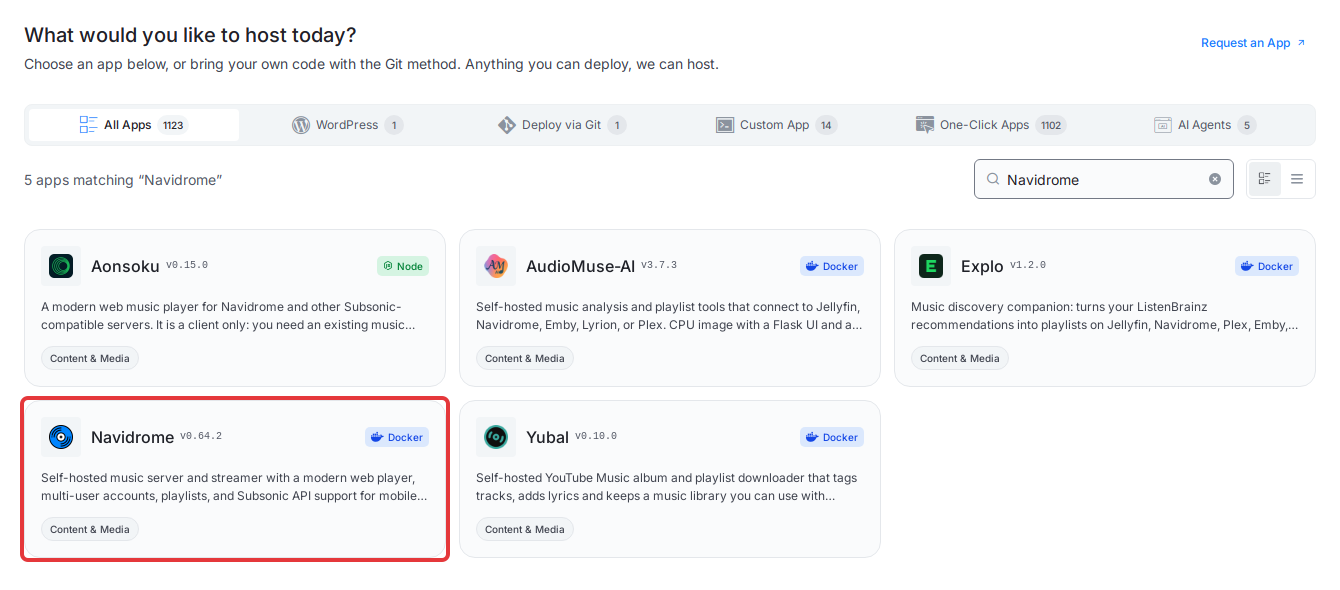
Go to Sites → New Site. Type Navidrome in Search apps… and click the Navidrome card. Other music apps that work with Navidrome show up in the same search; pick the card named exactly Navidrome.
Expected result: The Navidrome page shows Runs on Nginx, Docker, Recommended: 4 GB RAM · 1 vCPU · 10 GB disk, the version it installs, and Where should it run? with your servers.
Step 2: Choose where it runs
Under Where should it run?, click one of your servers, or Deploy on a new server to create a dedicated one. Then click Continue.
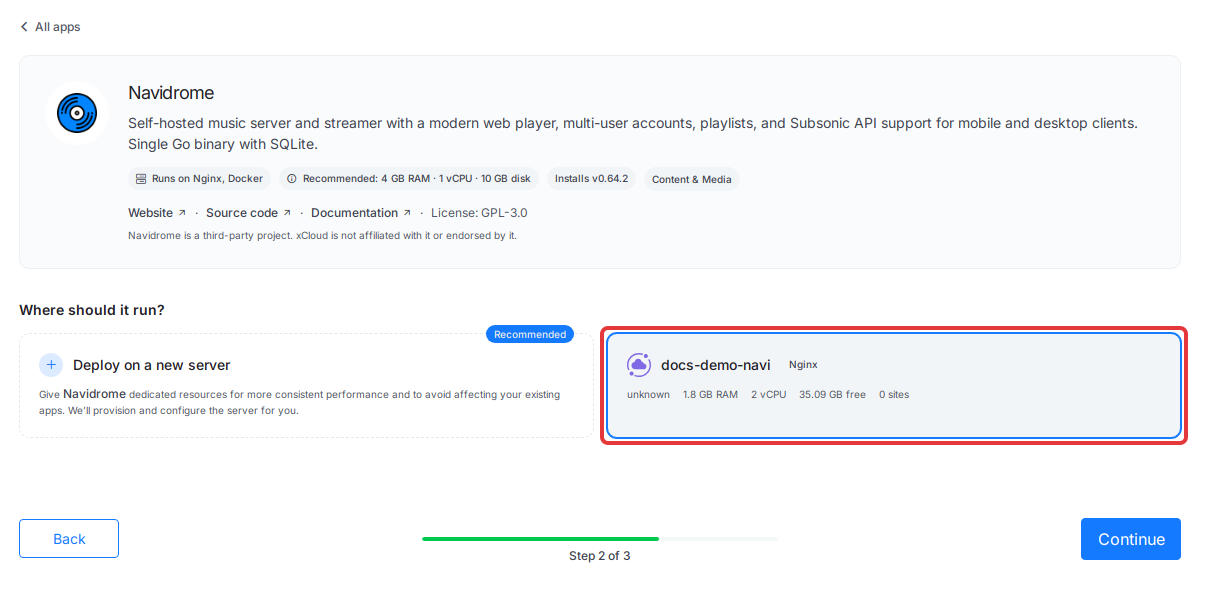
Expected result: xCloud opens the Install Navidrome Into form for the server you chose. A server that is too small or on the wrong stack is not in the list. Click the servers cannot run this app link under the list (it starts with the number of servers, for example 2 servers cannot run this app) to see why.
Step 3: Fill in the site form and the admin password
- Enter a Site Title, for example
Navidrome Music. Tags are optional. - Under Domain Setup, choose Demo Site to try Navidrome on a test domain, or Go Live to use your own domain.
- Under Admin Credentials, leave Admin Password empty to let xCloud generate a strong one, or type your own (8 to 64 characters).
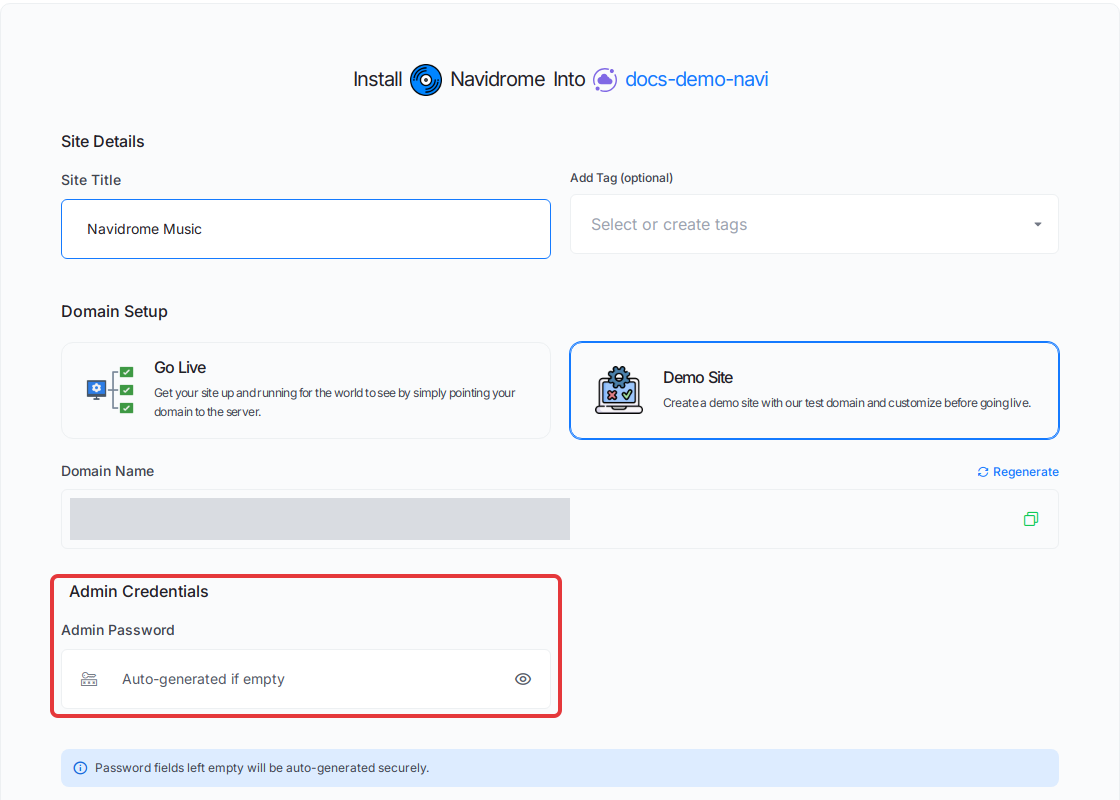
Expected result: The form shows your title, the domain and the password field. There are no other fields to fill in.
Step 4: Click Next and wait for the setup
Click Next. xCloud shows the setup progress: it checks the server, installs Docker if needed, sets up the app, then adds SSL, HTTPS and NGINX.
Expected result: The site opens on its Site Overview when the setup is done.
Step 5: Copy your Navidrome login
On Site Overview, the Navidrome Credentials card shows the installed version, the URL, the Username (admin) and the Password. Click Copy next to each one. The card also names the Navidrome container, which you need to add music in Step 7.
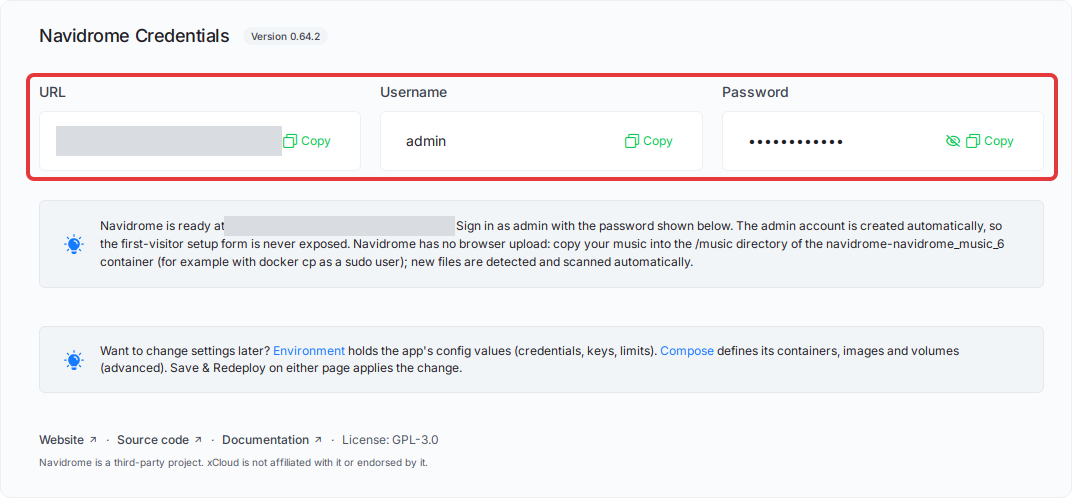
Expected result: You have the address, the username and the password of your Navidrome site.
Step 6: Sign in to Navidrome
Open the URL. Navidrome shows its sign-in form. Enter admin as the Username, paste the password, and click Sign in.
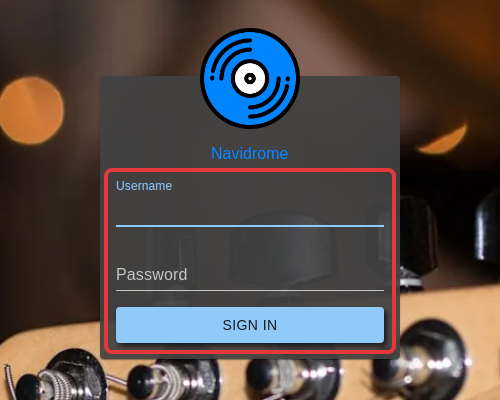
Expected result: Navidrome opens its web player. The library is empty until you add music.
To change the admin password, click the user icon in Navidrome, then open your profile. Changing Admin Password in xCloud’s Environment page after the install does not change it: Navidrome reads that value only the first time it starts. To give family or friends their own login, add them under Users inside Navidrome; each person gets their own playlists, favourites and play counts.
Step 7: Add your music
Navidrome has no upload button in the browser, and a site user’s SFTP uploads do not reach its /music folder. Copy your music into the container as a sudo user:
-
Upload your music to the server as the sudo user, for example into an
Albumsfolder in its home folder, then sign in to the server over SSH as that user. -
Find the container name. It is on Site Overview under Docker Container Health (it starts with
navidrome-), or run:sudo docker ps --format '{{.Names}} {{.Image}}'navidrome-navidrome_music_6 deluan/navidrome:0.64.2 -
Copy the folder into
/music, using your container name:sudo docker cp ./Albums/. CONTAINER:/music/ -
Check that the files arrived:
sudo docker exec CONTAINER ls /music
Expected result: ls lists your artist or album folders. Navidrome watches /music and scans new files by itself, so they show up in the web player without a restart. To start a full scan straight away, use the activity panel in Navidrome’s web player.
Keep your files as Artist / Album / Track, with correct tags, so Navidrome groups albums properly. Navidrome’s library guide explains how it reads tags.
To listen on your phone or desktop, use any app that works with Subsonic servers, and give it your site address, a Navidrome username and its password. Navidrome keeps a list of tested apps. Those apps were not tested on an xCloud install.
Back up and update Navidrome
Navidrome keeps its data on two volumes: navidrome_data (users, playlists, play history and the library index) and navidrome_music (your files). An xCloud Docker backup includes the app’s named volumes, so it saves both together with the app’s Compose file and environment file.
- Open Sites, select your Navidrome site, then go to Backup → Previous Backups and click Backup Now. The steps are in Create an On-demand Backup.
- To back up on a schedule, follow Configure Scheduled Local Backups.
- To keep a copy off the server, follow Configure Remote Backups and choose S3-compatible storage or an SFTP server.
Expected result: On Backup → Previous Backups, a new backup row changes from Running to Completed.
A backup includes your music, so it can be as large as your collection. Check the free disk on the server and the space at your remote destination before you turn on scheduled backups. If you keep a copy of your music somewhere else, the library can be rebuilt from it, but users, playlists and play history exist only in navidrome_data. A restore replaces the Navidrome data on the same site; read Restore a Docker App Backup before you use one.
Your site stays on the Navidrome version it installed until you choose to update. When a newer version is available, xCloud shows it on Site Overview and on the site’s App Updates page. Update a One Click App and edit its Docker Compose walks through it. Take a backup first, read Navidrome’s release notes before a big jump, and never delete the two volumes when you recreate the app.
Troubleshooting
| Problem | Likely cause | Fix |
|---|---|---|
| Your server is not in the list | It has less than 512 MB RAM, 1 CPU core or 10 GB free disk, or it runs OpenLiteSpeed | Click the servers cannot run this app link under the list to see why. Pick an NGINX server with enough room, or choose Deploy on a new server |
| The URL shows an error right after setup | Navidrome is still starting | Wait a minute and refresh |
| The password is refused | It was changed inside Navidrome, or it was changed only in xCloud’s Environment page | Use the password you set in Navidrome. The Environment value is read only at the first start |
docker cp says permission denied |
The command ran without sudo, or as a site user |
Sign in as a sudo user and start the command with sudo |
| New music does not show up | The files are not under /music, or the scan has not run yet |
Check with sudo docker exec CONTAINER ls /music, then start a full scan from Navidrome’s activity panel |
| Albums are split or have the wrong artist | Missing or mixed tags | Fix the tags in a tag editor, copy the files again and rescan |
| The server runs out of disk | Music files, artwork and backups grew | Remove files you don’t need, or move to a server with more disk |
Frequently asked questions
Do I need a custom docker-compose.yml to deploy Navidrome on xCloud?
No. The One-Click Apps catalog supplies the Navidrome template. You pick Navidrome, choose a server, fill in the site form and click Next.
What is the Navidrome login after the install?
The username is admin. The password is the one you typed in the install form, or the one xCloud generated if you left it empty. Both are on the Navidrome Credentials card on Site Overview.
How do I upload music to Navidrome on xCloud?
Navidrome has no upload button. Sign in to the server over SSH as a sudo user and copy your music into the /music folder of the Navidrome container with sudo docker cp. Navidrome finds and scans the new files by itself.
What size server does Navidrome need on xCloud?
The Navidrome template asks for at least 512 MB RAM, 1 CPU core and 10 GB of disk, and the app page recommends 4 GB RAM. Disk is what runs out first: size the server for your whole music collection.
Related resources
- Navidrome hosting on xCloud: plans and what is included
- Deploy Jellyfin with xCloud if you also want movies, TV and photos
- Deploy AzuraCast with xCloud if you want to broadcast your music as an internet radio station
- Deploy Audiobookshelf with xCloud for audiobooks and podcasts
- How to use One-Click App Templates: App Actions, the environment editor and events
- Update a One Click App and edit its Docker Compose
- Back up and restore Docker apps
- Browse the One-Click Apps catalog
- Navidrome’s own guides: Docker installation and configuration options
If you run into any issues while deploying Navidrome, feel free to reach out to our support team.