

How to Run a Node.js App on All CPU Cores With PM2 Cluster Mode in xCloud
Updated November 27, 2026 · 7 min read
By default, xCloud starts a Node.js site as one PM2 process, so your app uses one CPU core no matter how many the server has. To use every core, add your own PM2 ecosystem file with cluster mode to the repository. xCloud then starts the app from that file on each deploy, and PM2 runs one copy of the app per core, all on the site’s port.
There is no instances setting in the dashboard: you set it in the file. This guide shows the file, how to deploy it and how to check that every process is running.
Requirements
- A Node.js site deployed from Git with a process (SSR or Hybrid serving mode). See How to deploy a Node.js application.
- An app that reads its port from
process.env.PORT. - A server with 2 or more vCPUs. On a 1-vCPU server cluster mode only adds memory use.
When cluster mode helps
Node.js runs your JavaScript on one thread. One process can wait on many requests at once, but CPU-heavy work (rendering pages, JSON processing, image work) queues up behind each other on that one core. Cluster mode starts several copies of the app and PM2 spreads incoming connections across them.
It does not help, or needs extra work, when:
- The server has 1 vCPU. There is no second core to use.
- Your app keeps state in memory. Sessions, caches, rate limits or WebSocket rooms stored in a process are not shared with the other copies. Move them to a shared store such as Redis or your database first.
- Memory is tight. Every copy loads the whole app. In our lab test, the small Express demo app used about 68 MB per process, so plan for your app’s memory times the number of instances.
- The app runs scheduled jobs inside the web process. Each copy would run them. Put them in a separate worker app in the same file, in fork mode.
Step 1: Add an ecosystem file to the repository root
Create ecosystem.config.cjs in the root of your repository:
module.exports = {
  apps: [
    {
      name: 'web',
      script: 'index.js',
      exec_mode: 'cluster',
      instances: 'max',
      max_memory_restart: '300M'
    }
  ]
};
exec_mode: 'cluster'turns on PM2 cluster mode.instances: 'max'starts one process per CPU core. Use a number such as2to set it yourself, or-1for all cores but one (PM2 cluster mode documentation).scriptmust be a Node.js file, not a shell command such asnpm start. Cluster mode runs the file directly.max_memory_restartis optional. It restarts a process that grows past the limit.
xCloud looks for ecosystem.config.js first, then ecosystem.config.cjs. Use the .cjs name when your package.json has "type": "module", so the module.exports syntax keeps working.
Commit and push the file. A deploy resets the site folder to your branch, so a file you create only on the server is removed on the next deploy.
Step 2: Let xCloud set the port and host
Don’t put PORT or HOST in the file. On each deploy xCloud passes the site’s Application Port as PORT and 127.0.0.1 as HOST to PM2. An env block in your own file wins over these values, so a fixed port there can stop the site from loading.
Make the app listen like this:
const port = process.env.PORT || 3000;
const host = process.env.HOST || '127.0.0.1';
app.listen(port, host);
All cluster processes listen on that one port. PM2 shares it between them.
Load your .env in the app. When xCloud starts the site from its own generated file, it reads the site’s .env for you. When it starts from your file, it does not, so load .env in your code, for example with dotenv. To edit the site’s .env from the dashboard, see environment variables and Git deployments in xCloud.
Step 3: Deploy and check the build steps
Click Deploy Now, or push to the branch if push-to-deploy is on. Then open the site’s Deployments page and select the new deployment.
The last build step shows how many processes PM2 started from your file and that they all stayed online, for example PM2 status for user ecosystem: 2 process(es) online (restarts: 0 -> 0) on a 2-vCPU server.
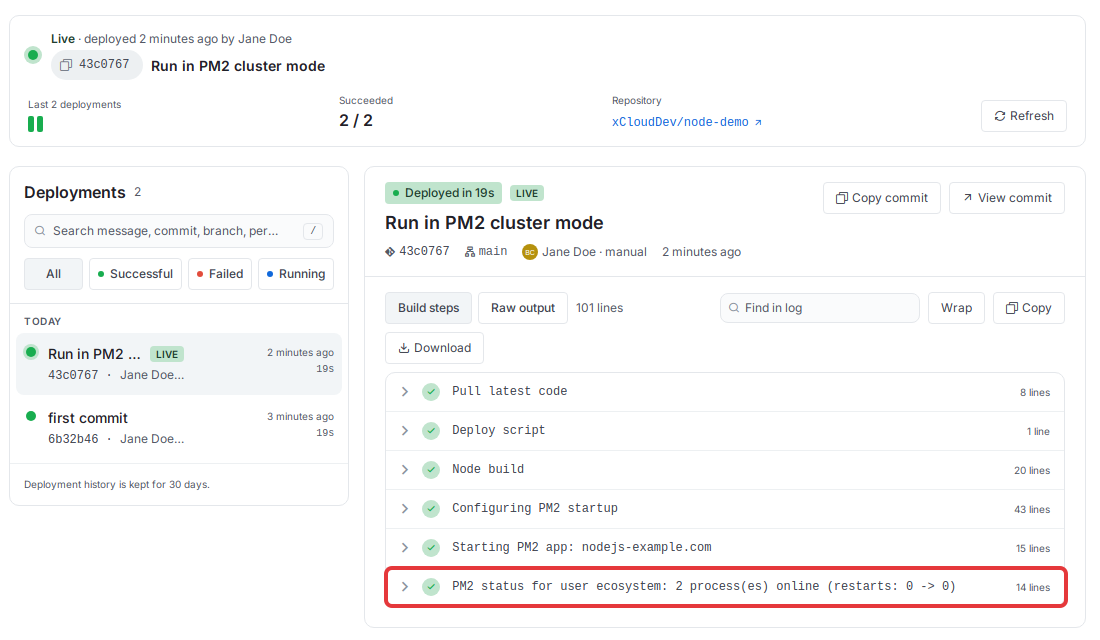
Open the step just before Configuring PM2 startup (or the full log) to see the file that was used. It says Using existing ecosystem config: followed by the path to your file. If it says Generating xCloud-managed ecosystem.config.cjs in site root. instead, xCloud did not find your file in the repository root.
For more about the deployment log, see View Git deployments.
Step 4: List the processes with the Command Runner
- Open the site, then go to Tools → Commands and click Run Custom Command.
- In Command, add
pm2 listafter thecdline that is filled in for you, so it readscd /var/www/example.com && pm2 list(with your site’s folder). Keep the site user in the User field, because PM2 runs under that user. - Click Run Command.
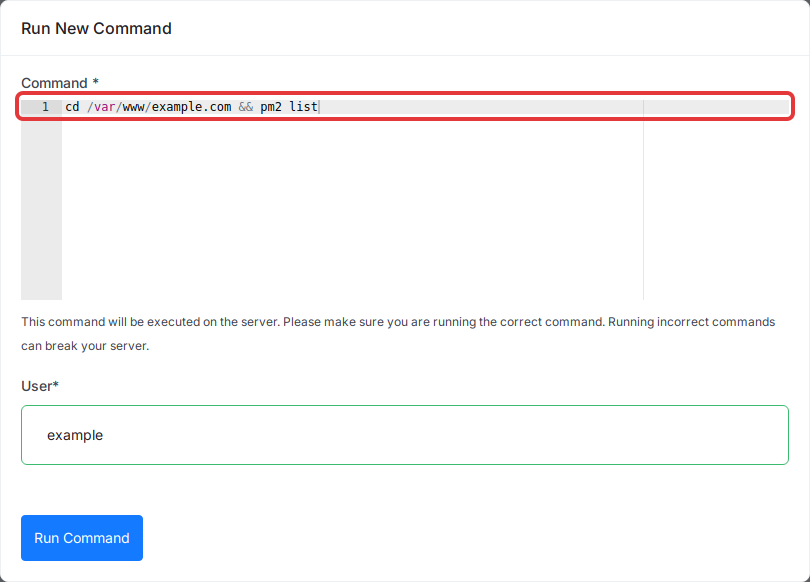
When the command shows Completed, click View. You should see one row per instance, each with the mode cluster and the status online:
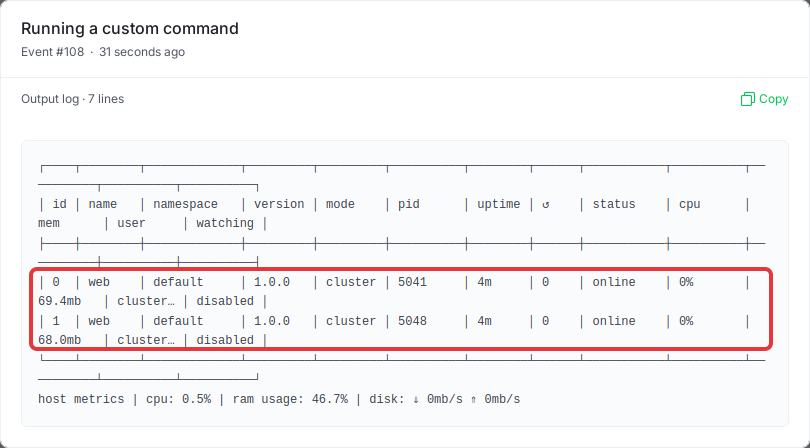
You can run the same pm2 list in the web terminal or over SSH as the site user.
Step 5: Read the logs of all processes
Go to Monitoring → Logs and select PM2 Log. It shows the output of every process in your file, so with two instances you see each startup message twice.
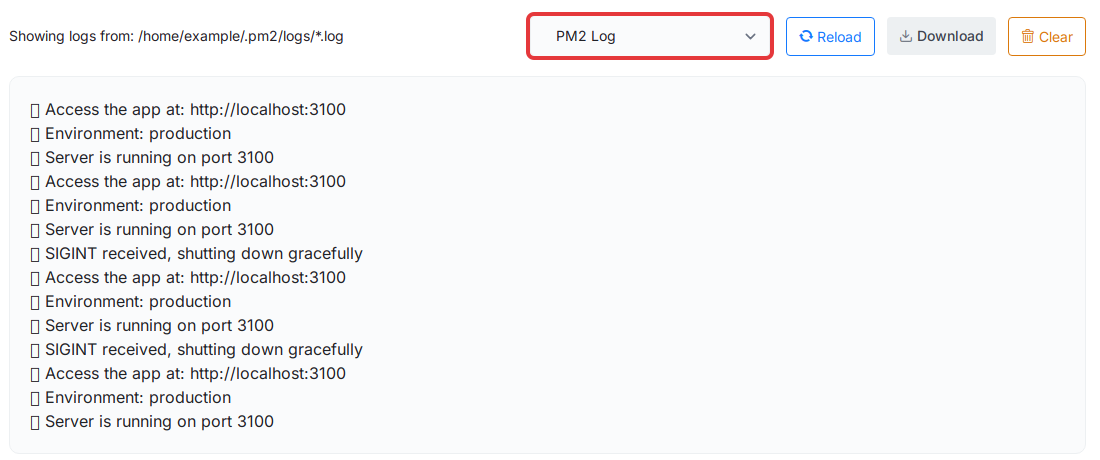
See How to view logs and events for the other logs.
If the deploy fails
When a process crashes or keeps restarting right after the start, the deploy fails with:
ERROR: the user ecosystem process set is not stable (...)
Every process defined by the custom ecosystem config must stay online, keep its name, and restart at most once during the health window.
The deployment log then prints the last PM2 log lines. Common causes:
- A shell command in
script, such asnpm start. Pointscriptat your Node.js entry file. - A fixed port in the file or the code. Read
process.env.PORT. - A missing value from
.env, because the app does not load.envitself (Step 2). - Not enough memory for all instances. Lower
instancesto a number, or use a larger server. You can watch the site’s usage in Monitor the RAM, CPU and disk usage of a site.
Fix the cause, push, and deploy again.
Normal deploys and Release mode
A normal deploy stops the old processes and then starts the new ones from your file, so visitors can get errors for a few seconds. Cluster mode does not change that.
To deploy without downtime, turn on Release mode. Each release then starts from your root ecosystem file, and the cluster mode and instances settings are kept. xCloud waits until every instance of the new release is online before it moves traffic. In Release mode:
- The web app can’t have a fixed
PORT, a port flag inargsornode_args, orcron_restart. instance_varcan’t bePORT,HOSTorHOSTNAME.- The deploy script may keep one line that only reloads the root file, such as
pm2 startOrReload ecosystem.config.cjs --update-env. Otherpm2commands are refused.
Read Zero-downtime deployments for Node.js apps to set it up, and Release mode messages and fixes for every message.
Frequently asked questions
Is there a setting in the xCloud dashboard for the number of PM2 instances?
No. You set cluster mode and the number of instances in your own ecosystem file in the repository root. xCloud uses that file on every deploy.
Which port should each cluster process listen on?
All of them listen on the same port. xCloud passes the site’s Application Port to PM2 as PORT, and PM2 shares it across the processes. Read process.env.PORT in your app and don’t set PORT in the ecosystem file.
Why did my ecosystem file disappear after a deploy?
A deploy resets the site folder to your Git branch, so a file you only created on the server is removed. Commit the ecosystem file to the repository instead.
Does cluster mode work with Release mode?
Yes. In Release mode each release starts from your root ecosystem file with its cluster mode and instances settings, and xCloud waits until every instance is online before it switches traffic.
If you run into any issues while setting up PM2 cluster mode, feel free to reach out to our support team.