

Turn File Access On, Timed or Off in xCloud
Updated November 27, 2026 · 6 min read
File access decides when anyone can open the files of your sites from xCloud. Set it to On (always open), Timed (closed until someone opens a short access window) or Off (closed). You can set it for your whole team, for one server or for one site, and a stricter setting on a server or site always wins.
File access is in beta and rolling out to teams. If your team does not have it yet, ‘Profile’ → ‘Customization’ → ‘Access File Manager’ still shows the older switch that turns the File Manager off after a set time. That switch is explained in global settings for File Manager and Adminer.
What each mode does
| Mode | Files are | Where you can set it |
|---|---|---|
| On | Open at any time for everyone with file permission | Team |
| Same as team / Same as server | Whatever the level above allows, never more open | Server, site |
| Timed | Closed until a person opens an access window. The window closes by itself after the time you chose | Team, server, site |
| Off | Closed for everyone | Team, server, site |
The mode covers every way xCloud opens your files: the File Manager, the Classic file manager, Server Files, the Public API and xCloud MCP file tools. Your own SFTP and SSH logins are not part of File access.
A window can last 3 hours, 6 hours, 12 hours, 1 day, 1 week or 1 month. A server or site can’t choose a longer window than its team or server allows.
Who can change it
- Anyone with file permission for the team, server or site can make File access stricter (for example, On to Timed, or Timed to Off). xCloud does not ask for a password for this.
- Only the team owner or a team admin can open it up (for example, Off to Timed, or a longer window). xCloud asks them to confirm with their password or a two-factor code first.
- Other team members can see the setting but not change it. See team roles and permissions.
Step 1: Set File access for the whole team
Go to ‘Profile’ → ‘Customization’ and find the ‘Access File Manager’ card. Choose On, Timed or Off. For Timed, pick how long a window stays open in ‘Open for’. Click ‘Save Settings’.
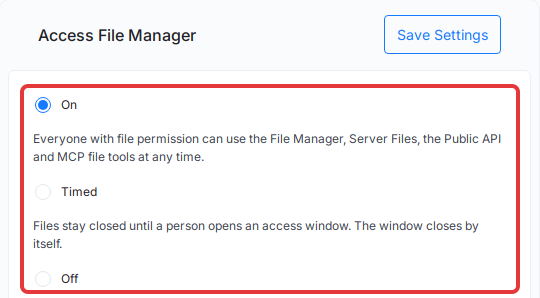
You see “File access saved.” The team setting applies to every server and site that is set to Same as team.
Step 2: Set File access for one server
Open the server and go to ‘Others’. In the ‘File access’ card, choose Same as team, Timed or Off. For Timed, pick a window length in ‘Open for’, then click ‘Save’.
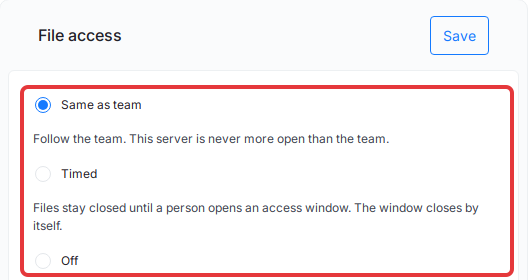
The line under the options says what applies now, for example “On: files are open.” or “Off because the team is Off.”
Step 3: Set File access for one site
Open the site and go to ‘Site Settings’. In the ‘File access’ card, choose Same as server, Timed or Off. For Timed, pick a window length in ‘Open for’, then click ‘Save’.
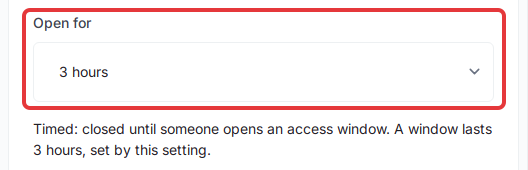
The card confirms the result, for example “Timed: closed until someone opens an access window. A window lasts 3 hours, set by this setting.”
Step 4: Confirm it is you when you open up access
When a change makes File access more open, xCloud shows ‘Confirm to open up File access’. Enter your Password, or switch to 2FA code and enter the code from your authenticator app. Click ‘Confirm’ and the setting saves.
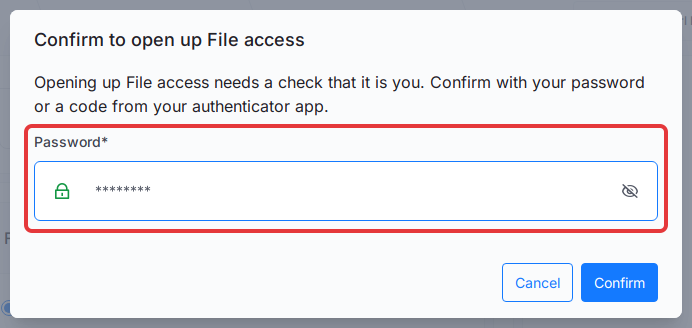
After you confirm, you can make more changes for 15 minutes without being asked again. If your account has no password and no two-factor authentication, xCloud asks you to set one up in your profile first. See two-factor authentication.
Step 5: Open an access window on a Timed site or server
On a Timed site, go to ‘Access Data’ → ‘File Manager’. On a Timed server, open Server Files. The page says “File access is closed for this site.” (or for this server). Click ‘Open for 3 hours’ (the button shows the length you chose).

The page now says “File access is open until” with the time it closes. You can work with your files until then.
Step 6: Close the window early
When you are done, click ‘Close now’ on the same page. If you don’t, the window closes by itself at the time shown.

You see “File access is closed.” The next person who needs files opens a new window.
See who changed File access
Every ‘File access’ card has a ‘Recent changes’ list. On sites and servers that use the new File Manager or Server Files, the ‘Activity’ tab also shows a ‘File access log’. Each line says what changed (for example “Changed from Timed (3 hours) to Off”, “Opened an access window” or “The access window ended”), who did it and when, and whether it came from the Public API or MCP.
Clones, staging copies and server transfers
- A cloned site or a staging copy starts with the same mode and window length as the site it came from. See clone a site and staging environments.
- A transferred server keeps its setting and its sites’ settings in the new team. Any open access window closes during the transfer.
If something does not work
- “File access is turned off.” The team, server or site is set to Off. A team owner or admin can change it in ‘Profile’ → ‘Customization’ or in the server or site settings.
- “Only the team owner or a team admin can open up File access.” Your role can make the setting stricter but not more open. Ask a team owner or admin.
- “Your server allows 1 day at most.” A site can’t choose a longer window than its server. Pick that length or less, or change the server first.
- The Classic file manager could not be removed right away. When you close a window, xCloud removes the Classic file manager from the server. If the server can’t be reached at that moment, the page tells you when it stops by itself, and xCloud keeps trying to remove it.
For developers
The Public API can read the mode and make it stricter, never more open: GET and PATCH on /api/v1/team/file-access, /api/v1/servers/{server}/file-access and /api/v1/sites/{site}/file-access. A request that would open up access is refused; open it up and open windows from the dashboard. xCloud MCP follows the same rules.
Frequently asked questions
What does Off block?
Off closes files on the File Manager, the Classic file manager, Server Files, the Public API and xCloud MCP file tools. SFTP and SSH are separate and keep working with your own keys and passwords.
Why does xCloud ask for my password when I change File access?
Opening up File access (for example from Off to Timed, or from Timed to On) needs a check that it is you. Confirm with your account password or a code from your authenticator app. Making File access stricter never asks.
Who can open an access window?
Anyone in your team who has file permission for that server or site can click Open for on a Timed server or site. Only the team owner or a team admin can change a setting to a more open one.
Does a cloned site or a staging copy keep the setting?
Yes. A clone or staging copy starts with the same File access mode and window length as the site it was copied from. A server you transfer to another team keeps its setting too, but any open access window closes.
If you run into any issues with File access, feel free to reach out to our support team.