

Deploy a Next.js App on xCloud (Git, SSR, env vars, zero downtime)
Updated November 29, 2026 · 7 min read
You can run a Next.js app on your own server with xCloud: connect the Git repository, and xCloud detects Next.js, fills in the build, start command and port, and runs the app with PM2 behind Nginx. Server-side rendering (SSR), API routes and a static export all work. This guide walks through a first deploy, environment variables, and zero-downtime deploys.
For the general Node.js flow (package managers, logs, 502 errors), see How to deploy a Node.js application. For what Next.js hosting on xCloud includes, see Next.js hosting.
Before you start
- An xCloud server with Nginx. Release mode (zero-downtime deploys) for Node.js sites works on Nginx servers only.
- Node.js installed on the server, in a version your Next.js release supports. See How to change the Node.js version.
- A Git repository with
nextinpackage.jsonand these scripts:
{
  "scripts": {
    "build": "next build",
    "start": "next start"
  }
}- Access to the repository if it is private (GitHub connects in one click; other Git hosts work over SSH).
SSR or static export: what xCloud picks
xCloud reads package.json and next.config.js, next.config.mjs or next.config.ts and chooses the serving mode for you:
| Your Next.js app | Serving mode xCloud picks | What runs |
|---|---|---|
| Default build (SSR, API routes, middleware, ISR) | SSR (Node process) | npm run start with PM2 on the Port you set; Nginx sends visitors to it |
output: 'export' in next.config.* |
Static build, Web root out |
No Node process; Nginx serves the exported files |
Pick SSR unless you have a reason not to. A static export can’t use server features such as API routes, server actions or image optimization at request time.
Step 1: Open Deploy via Git
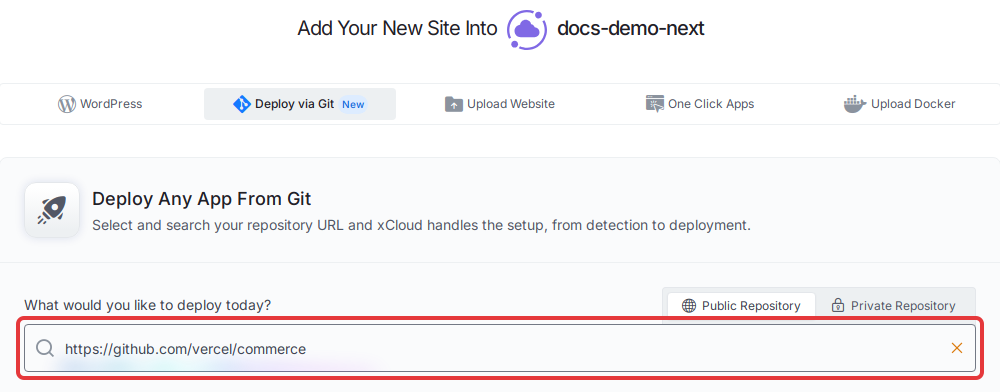
Open your server, click Add New Site and choose Deploy via Git. Paste the repository URL in the search box (for example https://github.com/your-name/your-next-app) or pick a repository from your connected Git account.
Step 2: Check the detected app type
After you pick the repository, xCloud shows Detecting your app… and then fills in the form. For a Next.js repository, Native app shows the tag Next.js and App Type is set to Node.js. The note “Detected by AI, so it can be off. Change the type if needed.” reminds you to check it.
If the type is wrong, choose Node.js yourself. Then set the Branch you want to deploy, and use the free staging domain for the first deploy, or your own domain.
Step 3: Review Build & serving
In Build & serving, check the three values xCloud filled in:
- Serving mode: SSR (Node process) for a normal Next.js app, Static build for
output: 'export'. - Start command:
npm run start, which runsnext start. - Port: the port the app listens on, for example
3000.
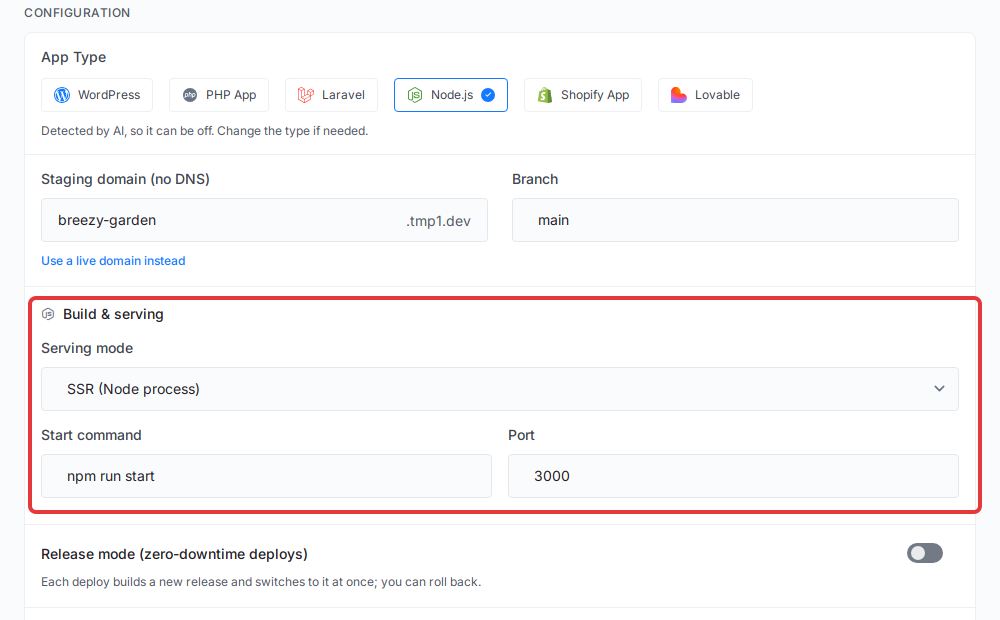
next start reads the PORT environment variable, so you don’t need a -p 3000 flag in the start script. Keep it out if you plan to use Release mode: Release mode refuses a start command that fixes the port.
Step 4: Turn on Release mode (optional)
Switch on Release mode (zero-downtime deploys) to deploy without downtime from the first release. Each deploy builds a new release, starts it on a second port, and switches visitors to it only after it answers. You can roll back to an earlier release.
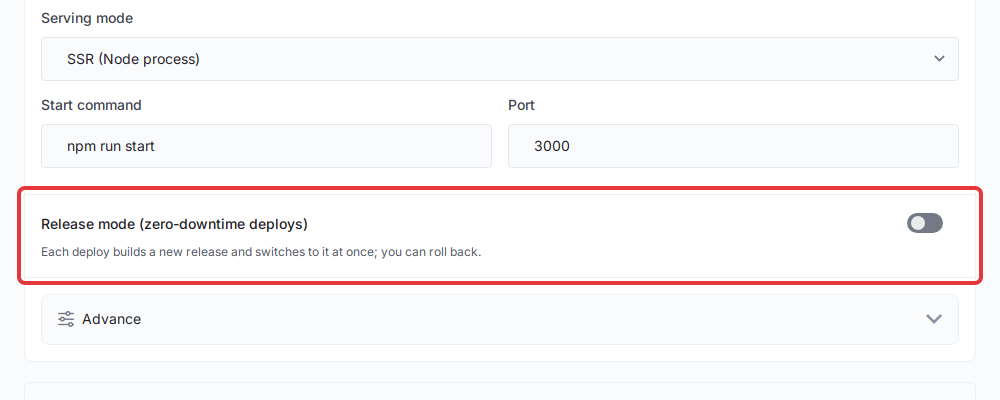
Release mode needs a repository without a committed .env file. You can also turn it on later in ‘Site’ → ‘Git’. See Zero-downtime deployments for Node.js apps.
Step 5: Add environment variables
Open Advance. Check the Node.js Version; the line under it names the package manager xCloud found, for example Package manager: pnpm 9 (found in the repository). Then paste your variables in Environment file (.env), one KEY=value per line:
NODE_ENV=production
DATABASE_URL=postgres://demo-user:[email protected]:5432/app
NEXT_PUBLIC_SITE_URL=https://example.com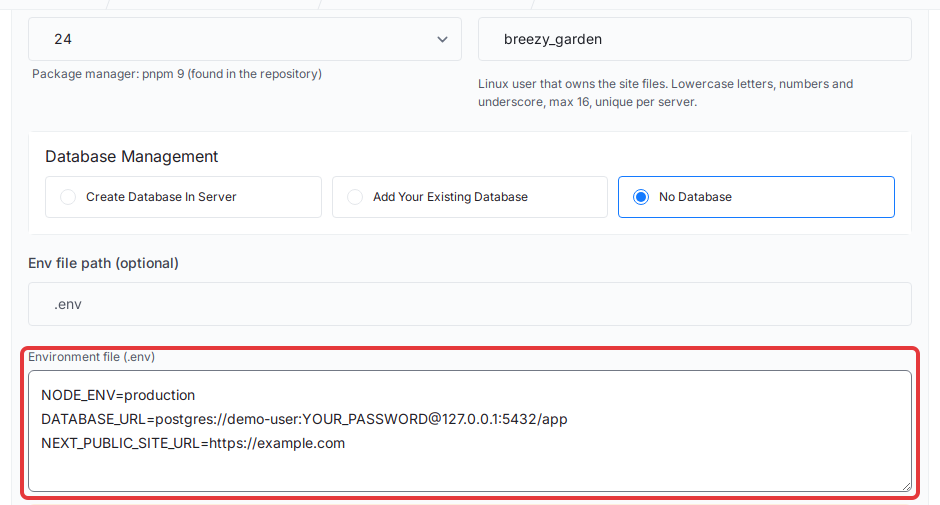
Next.js reads .env itself, at build time and when the app starts. Two kinds of variables behave differently:
NEXT_PUBLIC_variables are written into the browser code duringnext build. After you change one, deploy again.- Server-only variables (database URLs, API keys) are read when the app starts, so restart the app or deploy again after you change one.
If your .env points at a database while Database Management is set to No Database, xCloud warns you on the form. The site still deploys; choose Create Database In Server or Add Your Existing Database if you want xCloud to manage that database.
Keep .env out of Git. xCloud keeps the .env in the site’s root folder across deploys. See Environment variables and Git deployments.
Step 6: Check the build and deploy script
The Build & deploy script runs after every deployment: xCloud pulls the latest code, runs this script, then restarts the app with PM2. xCloud fills it with the install and build commands for the package manager your repository uses. For a pnpm repository:
pnpm install --frozen-lockfile
pnpm run build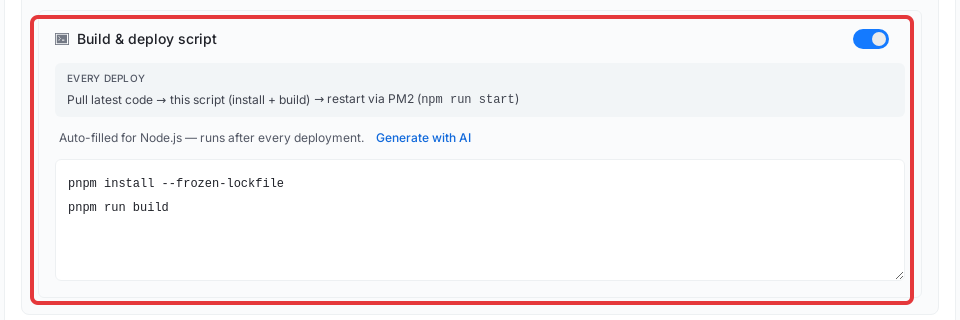
With npm the script is $XCLOUD_NPM install --no-audit --no-fund and npm run build; Yarn and Bun get their own install commands. xCloud picks the package manager from packageManager in package.json or your lockfile. Then click Deploy and wait for the deployment to finish.
Step 7: Check the live app
Open the staging or live domain. Load a page that renders on the server and, if your app has one, an API route such as /api/health. If the page doesn’t load, open the site’s Monitoring → Logs and select PM2 Log for the error next start printed.
Add your own domain and Cloudflare
When the staging deploy works, move the site to your domain with How to go live from a staging domain. If your DNS is on Cloudflare, see Using xCloud with Cloudflare for DNS management, then turn on HTTPS with Enable HTTPS and configure SSL certificates. Set NEXT_PUBLIC_SITE_URL and any auth callback URLs to the final domain, then deploy again.
Fix common Next.js deploy errors
| Symptom | Cause and fix |
|---|---|
| Log says “You are using Node.js … For Next.js, Node.js version … is required” | The server’s Node.js is too old for your Next.js release. Update Node.js on the server, then deploy again. |
next build runs out of memory |
Large builds need more RAM. Move to a server with more memory (or resize it at your provider; see how to upgrade your server), then deploy again. |
| Site returns 502 after deploy | The app isn’t answering on the Port at 127.0.0.1. Check the PM2 Log, make sure the start script is next start with no other fixed port, and confirm the port in SSR Configuration. |
A changed NEXT_PUBLIC_ value doesn’t show |
It is fixed at build time. Deploy again. |
| Static export shows 404 for every page | The site is in SSR mode, or the web root isn’t out. For output: 'export', use Static build with Web root out. |
| Release mode refuses the start command | Remove -p/--port or PORT= from the start command and let next start read PORT. |
For deploys that get stuck or don’t start, see Troubleshooting Git deployments.
Frequently asked questions
Does xCloud support Next.js server-side rendering?
Yes. A Next.js app deploys as a Node.js site in SSR (Node process) mode. xCloud runs your start script, usually next start, with PM2 and sends visitors to it through Nginx, so server-rendered pages, API routes and middleware run as they do locally with next start.
Can I host a Next.js static export on xCloud?
Yes. When next.config.js, next.config.mjs or next.config.ts sets output: ‘export’, xCloud picks Static build with the web root out. No Node process runs, and Nginx serves the exported files.
Do NEXT_PUBLIC_ variables need a redeploy after I change them?
Yes. Next.js writes NEXT_PUBLIC_ values into the browser code at build time, so a new value only shows after the next deploy. Server-only variables are read when the app starts, so restart the app or deploy again after you change one.
Which port should a Next.js app use on xCloud?
Use the Port you set in Build & serving, for example 3000. next start reads the PORT environment variable, so keep the start script as next start with no fixed -p flag. Release mode refuses a start command that fixes the port.
Related guides
- How to deploy a Node.js application
- Zero-downtime deployments for Node.js apps
- How to roll back a deployment
- Run a Node.js app on all CPU cores with PM2 cluster mode
If you run into any issues deploying your Next.js app, feel free to reach out to our support team.